Computer network problems can prevent websites from loading, disconnect Wi-Fi or Ethernet, or cause unstable internet access even when your router appears to be working normally. These issues may be caused by loose connections, outdated network adapter drivers, incorrect TCP/IP settings, damaged network configuration, or firewall restrictions. This guide explains five practical ways to resolve computer network issues, including checking physical connections, updating network drivers with Driver Sentry, reviewing network settings, resetting IP and DNS configuration, and checking Windows Firewall settings to restore a stable connection.
1. Check physical connections
If using a wireless network, please ensure that the wireless adapter is not disabled.
Check if the power supply of the router and modem is working properly.
Try restarting the router and modem, wait a few minutes, and then try connecting again.
2. Check network settings
If there are no issues with the driver update, then the next step is to check if the network settings on the computer are correct. Incorrect network configuration may result in inability to connect.
Open "control Panel">"Network and Internet">"Network and Sharing Center", and select "Change Adapter Settings" from the left menu.
Right click on the problematic network connection, such as Ethernet or Wi-Fi, and select the "Properties" tab.
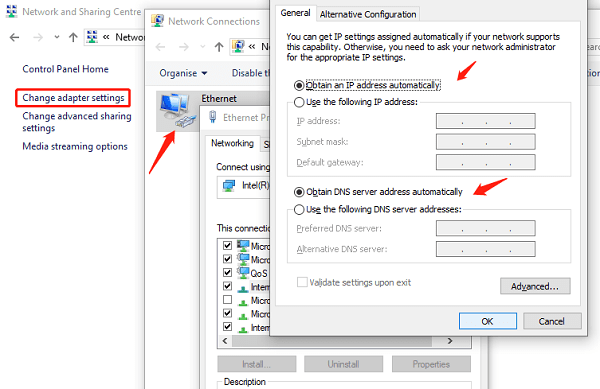
Find "Internet Protocol Version 4 (TCP/IPv4)" under the "Network" tab and double-click.
Select "Automatically obtain IP address" and "Automatically obtain DNS server address", and then click "OK".
3. Reset network settings
Sometimes, resetting network settings can solve problems caused by software conflicts or configuration errors.
Type "Command Prompt" in the search bar of your computer and right click on "Run as administrator".
Enter the following command and press Enter to execute:
ipconfig /release
ipconfig /flushdns
ipconfig /renew
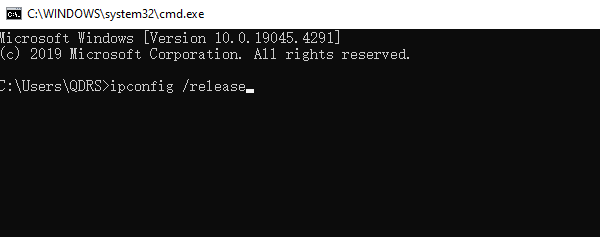
After closing the command prompt window, restart the computer.
4. Update network card driver
Outdated network card drivers may also cause unstable or completely disconnected network connections. To ensure that your network adapter driver is at the latest version, you can use Driver Sentry to update the network card driver with just one click, saving you tedious steps.
Visit the official website of Driver Sentry to download the latest version of the software and receive installation prompts to complete the installation process.
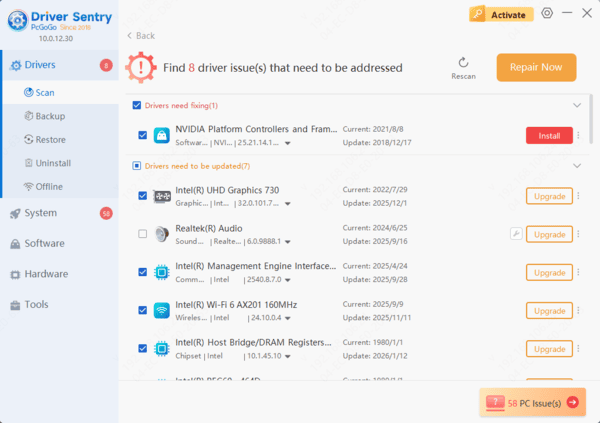
Open Driver Sentry, enter the "Drivers" interface, and click "Scan".
Look for any issues with the network card drivers in the scanned results, and if found, select the "upgrade" option.
After waiting for the update to complete, restart the computer for the new network card driver to take effect properly.
5. Check firewall settings
Firewalls sometimes prevent some applications from accessing the Internet, which may also affect your network connection.
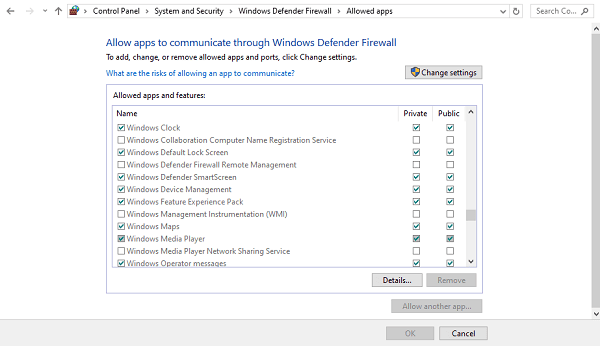
Open "Control Panel">"System and Security">"Windows Defender Firewall", select "Allow apps to pass through the firewall".
Check if any applications have been incorrectly blocked and make appropriate adjustments.
Frequently Asked Questions
Why is my computer connected to Wi-Fi but has no internet?
The router may be offline, or Windows may have invalid IP or DNS settings. Restart the modem and router, then renew the IP address and flush the DNS cache.
Should I use automatic IP and DNS settings?
For most home networks, yes. Select automatic settings unless your ISP, workplace, or network administrator provided a static IP address or custom DNS configuration.
What if every device has the same connection problem?
The computer is probably not the cause. Restart the modem and router, inspect their cables and status lights, and contact your internet service provider if the outage continues.
By following these steps, you should be able to effectively solve the problem of computer network disconnection. If the problem persists, seek professional technical support. Regularly update computer drivers to maintain optimal performance.