Seeing a "Known issues with graphics driver" warning when launching a game, editing videos, or running graphics-intensive software usually means the installed GPU driver is incompatible, unstable, or no longer recommended for the application. You may also experience crashes, visual glitches, black screens, or reduced performance along with the warning. Fortunately, this problem can often be resolved without replacing your graphics card. The methods below will help you update, roll back, or reinstall the graphics driver and check other Windows compatibility issues that may be triggering the warning.
Method 1: Rollback Graphics Driver
Press Windows + X, select Device Manager, and open it.
In Device Manager, expand the Display Adapters section, right-click your graphics card, and select "Properties".
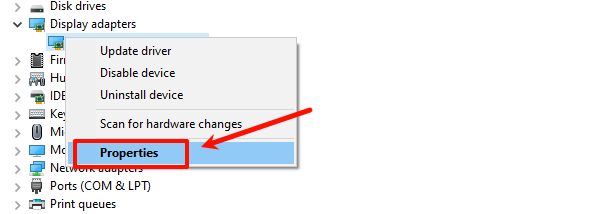
Go to the Driver tab and click the "Rollback Driver" button. If it's grayed out, no previous version is available.
Select a reason for rolling back the driver and confirm.
Restart your computer to apply the changes.
Method 2: Reinstall Graphics Driver
Press Windows + X to open Device Manager.
Expand Display Adapters, right-click your graphics card, and choose "Uninstall Device".
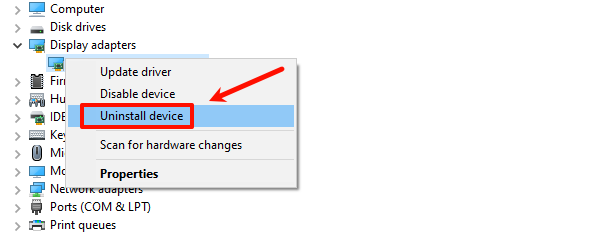
Check the option "Delete the driver software for this device", and click "Uninstall".
After uninstallation, restart your computer. The system may install a default driver automatically.
To manually install the latest driver, visit NVIDIA's official website, search for your graphics card, and download the driver compatible with your operating system.
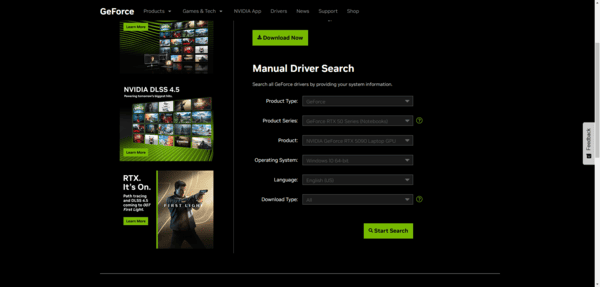
Run the downloaded driver file and follow the on-screen instructions to complete the installation.
Restart your computer to ensure the driver is properly installed.
Method 3: Update Graphics Driver
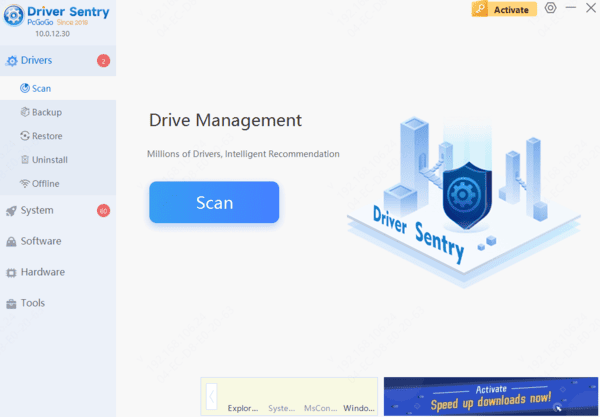
Updating the driver is important step in resolving graphics driver issues. It's recommended to use Driver Sentry to automatically detect and update drivers, saving time and avoiding the risk of installing incorrect drivers.
Click the download button to get the latest version of Driver Sentry. Once installed, open the software and click "Scan".
After scanning, it will show which drivers need to be updated. Locate your NVIDIA graphics driver in the results and click "Update".
After the update, it's recommended to restart your computer to ensure the new driver takes effect.
Method 4: Use Graphics Card Compatibility Mode
Locate the shortcut of the problematic application or game, right-click it, and choose "Properties".
In the "Compatibility" tab, check "Run this program in compatibility mode".
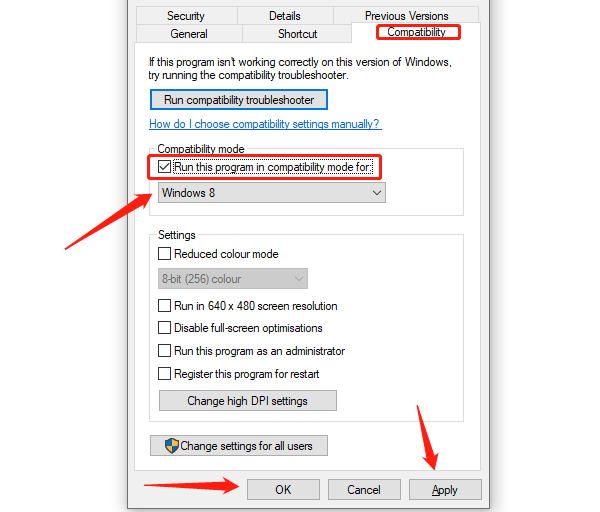
Select an older version of Windows (such as Windows 7 or Windows 8) from the drop-down menu, then click "Apply" and confirm.
Restart the application and see if the issue is resolved.
Method 5: Check for System Updates
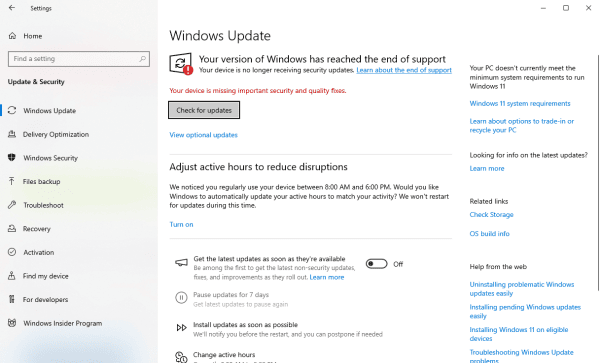
Press Windows + I to open the Settings menu and click "Update & Security".
Go to the "Windows Update" section and click "Check for updates". The system will search for available updates.
If updates are found, click "Download and install".
If prompted to restart, follow the instructions to apply the updates.
Frequently Asked Questions
Why does the warning appear in only one application?
That application may flag a specific driver version because of a known issue. Check its warning text or support notes for the affected versions before changing a driver that works elsewhere.
Will Windows compatibility mode fix a graphics driver warning?
Usually not. Compatibility mode changes how Windows runs the application; it does not replace the GPU driver. Use it only when the application itself has an older Windows compatibility problem.
What if Device Manager's "Roll Back Driver" button is unavailable?
Windows has no previous driver version available through that button. Download a known working version for your exact GPU and Windows version from NVIDIA, AMD, Intel, or your PC manufacturer.
Conclusion
A "Known issues with graphics driver" warning usually indicates a compatibility problem rather than a failing graphics card. Start by installing the driver version recommended by the game or application, or roll back if the warning appeared after a recent update. If necessary, perform a clean driver reinstall, use Driver Sentry to identify compatible updates, and install available Windows patches. Restart the PC after each driver change and test the affected software to confirm that performance and stability have returned to normal.