






Entering the wrong iPhone passcode too many times can quickly turn a simple memory lapse into an "iPhone Unavailable" or "Security Lockout" screen. Once the device reaches this state, repeatedly guessing the passcode can make the lockout longer and may eventually leave restoring the iPhone as the only practical option. Fortunately, Apple provides official recovery methods, and guided desktop tools such as PcGoGo Screen Unlock can simplify the restoration process for users who find Recovery Mode difficult to navigate. This guide explains what happens after repeated incorrect passcode attempts, the available ways to regain access to your iPhone, what happens to your data, and how to reduce the risk of another lockout.
What Actually Happens When You Enter the Wrong Passcode Too Many Times
Apple's lock escalation works on a timer system. After the sixth wrong attempt, your iPhone locks for one minute. After the seventh, five minutes. After the eighth, fifteen minutes
By the tenth attempt, most iPhones either display a permanent "iPhone Unavailable" screen or — if the Erase Data setting was enabled — wipe themselves automatically
Option 1: Restore Through Recovery Mode Using a Computer
First, turn off the iPhone completely: On Face ID models, press and hold the side button and either volume button simultaneously until the power slider appears, then drag it. On Touch ID models with a Home button, press and hold the top or side button until the slider appears
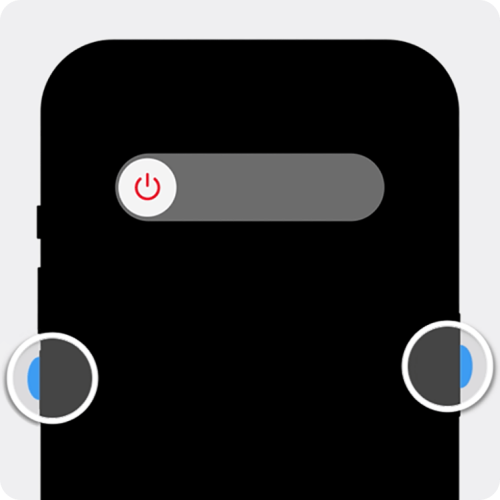
Once the phone is fully off, hold the correct button for your model while plugging the USB cable into the computer. On Face ID iPhones, hold the side button. On iPhone 8 and iPhone SE (2nd and 3rd generation), hold the side button. On iPhone 7 and 7 Plus, hold the volume down button. On iPhone 6s and earlier with a physical Home button, hold the Home button. Keep holding until the recovery mode screen appears — a black screen with a cable icon pointing toward a laptop image

Open Finder or iTunes. Your iPhone should appear in the sidebar or at the top of the screen. You will see a prompt with two options: Update and Restore. Click Restore. The software will download the latest version of iOS and install it clean. This process can take ten to twenty minutes depending on your internet connection. Do not unplug the phone during this time
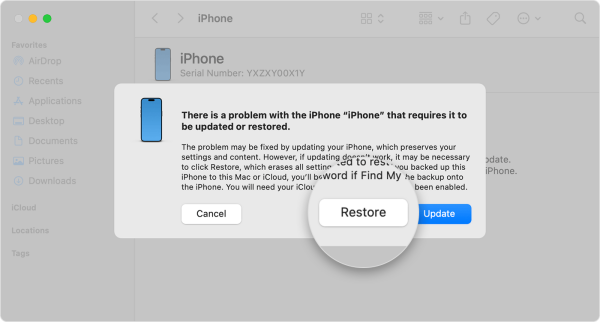
Once it finishes, your iPhone restarts to the setup screen. If you have an iCloud or iTunes backup from before the lockout, you can restore your data during setup. If you never backed up, the data is gone — the passcode encryption that locked you out also protects the data from recovery
Option 2: Use PcGoGo Screen Unlock for a Faster Process
Recovery mode works, but for most people it involves hunting down a cable, updating iTunes, and walking through several steps they have never done before. PcGoGo Screen Unlock is designed to simplify that process into a guided workflow that is faster and harder to get wrong.
Download PcGoGo Screen Unlock from the official PcGoGo website and install it on a Windows PC. Open the program and select Unlock Screen Passcode from the main menu, then click Remove Now.
Connect your locked iPhone with a USB cable. The software detects your device model and iOS version automatically. It will then prompt you to download the matching firmware package.
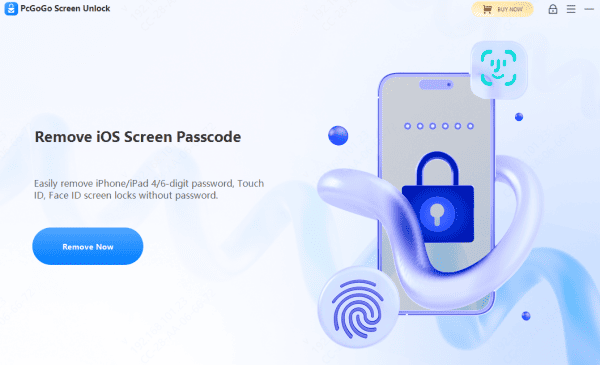
Once the firmware is ready, click Start Removal. PcGoGo Screen Unlock flashes the firmware and removes the passcode, Face ID binding, and Touch ID binding in the process. The phone restarts clean in a few minutes. From there, the setup process is identical to a standard factory restore — you can sign in with your Apple ID and restore from a backup if one exists.
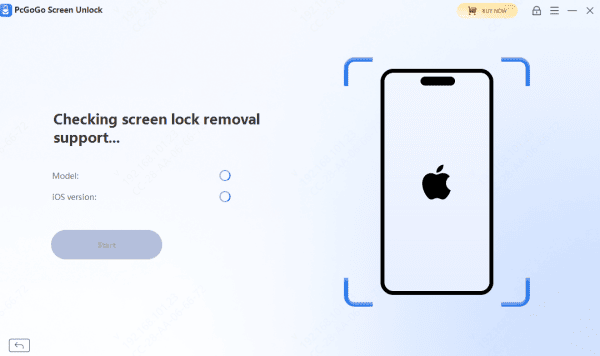
This path is particularly useful if you are uncomfortable with recovery mode's manual button timing, or if previous attempts at recovery mode ended with the phone rebooting before iTunes recognized it.
How to Avoid Getting Locked Out Again
Enable Face ID or Touch ID on your next setup. Biometric unlock means you rarely need to type your passcode at all, which reduces the chance of entering it wrong under pressure. Your passcode should still be strong — six digits minimum — but it does not need to be something you type daily
Turn on iCloud backup under Settings, your name, iCloud, then iCloud Backup. Set it to back up daily over Wi-Fi. If you ever need to restore again, you will not have to start completely from scratch
Write your passcode down and store it somewhere physically secure — not in a Notes app on the same phone. A locked envelope at home is enough. This sounds old-fashioned, but it is the one method that does not depend on remembering




