
Saving Instagram videos on a Windows PC can be useful when you want to keep memorable clips, watch content offline, create personal collections, or back up important videos. However, Instagram does not offer a built-in download button for most videos, making the process less straightforward. Users often need alternative solutions such as dedicated video download software, browser extensions, online tools, or screen recording. This guide introduces several reliable methods to download Instagram videos on Windows, helping you save your favorite content quickly while choosing the approach that best fits your needs.
Method 1: Using Video Download Software
If you want an efficient way to download Instagram videos, it's recommend to use the professional tool PcGoGo Video Downloader. This powerful software supports batch downloads and offers multiple format and resolution options, allowing you to easily obtain high-quality videos.
Click the download button in this article to download and install the software.
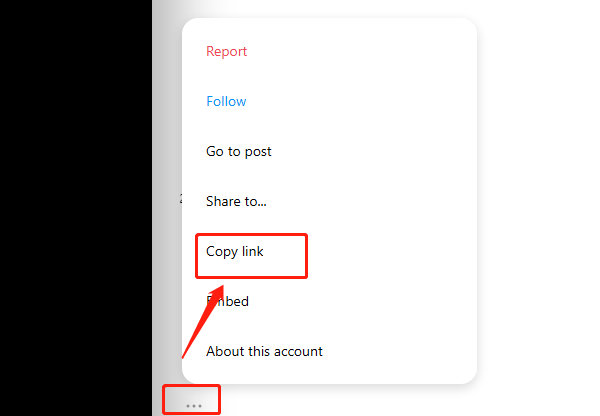
Open the webpage containing the video, click the Share button, and select "Copy Link" to save the video link to your clipboard.
Open PcGoGo Video Downloader, paste the copied video link into the input box, and click the Download button. The software will automatically detect the video and provide download options.
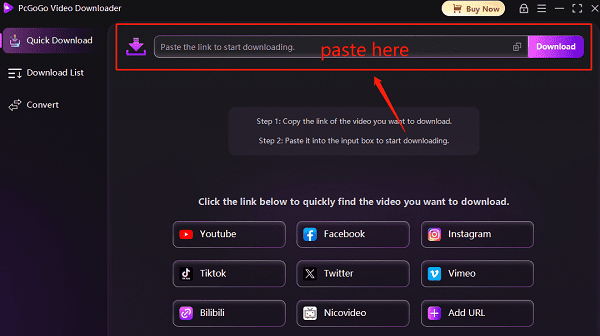
Before downloading, you can choose the video format (such as MP4, AVI, etc.) and quality (such as 1080p, 4K, etc.). Once selected, click Download to start.
If you need to download multiple videos, you can paste multiple links into the software. It supports simultaneous downloads, saving you time.
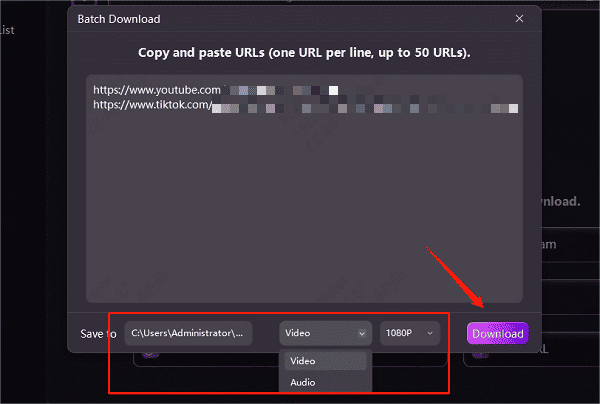
After downloading, you can save the videos to a designated folder for easy access and sharing.
Method 2: Using Browser Extensions
Open the Chrome or Edge browser and go to the extension store.
Search for a reliable video downloader extension, select one with high ratings, and install it.
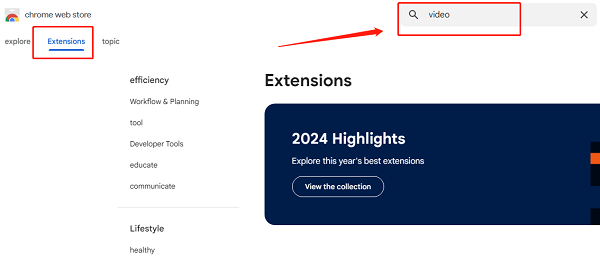
Log in to your Instagram account, find the video you want to download, and play it.
Click the extension icon in the browser toolbar.
Choose the video quality and format, then click Download to save the video to your computer.
Method 3: Using Online Video Download Websites
Open Instagram Web, log in to your account, and find the video you want to download.
Click the "..." icon in the top right corner of the post and select "Copy Link".
Visit a secure and reliable online video downloader.
Paste the video link into the search box and click "Download".
Choose the desired format and resolution, then download the video to your Windows computer.
Note: Online tools may contain ads, so avoid clicking unnecessary pop-ups.
Method 4: Using Windows Game Bar Screen Recording
Press "Win + G" to launch the Windows Game Bar recording tool.
Open Instagram and play the video you want to save.
Click the "Record" button or press "Win + Alt + R" to start recording.
Once finished, the recorded video will be saved in the "Videos" > "Captures" folder.
Note: This method works for any Instagram video, but you may need to manually trim unnecessary parts.
All of the above methods can help you save Instagram videos to your Windows computer. Choosing the right method can improve your download efficiency. If you are looking for the fastest and most efficient download experience, PcGoGo Video Downloader is the ideal choice.