
Steam may occasionally lose its network connection even when the rest of your computer can access the internet normally. When this happens, you might be unable to sign in, access the Store or Community, download games, or use online features. The problem can come from a temporary network failure, an outdated Steam client, unstable network drivers, firewall restrictions, or damaged Steam files. Before assuming Steam's servers are unavailable, try the troubleshooting methods below to identify the source of the connection problem and restore normal access.
1. Check Network Connection
Steam needs a stable network connection to work properly. We can try to open other web pages or applications to see if they can normally access the Internet. If other apps can't connect to the internet either, then the problem may be with the network itself, not Steam.
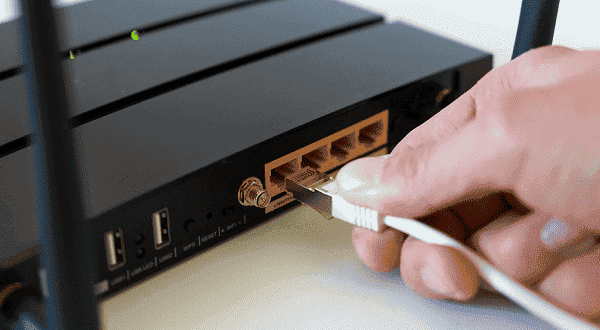
At this point, we can check the connection status of network devices, such as routers and network cables, to make sure they are working properly. At the same time, you can also try to restart the network devices to see if the problem can be solved.
2. Try updating the Steam client
Sometimes, older versions of Steam may have some known issues that prevent it from connecting to the network. We can open the Steam client, click on the "Steam" menu, select "Check for Steam Client Updates" to see if there are available updates. If there is, we follow the prompts to update, and then restart the Steam client to see if the problem can be solved.
3. Update Network Card Drivers
Drivers are the bridge between the device and the operating system, responsible for managing the function of the hardware device and communication with the system. If the driver is outdated or corrupted, it may cause Steam to fail to run properly. Trying to update your network card driver with Driver Sentry is an effective way to solve the problem of Steam not connecting to the network.
Open Driver Sentry on your computer and go to "Drivers" to scan.
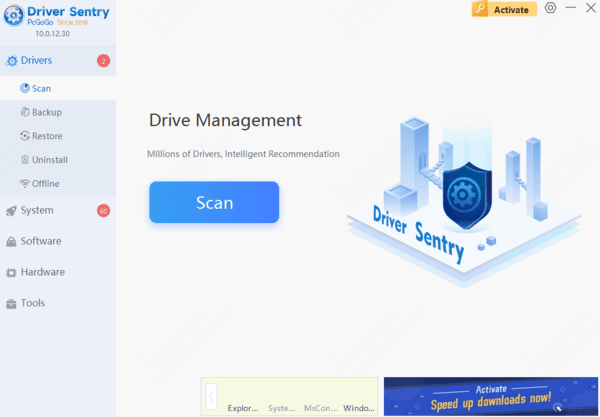
If it shows that your network card driver has a version that needs to be updated, click "Repair Now".
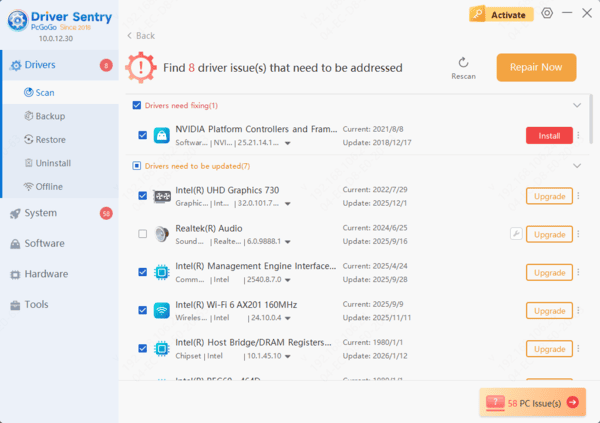
Wait for the completion of the upgrade, restart the computer, so that the new version of the driver normal effect.
4. Check Firewall and Security Software
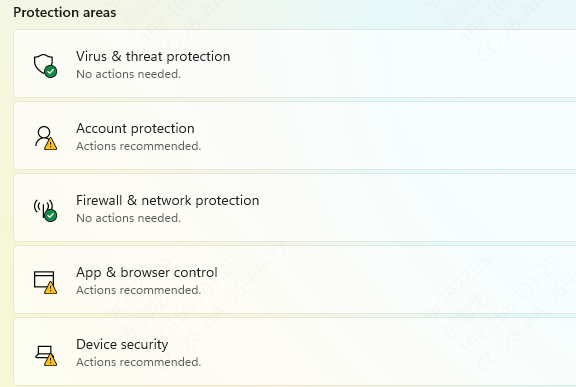
In addition, firewalls and security software may also prevent Steam from connecting to the network. We can check the settings of the firewall and security software to make sure they are not blocking Steam access. If necessary, we can temporarily disable these software to see if that solves the problem. Of course, when disabling these software, we need to make sure the computer is safe from malware attacks.
5. Uninstall and reinstall the Steam client
If none of the above methods can solve the problem, then we can consider uninstalling and reinstalling the Steam client. This method is more troublesome, but sometimes it can solve some problems that are difficult to troubleshoot.
By using these methods, you can likely fix Steam network down. If the issue continues, consider contacting your internet service provider or technical support for help. A stable network connection will improve your online experience.
Frequently Asked Questions
How can I tell whether Steam is down or the problem is on my PC?
Check whether Steam's Store and Community pages load in a browser, then ask someone on a different network whether they can connect. If many users are affected at once, wait and try again before changing your PC settings.
Why does my browser work while the Steam client says it is offline?
The client may be stuck after a connection change. Fully exit Steam, restart it, and check whether a VPN or proxy is interfering. Also confirm that your computer's date and time are correct.
Will reinstalling Steam delete my installed games?
It can, depending on how you uninstall it and where your games are stored. Before reinstalling, back up your Steam library folders and any local saves that are not synced to Steam Cloud.