


Is your Tab key not working on your Windows computer? You may notice that pressing Tab does nothing, the cursor refuses to move between input fields, or keyboard shortcuts such as Alt + Tab stop responding. These problems can interrupt typing, document editing, and everyday computer navigation.
Fortunately, most Tab key issues can be diagnosed with a few simple checks. This guide explains how to fix the Tab key not working on Windows 10 and Windows 11.
Method 1: Test the Tab Key in Different Applications
Start by opening Notepad
Press Tab and check whether the cursor moves forward or inserts indentation.
Next, open a web browser and visit a page containing multiple input fields.
Press Tab to see whether the focus moves between fields.
You can also test Alt + Tab to determine whether Windows recognizes the key combination.
Test with the On-Screen Keyboard
Press Windows + R.
Type osk.
Press Enter.
Method 2: Restart Windows and Reconnect the Keyboard
Restarting Windows may restore normal keyboard functionality.
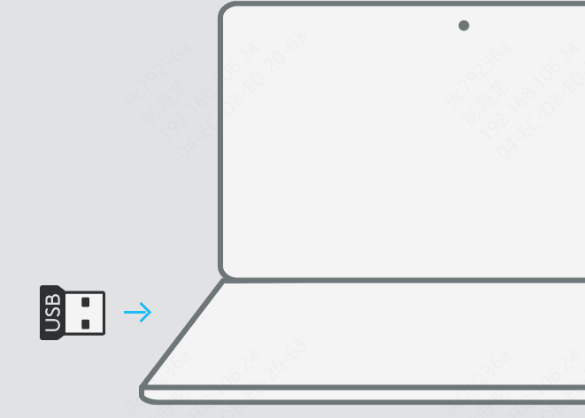
If you use a USB keyboard, disconnect it and reconnect it after a few seconds.
Try another USB port if the problem continues.
Avoid using an unpowered USB hub during troubleshooting.
For wireless keyboards, check the battery level and connection status.
Method 3: Disable Sticky Keys and Filter Keys
Press Windows + I.
Open Accessibility.
Select Keyboard.
Locate Sticky Keys.
Turn it off temporarily.
Locate Filter Keys.
Disable the feature for testing.
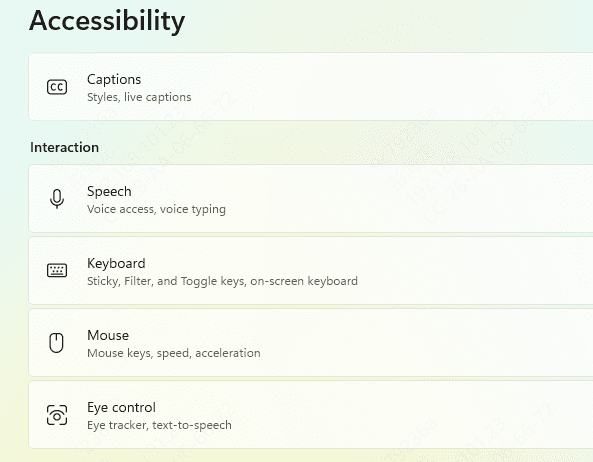
On Windows 10, these options may appear under Settings > Ease of Access > Keyboard.
Method 4: Update or Reinstall Keyboard Drivers
Keyboard drivers allow Windows to communicate with physical input devices.
If a keyboard, USB controller, or related driver becomes corrupted, certain keys may stop responding or behave unexpectedly.
Update Drivers with Driver Sentry
Driver Sentry is a Windows driver management utility that can detect supported missing, outdated, or problematic drivers.
It provides an additional way to check keyboard, USB, and chipset driver issues.
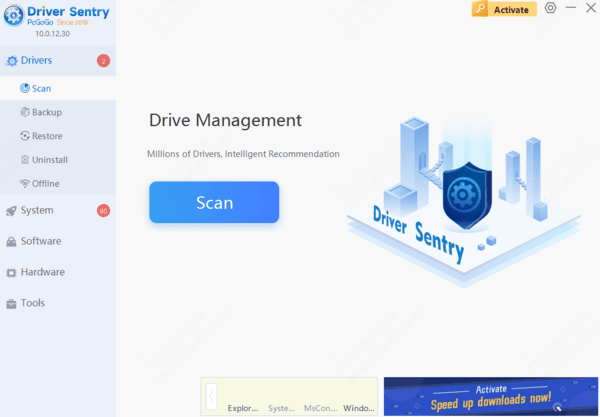
Driver Sentry can assist with supported driver issues, but it cannot repair a physically damaged keyboard.
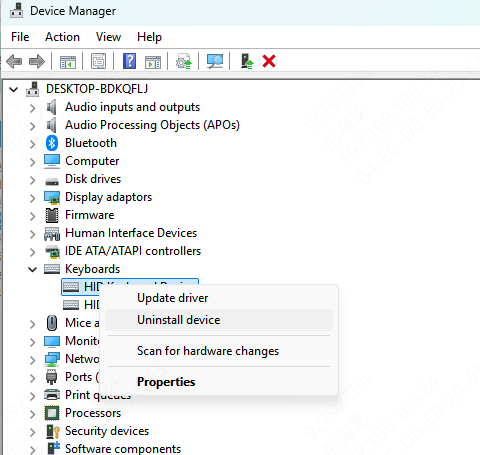
Reinstall Keyboard Drivers Manually
Select Device Manager.
Expand Keyboards.
Right-click the affected keyboard.
Select Uninstall device.
Confirm the action.
Restart Windows.
Method 5: Check Keyboard Remapping and Shortcut Conflicts
Open any installed keyboard customization software.
Review the current key assignments.
Check whether Tab has been remapped or disabled.
Restore its original function if necessary.
Temporarily close the utility.
Test the Tab key again.
Method 6: Run the Windows Keyboard Troubleshooter
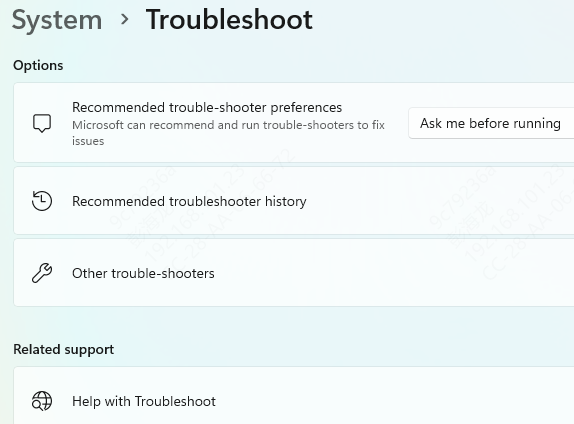
Open Settings.
Select Update & Security.
Click Troubleshoot.
Open Additional troubleshooters.
Select Keyboard if available.
Run the troubleshooter.
Method 7: Check for Physical Keyboard Problems
Inspect the Tab key for visible dust, debris, or damage.
Turn off the computer or disconnect the keyboard before cleaning.
Use manufacturer-recommended cleaning methods and avoid applying liquid directly to the keyboard.
Method 8: Repair Windows System Files
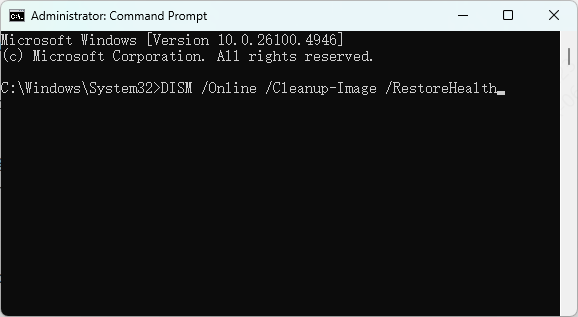
Run DISM
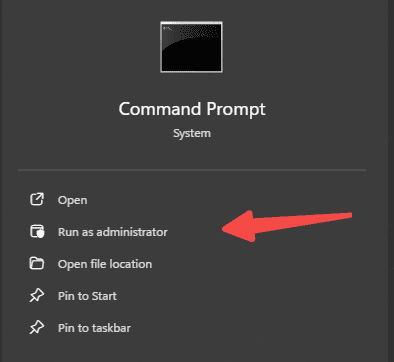
Type cmd in Windows Search.
Select Run as administrator.
Enter the following command:
DISM /Online /Cleanup-Image /RestoreHealth
Press Enter.
Wait for the process to finish.
Run System File Checker
After DISM completes, enter:
sfc /scannow
Wait for Windows to scan and repair supported system files.
Restart the computer afterward.
Method 9: Check for Software Conflicts Using a Clean Boot
Press Windows + R
Type msconfig.
Press Enter.
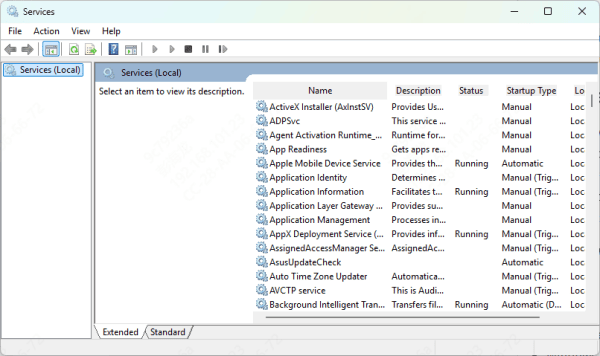
Open the Services tab.
Select Hide all Microsoft services.
Click Disable all.
Conclusion
The Tab key not working on Windows 10 or Windows 11 may result from accessibility settings, keyboard driver problems, software conflicts, or physical damage.
Start by testing the key in different applications, restarting Windows, and checking Sticky Keys and Filter Keys. If the problem continues, review keyboard drivers, remapping utilities, and hardware connections.
Following these troubleshooting methods can help restore normal Tab key functionality and improve keyboard reliability