
If your computer cannot find Bluetooth devices, you may notice that headphones, keyboards, mice, or other wireless accessories do not appear during pairing. The problem can be caused by Bluetooth being disabled, outdated or corrupted drivers, a stopped Bluetooth service, compatibility limitations, incorrect pairing mode, or wireless interference. This guide explains several practical ways to restore Bluetooth detection on Windows, including checking Bluetooth and Airplane Mode settings, updating drivers with Driver Sentry, restarting Bluetooth services, verifying device compatibility, re-entering pairing mode, and reducing interference from nearby wireless devices.
1. Bluetooth is Not Enabled or Properly Activated
One of the simplest reasons why a computer cannot detect Bluetooth devices is that the Bluetooth function is not turned on.
Solution:
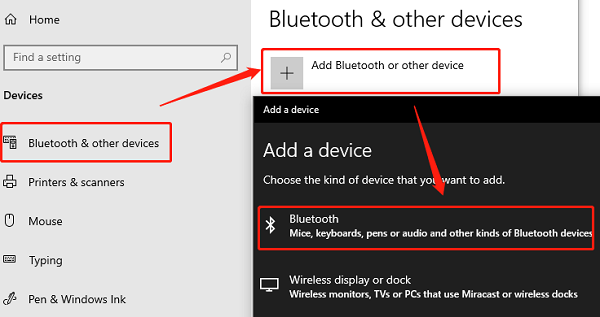
Check the Bluetooth Switch: On a Windows computer, click the "Start" menu, go to "Settings" → "Devices" → "Bluetooth & other devices", and ensure Bluetooth is enabled.
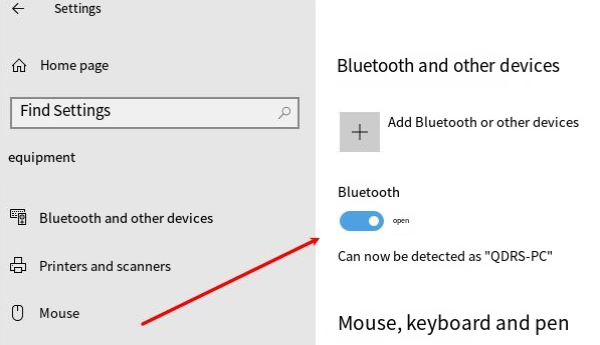
Use Keyboard Shortcuts: Some laptops have a dedicated Bluetooth shortcut key, such as "Fn + a function key". Make sure Bluetooth is turned on.
Check Airplane Mode: If the computer is in airplane mode, Bluetooth may be disabled. You need to manually turn off airplane mode.
2. Bluetooth Service is Not Running
Windows relies on the "Bluetooth Support Service" to manage Bluetooth functions. If this service is disabled, Bluetooth may not work.
Solution:
Press Win + R, type services.msc, and press Enter.
In the "Services" window, locate "Bluetooth Support Service".
Right-click on the service and select "Start".
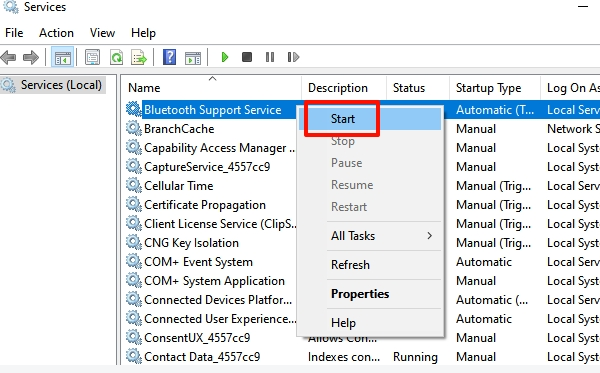
Right-click again, select "Properties", and change the "Startup type" to "Automatic".
3. Bluetooth Device Compatibility Issues
Some Bluetooth devices may not support the computer's Bluetooth version, or the computer's Bluetooth module may not support Low Energy Bluetooth (BLE) devices.
Solution:
Check the Bluetooth Version: In Windows Device Manager, find the Bluetooth adapter, right-click "Properties", and check the Bluetooth version under the "Advanced" tab.
Verify Device Compatibility: Check the specifications of the Bluetooth device to confirm its compatible Bluetooth versions.
Use an External Bluetooth Adapter: If the computer's Bluetooth module is outdated, consider purchasing a USB Bluetooth adapter that supports newer Bluetooth versions.
4. Bluetooth Driver Issues
Bluetooth drivers are essential for the proper functioning of Bluetooth. If the driver is corrupted, outdated, or incompatible, Bluetooth may not work properly.
Solution:
Outdated or corrupted drivers are one of the main causes of Bluetooth audio lag. Using Driver Sentry can help you detect and update drivers automatically, saving time and avoiding potential errors during installation.
Download and install the latest version of Driver Sentry, then open the software and click "Scan".
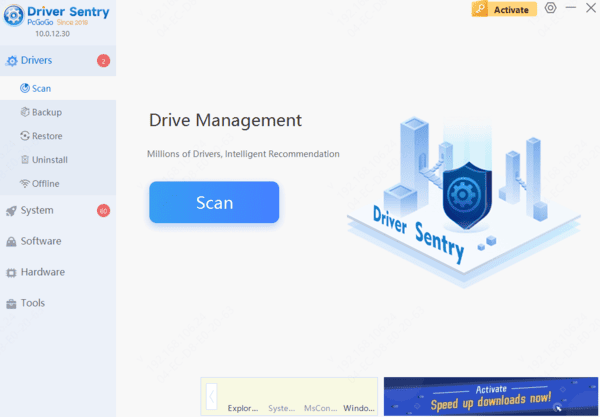
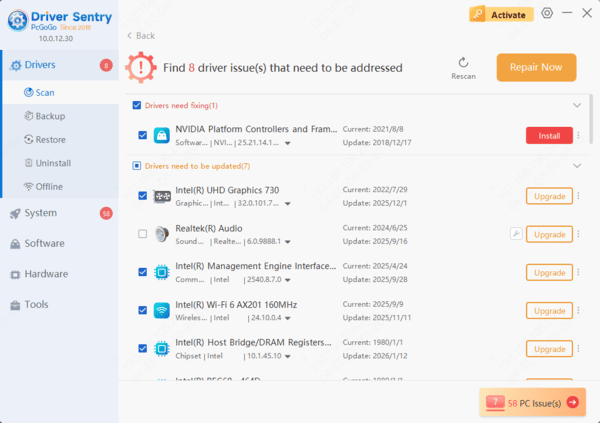
The scan results will show any missing or outdated drivers. Locate the Bluetooth audio driver and click "Upgrade".
Restart your computer after updating to ensure the new driver works correctly.
5. Bluetooth Device is Not in Pairing Mode
Bluetooth devices must be in discoverable mode to be detected by the computer.
Solution:
Re-enter Pairing Mode:
Wireless headphones usually require pressing and holding the power button or a dedicated Bluetooth button until the indicator light flashes rapidly.
Wireless keyboards and mice may require holding the pairing button for a few seconds.
Remove and Re-add the Device:
In Windows settings, go to "Bluetooth & other devices", remove the existing Bluetooth device, and attempt to pair it again.
6. Bluetooth Interference Issues
Bluetooth devices operate on the 2.4GHz frequency band, which may experience interference from Wi-Fi routers, microwave ovens, and other electronic devices.
Solution:
Move Away from Interference Sources: Try keeping the Bluetooth device away from Wi-Fi routers and other electronic equipment.
Switch Wi-Fi Bands: If using 2.4GHz Wi-Fi, try switching to a 5GHz frequency band.
Limit the Number of Connected Bluetooth Devices: Some Bluetooth adapters have a limit on the number of devices they can support. Try disconnecting unnecessary Bluetooth devices.
Conclusion
There are multiple possible reasons why a computer cannot detect Bluetooth devices, including Bluetooth being disabled, driver issues, services not running, compatibility problems, devices not in pairing mode, or signal interference. By systematically troubleshooting these issues, users can effectively resolve Bluetooth connection problems and ensure normal use of their Bluetooth devices.