






A disabled iPad can prevent you from accessing apps, files, and settings after too many failed passcode attempts or security lockouts. Fortunately, you can restore access using a computer without the original password. This guide explains why an iPad becomes disabled and provides step-by-step methods to unlock it using Apple's recovery mode or a simpler iPad unlocking tool.
Things to Know Before Unlocking a Disabled iPad
Before proceeding, keep the following points in mind:
Unlocking usually erases all data on the iPad. A backup is essential if you want to recover files
You'll need a Windows PC or Mac to perform the unlock
If Find My iPad is enabled, Apple ID verification may be required after restoring
Regularly backing up your iPad can save you from data loss in the future
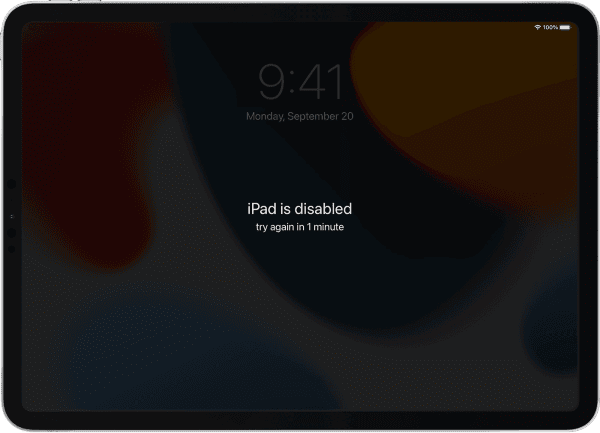
Method 1: Using Apple Recovery Mode
Apple's recovery mode is the official method for unlocking a disabled iPad. While it's safe, the steps can be tricky and time-consuming.
Step 1: Turn Off Your iPad
Disconnect your iPad from the computer if it's connected
For iPads without a Home button: Press and hold the top button and either volume button until the power-off slider appears
For iPads with a Home button: Press and hold the top button until the slider appears
Drag the slider to power off your iPad and wait a minute to ensure it's fully off

Step 2: Put Your iPad in Recovery Mode
Connect your iPad to a computer using a USB cable
For iPads without a Home button: Press and quickly release the volume button closest to the top, press and quickly release the other volume button, then press and hold the top button until the recovery mode screen appears
For iPads with a Home button: Press and hold the Home and top (or side) buttons at the same time until the recovery screen appears

Step 3: Restore Your iPad
Open Finder (Mac), iTunes (Windows), or the Apple Devices app (Windows)
Select your iPad and choose Restore
Wait for the software download and restore process to finish. If it takes more than 15 minutes and the device exits recovery mode, repeat the steps
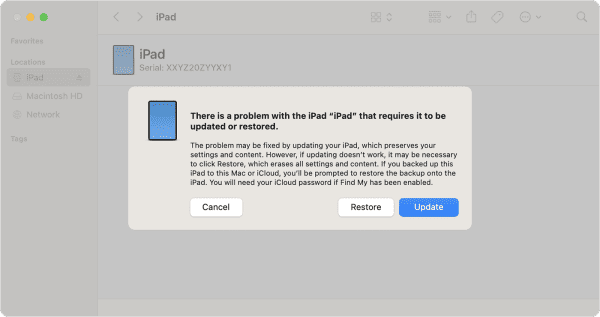
Step 4: Set Up Your iPad
After restoring, the Hello screen will appear
Disconnect your iPad and follow the setup instructions
Restore your data from iCloud or a backup if available
Method 2: Using PcGoGo Screen Unlock
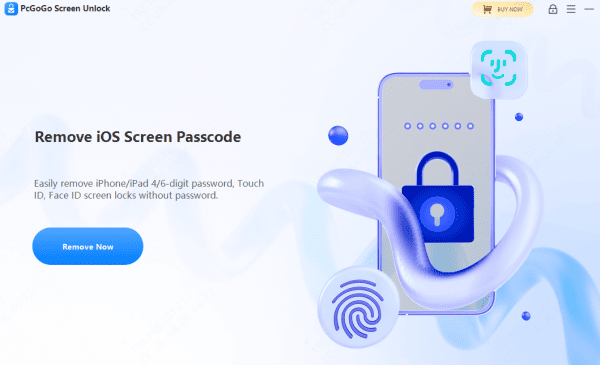
If you want a faster, simpler, and beginner-friendly method, PcGoGo Screen Unlock is a professional tool designed to remove iPad screen locks without needing the password.
Step 1: Download and Install PcGoGo Screen Unlock
Step 2: Connect Your iPad to the Computer
Step 3: Download the Firmware Package
Step 4: Start Removing the Screen Lock
Conclusion
A disabled iPad doesn't mean the end of the world. You can regain access using Apple's recovery mode or the faster, simpler PcGoGo Screen Unlock. For most users, PcGoGo Screen Unlock offers the easiest, fastest way to remove a screen lock and get back to using their iPad without hassle. Choose the method that fits your situation, follow the steps carefully, and your iPad will be up and running again in no time.




