
Updating sound card drivers on Windows 10 is essential for maintaining optimal audio quality, stability, and performance. Outdated or corrupted drivers can cause sound issues, device recognition problems, or audio interruptions. This article explains how to update your sound card drivers and keep your Windows system running smoothly.
1. Using Driver Management Tools
Outdated drivers can lead to audio issues such as poor sound quality or missing audio. It is recommended to use Driver Sentry to automatically detect and update drivers, saving time and avoiding the risks of downloading or installing incorrect drivers.
Click the download button to get the latest version of Driver Sentry. Once installed, open the software and click "Scan".
After scanning, it will show which drivers are missing or need updating. Locate the sound card driver in the results list and click the "Update" button.
After the update is complete, restart your computer to ensure the new driver functions correctly.
2. Via Device Manager
Device Manager is a built-in Windows 10 tool that can automatically search for and update sound card drivers, though it might not always find the latest version and may pose potential security risks.
Press Windows + X and select "Device Manager".
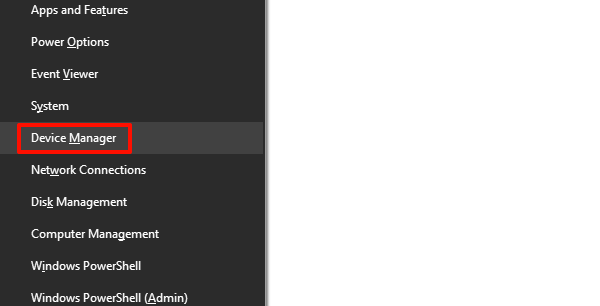
In the Device Manager window, locate and expand "Sound, video and game controllers".
Right-click your sound card device (such as Realtek or Creative) and choose "Update driver".
Select "Search automatically for drivers".
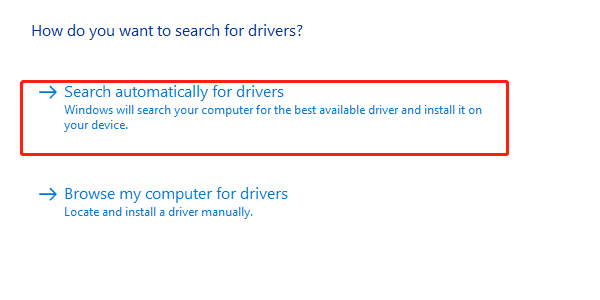
Follow the prompts or installation guide to update the sound card driver.
3. Using Windows Update
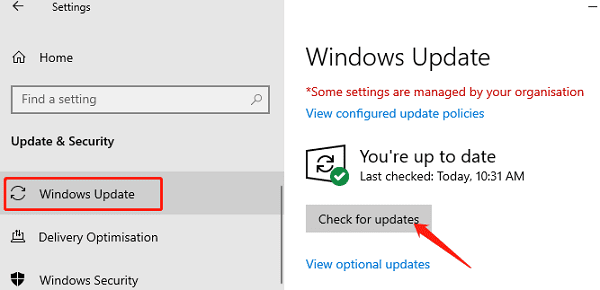
Press Windows + I to open "Settings" > "Update & Security".
In the "Windows Update" section, click "Check for updates".
If updates are found, click "Download and install". The system will automatically download and install the updated drivers.
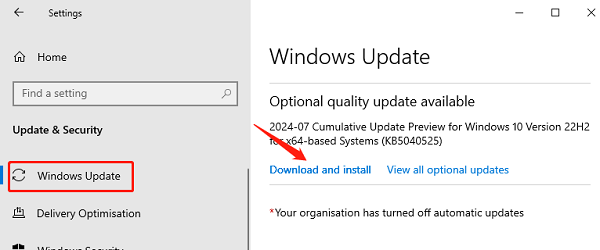
After installation, restart your computer to apply the updates.
4. Manually Downloading and Installing Drivers
First, identify the brand and model of your sound card, usually found in Device Manager.
Visit the sound card manufacturer's website, such as Realtek, Creative, or your computer brand's official site.
On the support or driver download page, enter the sound card model and select Windows 10 as the operating system.
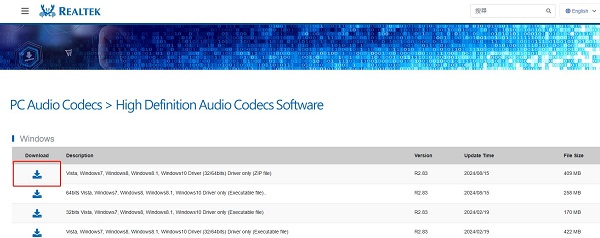
Download the latest sound card driver file.
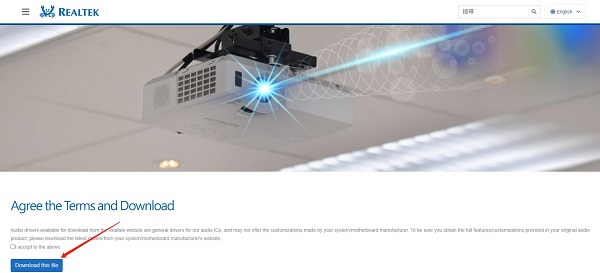
Once downloaded, open the installation file and follow the on-screen instructions to complete the installation.
5. Uninstalling and Reinstalling Old Drivers
Press Windows + X, select and open "Device Manager".
Under "Sound, video and game controllers", find and right-click your sound card device and select "Uninstall device".
Before uninstalling, check "Delete the driver software for this device" and confirm.
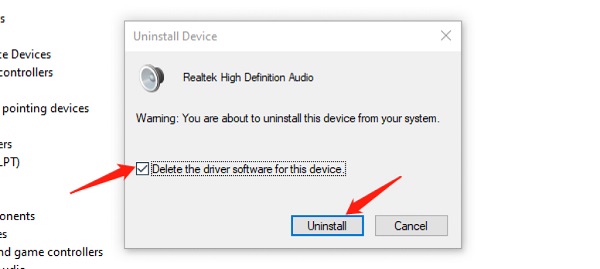
Restart your computer, and Windows will automatically detect the sound card and attempt to reinstall the driver.
Reinstalling the driver can resolve audio issues caused by driver conflicts or corruption.