






Keeping your graphics card drivers up to date is one of the simplest and most effective ways to improve your PC's performance, fix bugs, and maintain compatibility with new games and applications. Outdated drivers can cause crashes, stuttering, low FPS, or display glitches. This guide walks you through multiple methods for updating your GPU drivers safely and efficiently.
Identify Your GPU and Driver Version
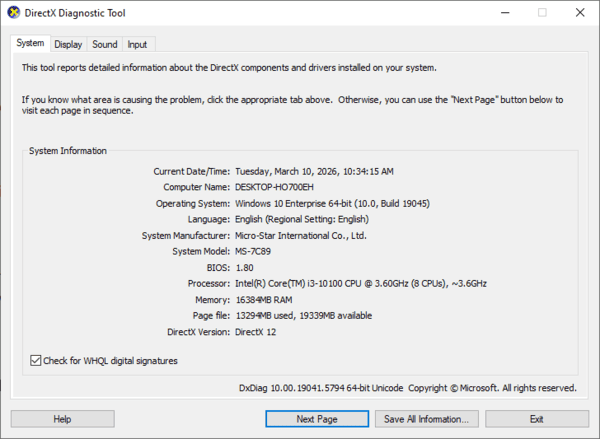
Before updating your drivers, it's important to know which graphics card you have and which driver version is currently installed.
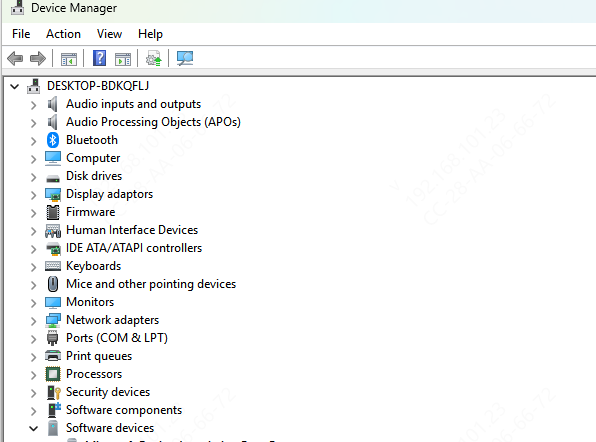
Check via Device Manager
Press Windows + X → Select Device Manager → Expand Display adapters → Note your GPU name
Determine GPU Manufacturer
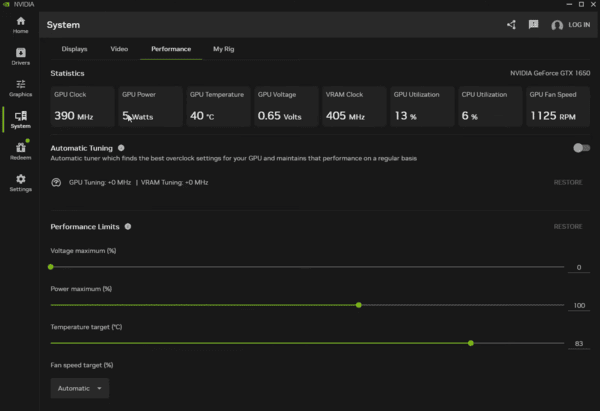
Identify whether your card is NVIDIA, AMD, or Intel, as the update method depends on the manufacturer
Prepare Your PC Before Updating
Before updating your graphics driver, take a few precautions:
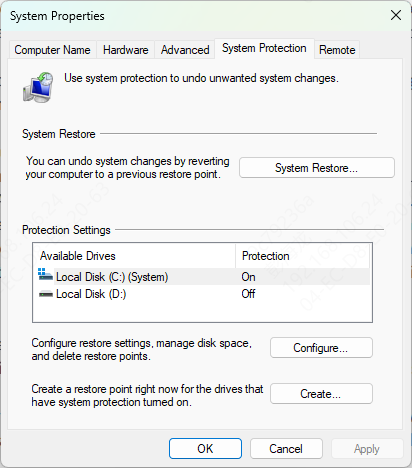
Create a System Restore Point
Press Windows + S, type Create a restore point, and follow the prompts
This ensures you can revert the system if something goes wrong
Backup Current Drivers
Tools like Driver Sentry allow you to backup your existing drivers for easy restoration
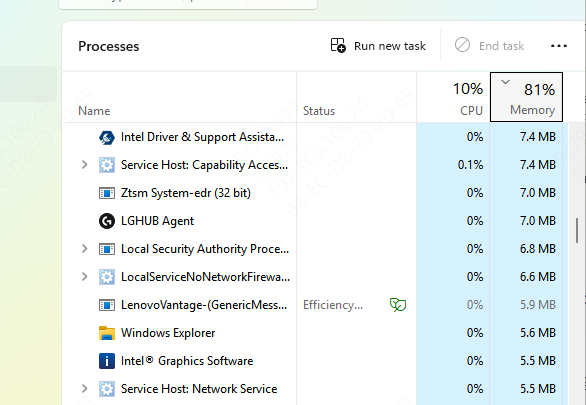
Close Background Applications
Close games, editing software, and any heavy programs to avoid conflicts
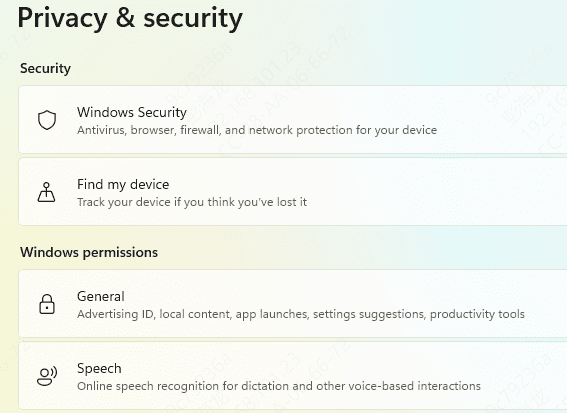
Temporarily Disable Antivirus
Some antivirus programs can block driver installation
Manufacturer Auto-Update Tools
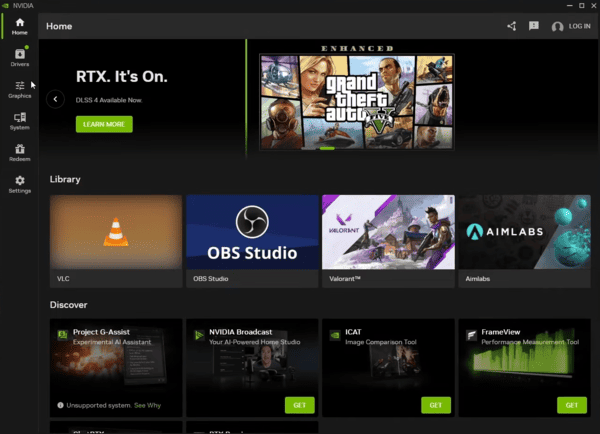
NVIDIA App / GeForce Experience
Install and open the NVIDIA App
It automatically detects your GPU and recommends the latest Game Ready or Studio Driver
Click Download and Install for a safe one-click update
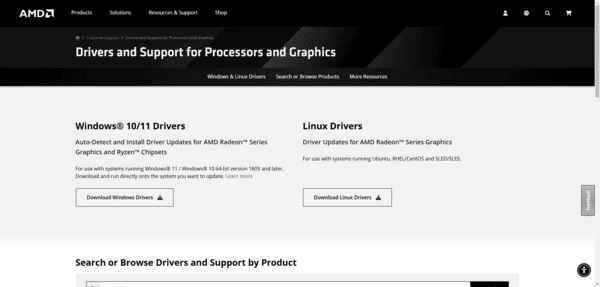
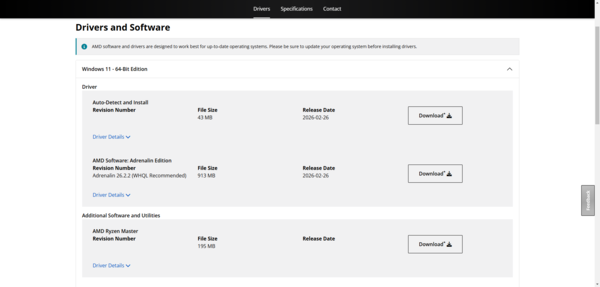
AMD Adrenalin Edition
Open AMD Adrenalin software → Auto-Detect and Install
Option to perform Clean Install to remove old drivers
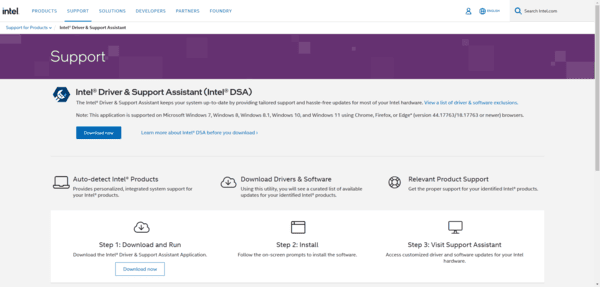
Intel Driver & Support Assistant
Install Intel DSA → Scan for GPU updates → Download and install automatically
Manual Download from Official Website
Visit your GPU manufacturer's official site:
Select your exact GPU model and OS version
Download the latest driver → Choose Custom / Clean Installation → Install → Restart PC
Verifies a clean setup and reduces potential conflicts
Update Using Driver Sentry
Scan your system for outdated, missing, or corrupted drivers
Click Repair / Update All to update all drivers safely
Automatically creates a restore point to prevent errors
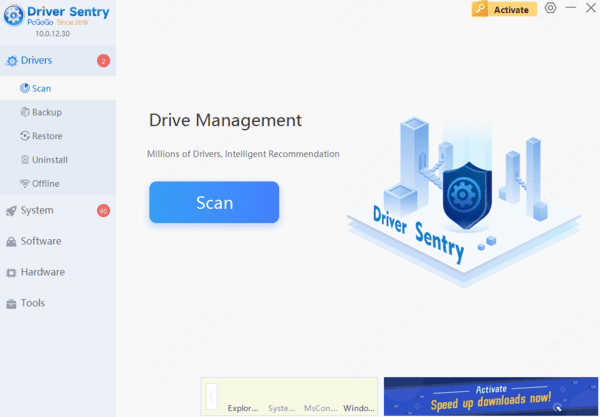
Benefits: Simplifies driver maintenance for both beginners and advanced users, reduces installation errors, and ensures a stable GPU environment.
Windows Built-in Options
Device Manager Method
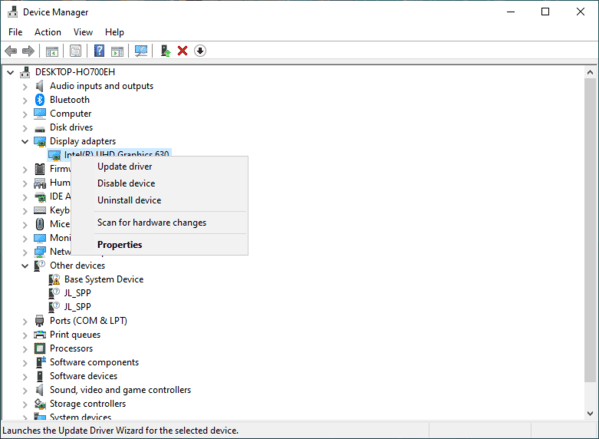
Press Windows + X → Device Manager → Display Adapters
Right-click your GPU → Update driver → Search automatically for updates
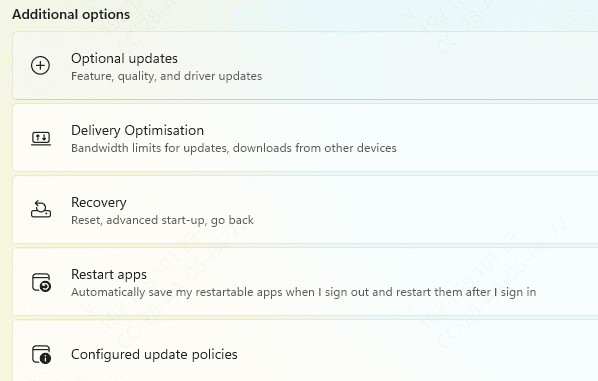
Windows Update Method
Settings → Update & Security → Windows Update → Check for updates → Optional Updates
Install GPU-related updates listed
Note: Built-in methods are convenient but may not always provide the latest driver version
Troubleshooting Update Issues
Rollback Driver
Device Manager → Display Adapters → Right-click GPU → Properties → Driver → Roll Back Driver
Resolve Windows Update Conflicts
Sometimes Windows Update may overwrite GPU drivers
Verify driver version after updates
Repair Corrupted System Files
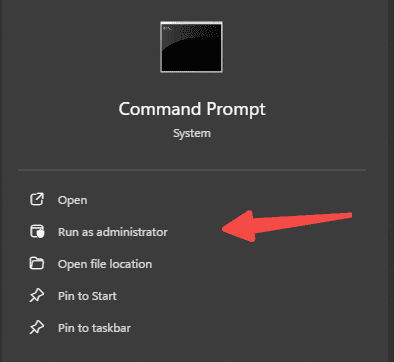
Open Command Prompt as Admin → sfc /scannow → Follow prompts to repair files
Best Practices for Long-Term Driver Maintenance
Enable auto-update in your GPU software
Check for new drivers before installing new games or applications
Maintain a backup of a stable driver version
Use Driver Sentry periodically to scan and repair drivers for optimal performance
Conclusion
Updating graphics drivers is essential for performance, stability, and compatibility. Multiple methods exist to suit different users: official auto-tools, manual downloads, Windows built-in options, or Driver Sentry for a one-click solution. Keeping your drivers updated prevents crashes, enhances visuals, and ensures your PC runs smoothly for work, gaming, and creative tasks.




