






Many Windows users may encounter the "Video Memory Management Internal" blue screen error. This article offers effective solutions to resolve the issue and restore system functionality.
1. Update Graphics Drivers
Outdated or corrupted drivers are one of the most common causes of the "Video Memory Management Internal" blue screen error. Keeping your graphics drivers up to date can help effectively prevent this issue. We recommend using Driver Sentry to automatically detect and update drivers, saving time and avoiding the risk of downloading or installing incorrect drivers.
Click the download button to get the latest version of Driver Sentry. After installation, open the software and click "Scan".
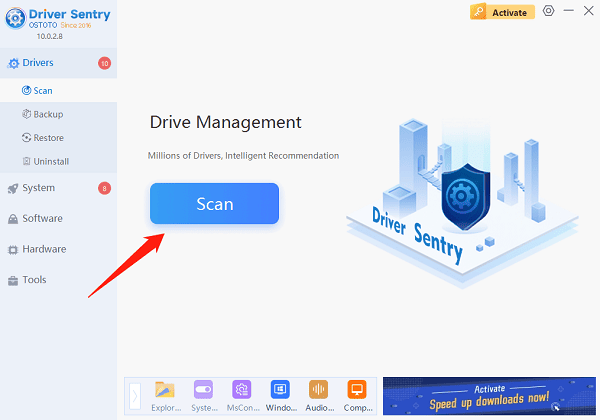
Once the scan is complete, it will display any missing or outdated drivers. Find the graphics driver in the result list and click the "Upgrade" button.
After the update is complete, restart your computer to ensure that the updated driver is properly applied.
2. Check for Memory Issues
Press Win + S, type "Windows Memory Diagnostic", and click the result that appears.
In the pop-up window, choose "Restart now and check for problems". This will restart your computer and begin memory testing.
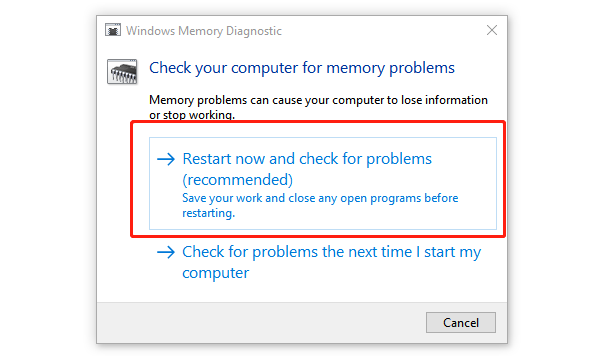
The Memory Diagnostic tool will perform a full scan to check for memory faults. After completion, it will display the results.
If the tool detects any issues, you may need to replace the faulty memory module.
3. Run System File Checker (SFC)
Press Win + S, type "Command Prompt", right-click it, and choose "Run as administrator".
In the Command Prompt window, type the following command and press Enter: sfc /scannow
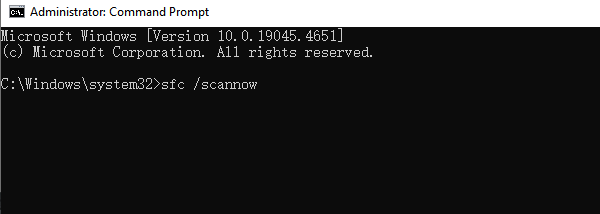
The system will automatically scan and repair corrupted system files. The scan may take a few minutes to half an hour, depending on the number and size of the files.
Once the scan is complete, the system will prompt whether the issues were fixed. If any errors were found and repaired, restart the computer to ensure the fixes take effect.
4. Run DISM Tool to Repair System Image
Press Win + S, type "Command Prompt", right-click it, and select "Run as administrator".
In the Command Prompt window, type the following command to check the health status of your system image: DISM /Online /Cleanup-Image /CheckHealth
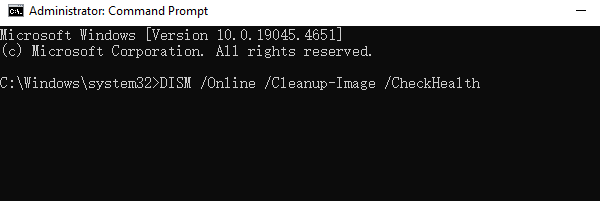
If the scan results show issues with the system image, run the following command to repair it: DISM /Online /Cleanup-Image /RestoreHealth
The repair process may take some time, depending on the extent of the damage to the image. After completion, restart your computer to apply the repairs.
5. Check Hard Drive Health
Press Win + S, type "Command Prompt", and right-click it to select "Run as administrator".
In the Command Prompt, type the following command: chkdsk C: /f /r
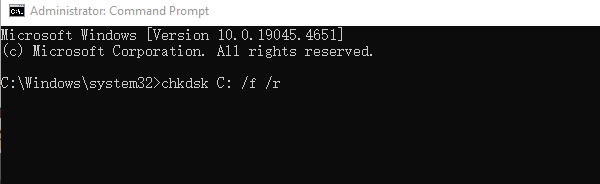
"C:" is the drive you want to check, "/f" repairs errors, "/r" locates and fixes bad sectors.
If the system prompts that the disk check will occur at the next restart, type Y and press Enter to confirm.
Restart your computer, and the system will automatically check and repair the hard drive during startup. This process may take some time depending on the drive size and complexity of the issues.
6. Reset Windows System
Press Win + I to open Settings, and choose "Update & Security".
Under the "Recovery" tab, click "Reset this PC".
In the pop-up window, choose one of the following options:
Keep my files: Removes apps and settings but keeps personal files.
Remove everything: Deletes all files, apps, and settings, restoring the system to factory settings.
Once you select the reset option, click "Get Started" and follow the on-screen instructions.
The system will automatically reset and restart. Afterward, you will have a clean system that resolves any potential system issues.
These steps can fix the "Video Memory Management Internal" blue screen error and restore system stability. If the problem persists, contact technical support or reinstall the operating system.
See also:
Guide to Fixing a Non-Working Mouse




