Satisfactory is a popular open-world construction game, but players may experience crashes. This article offers effective methods to help resolve these issues and ensure a smooth gaming experience.
Method 1: Verify Game Files Integrity
Ensure you are logged into your Steam account.
Click the "Library" option, find Satisfactory, and right-click on it.
In the pop-up menu, select "Properties", then go to the "Local Files" tab.
Click "Verify Integrity of Game Files". Steam will start checking the game files and fix any issues.
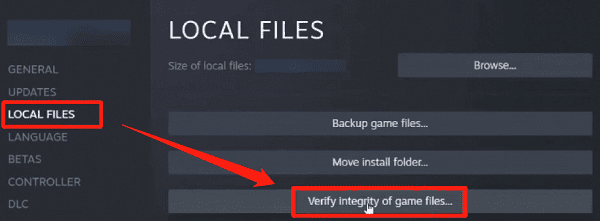
The verification process may take a few minutes. Once complete, try restarting the game.
Method 2: Restart the Game and Device
If the game is running, completely close it.
Exit Steam and restart it.
If the issue persists, try rebooting your computer.
After restarting, open Steam, find Satisfactory, and try launching the game again.
Method 3: Adjust Game Settings
If the game can launch, enter the main menu.
Find the "Settings" option in the main menu.
Lower the graphics quality (e.g., resolution, shadows, textures) to see if performance improves.
Try disabling the vertical sync option.
Save the changes, exit the settings, and restart the game.
Method 4: Close Background Programs
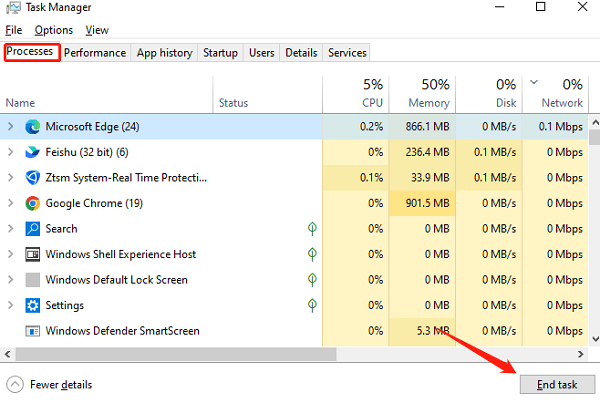
Press Ctrl + Shift + Esc to open Task Manager.
In the "Processes" tab, check the currently running programs.
Find programs that are using a lot of CPU or memory resources.
Select those programs and click "End Task" to close them and free up system resources.
Method 5: Update the Game
Log into your Steam account.
Find Satisfactory in your Steam library.
Steam will automatically check for game updates. If updates are available, they will download and install automatically.
Right-click Satisfactory, select "Properties", and in the "Updates" tab, ensure the "Automatic updates" option is checked.
After the update, try launching the game.
Method 6: Update Drivers
Outdated or corrupted graphics drivers can cause Satisfactory to crash, so timely updates are essential for improving game stability and performance. We recommend using Driver Sentry to automatically detect and update drivers, saving time and avoiding the risk of downloading or installing incorrect drivers.
Click the download button to get the latest version of Driver Sentry. After installation, open the software and click "Scan".
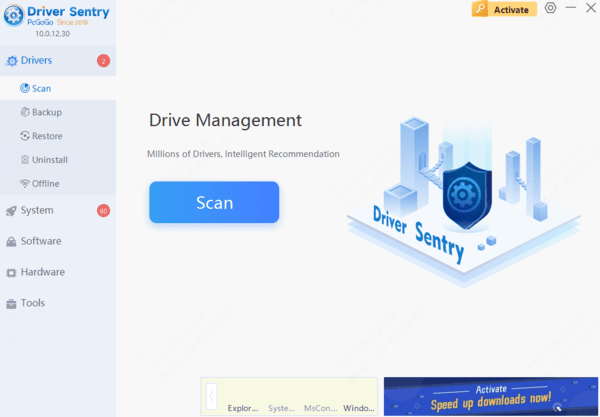
Once the scan is complete, it will show which drivers are missing or need updates. Find the graphics driver in the results list and click the "Upgrade" button.
After the update, it is advisable to restart your computer to ensure the new drivers take effect.
Method 7: Clear Game Cache
Open the Steam client.
Right-click Satisfactory and select "Properties".
Click "Browse Local Files" to open the game installation directory.
Find the "Saved" folder and delete its contents (do not delete the entire folder).
Restart Steam and try launching the game.
Method 8: Reinstall the Game
Right-click the game and select "Uninstall" from the pop-up menu.
Confirm the uninstallation and wait for it to complete.
Find Satisfactory in your Steam library and click "Install" to redownload and reinstall it.
After installation, try launching the game to see if the issue is resolved.
Frequently Asked Questions
Why does Satisfactory crash only when loading a specific save?
That save may contain damaged data, incompatible mod content, or an overloaded factory area. Back up the Saved\SaveGames folder, try an earlier autosave, and disable mods before loading the affected session.
Can Satisfactory mods cause crashes after a game update?
Yes. Major updates may make existing mods or the mod loader incompatible. Launch the game without mods first. If it works, update the mod manager and re-enable compatible mods individually to identify the problem.
What should I do if Satisfactory crashes with an Unreal Engine error?
Verify the game files, restore default graphics settings, disable overlays and overclocking, and reinstall the graphics driver. If the crash report names a particular module or plugin, remove or update the related software or mod.
By following these steps, you can effectively fix crashes in Satisfactory and enjoy a better gaming experience. If the problem persists, consider seeking official support or community help.