
A slow internet connection can make streaming, gaming, downloads, and everyday browsing frustrating. Whether you're connected through Wi-Fi or Ethernet, reduced speed can be caused by outdated drivers, network congestion, router problems, hardware issues, or limitations from your internet provider. In this guide, we'll explain the common reasons for slow internet speeds and provide practical solutions, starting with network driver updates to help restore faster and more stable connectivity.
Weak WiFi Signal
Move your PC closer to the router.
Remove physical obstacles between your device and router.
Avoid using WiFi near large metal objects or thick walls.
Switch from the 2.4 GHz band to 5 GHz if your router supports it.
Router Overload or Firmware Problems
Restart your router by unplugging it for 30 seconds.
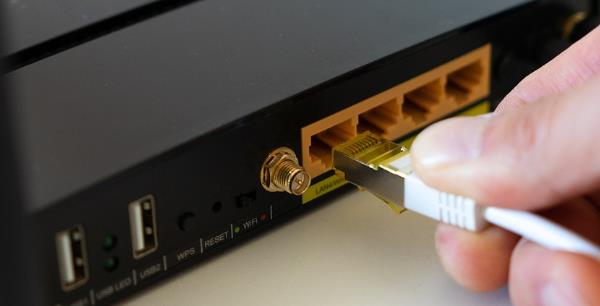
Update the router firmware through the router admin page.
Reset router settings if performance remains poor.
Replace old routers that do not support modern WiFi standards.
Internet Service Provider (ISP) Issues
Run a speed test to compare actual speed with your plan.
Check if your ISP is experiencing outages.
Contact your ISP for line testing or to request a modem replacement.
Too Many Devices Sharing the Network
Disconnect unused devices from the network.
Limit bandwidth-heavy activities such as video streaming or cloud backups.
Use Quality of Service (QoS) settings on your router to prioritize your PC.
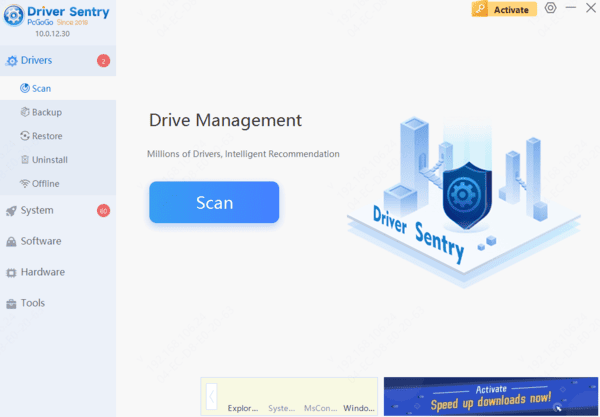
Update Network Drivers
Outdated or corrupted network drivers can cause slow internet, unstable WiFi, high latency, and frequent disconnection. Using Driver Sentry ensures that your WiFi and Ethernet drivers are correctly updated.

Background Apps Consuming Bandwidth
Open Task Manager and check Network usage.
Disable auto-updates for large applications.
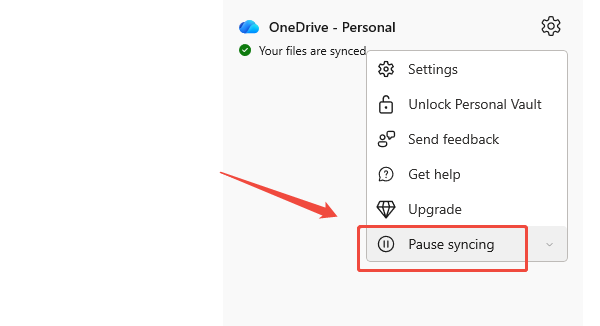
Pause OneDrive, Google Drive, or other cloud sync tools if not needed.
VPN or Proxy Causing Speed Drop
Turn off your VPN and test the connection.
Change the VPN server location.
Switch to a faster paid VPN service if needed.
Browser Issues
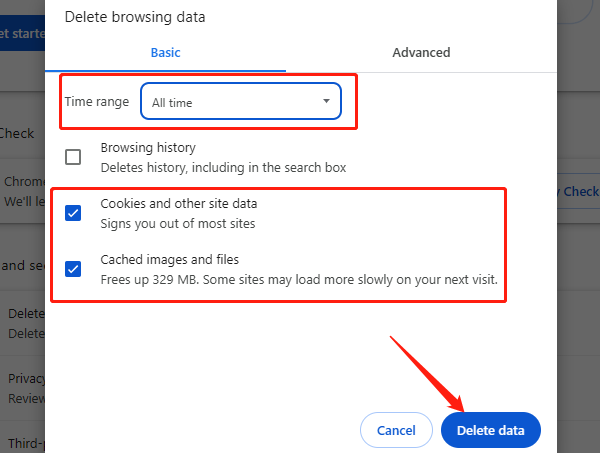
Clear browser cache and cookies.
Disable unnecessary browser extensions.
Update your browser to the latest version.
Faulty Network Cable or Port
Replace the Ethernet cable with a Cat5e, Cat6, or higher.
Plug the cable into another router port.
Test with another computer to confirm if the cable is the issue.
Windows Network Configuration Problems
Run the following commands in Command Prompt as Administrator:
netsh int ip reset

netsh winsock reset
ipconfig /flushdns
Restart your PC afterward.
Malware or Unknown Background Activities
Run a full scan using Windows Security or a trusted antivirus.
Remove suspicious software from the Apps and Features list.
A slow internet connection can be caused by many factors, but updating your network drivers is one of the fastest and most effective solutions. After ensuring your drivers are updated using Driver Sentry, you can proceed with the additional troubleshooting steps listed above. By following this guide, most users can restore stable and faster internet performance.