
Laptops have become an essential tool for work and daily life, but occasionally, you may encounter a frustrating issue: a black screen upon startup. Here are several practical methods to address this problem. Let's dive in!
1. Check the Laptop's Power Supply
Ensure Proper Power Connection
First, check whether the power adapter and battery are connected correctly. If you're running on battery power, the issue could be a low battery. Plug in the charger and try turning on the laptop again.
Reset the Power Supply
Sometimes, static electricity can cause startup issues. Turn off the laptop, unplug the power adapter, and remove the battery (if it's removable). Press and hold the power button for 10-30 seconds to discharge static electricity. Then, reinstall the battery, reconnect the power, and try turning it on again.

2. Inspect the Display
Adjust Screen Brightness
Accidentally lowering the screen brightness to its minimum can make it seem like the screen isn't working. Use the brightness function keys (e.g., Fn + brightness up) to adjust the screen brightness.
Connect an External Monitor
Connect your laptop to an external monitor using an HDMI or VGA cable. If the external monitor displays properly, the problem might be with your laptop's screen or internal wiring. In this case, you'll need professional repair services.
3. Check System and Drivers
Force Restart into Safe Mode
During startup, press the F8 key repeatedly to access Safe Mode. If the screen displays correctly in Safe Mode, the issue could be related to system updates or drivers.
Update the Graphics Driver
Faulty or outdated graphics drivers can cause black screen issues.
While in Safe Mode, download and install the Driver Sentry tool.
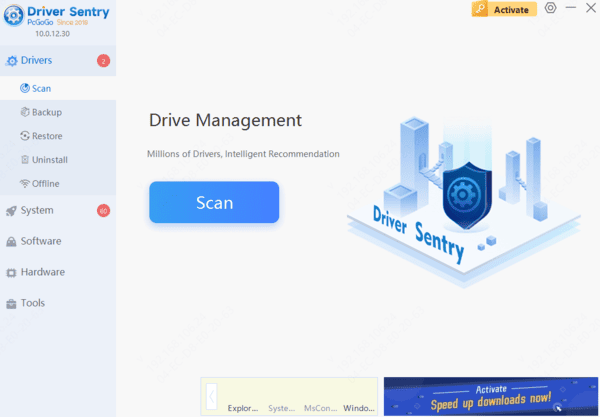
Run the software and click "Scan" to check for driver issues.
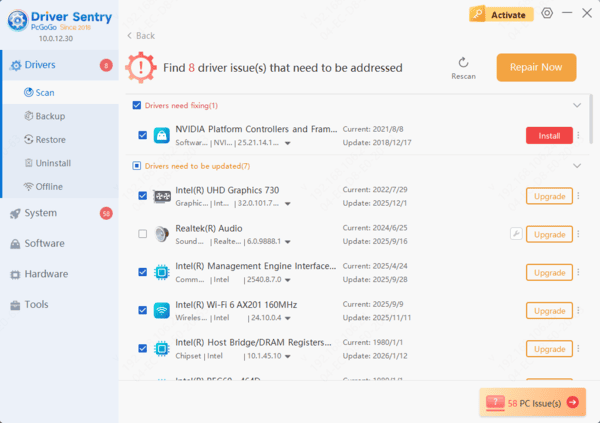
If the graphics driver is outdated or corrupt, the software will recommend updates. Click "Repair Now" to install the latest version.
Restart the laptop to see if the issue is resolved.
4. Investigate Hardware Problems
Check for Loose RAM
Loose or improperly seated RAM is a common cause of black screens. Turn off the laptop, remove the back cover, and take out the RAM. Clean the gold connectors gently with an eraser, then reinsert the RAM firmly.
Address Overheating Issues
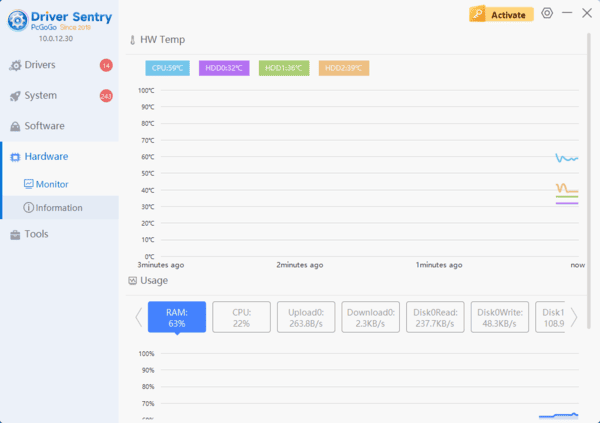
Excessive dust inside the laptop can lead to poor cooling and black screen problems. Regularly clean the fans and heat sinks, and replace thermal paste if necessary. The Driver Sentry tool can also monitor hardware temperatures and help optimize performance to prevent overheating.
5. Restore or Reinstall the System
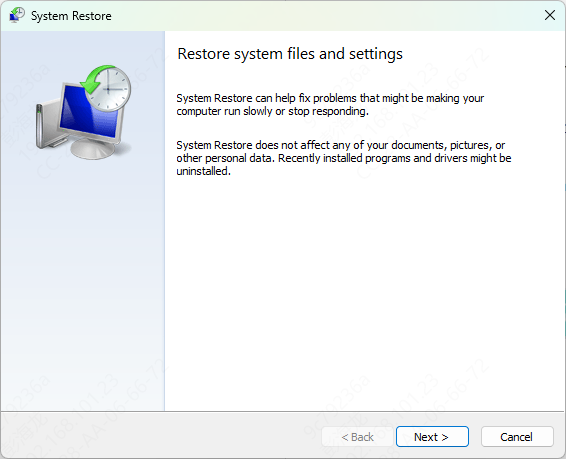
Use System Restore
If the above methods don't work, try restoring the system to a previous state.
Repeatedly press the F8 key during startup to access the system recovery menu (key combinations may vary by brand).
Select "System Repair" or "System Restore", and follow the prompts to restore the system to a working state.
If no restore point is available, try the "Automatic Repair" feature to fix system issues.
Reinstall the Operating System
For severe system corruption, reinstalling Windows may be necessary. Back up your important files beforehand to avoid data loss.
Download a Windows ISO file and create a bootable USB drive.
Insert the USB drive, then press F12 or Esc during startup to access the boot menu. Select the USB drive to begin the installation process.
Follow the on-screen instructions to format the system drive and reinstall Windows.
By following these steps, you should be able to resolve the black screen issue and restore your laptop's normal functionality. To minimize future problems, use tools like Driver Sentry to regularly update your drivers and maintain your laptop's health.
See also:
Why is my laptop camera not working
5 Ways to Fix Laptop Battery Not Charging
7 Ways to Fix Laptop Touchpad Not Working
6 Solutions for When WiFi Is Connected but There Is No Internet