If the network adapter is missing in Windows 10, your computer may lose access to Wi-Fi or Ethernet completely. This issue is often caused by outdated or corrupted drivers, disabled devices, incorrect network settings, Windows update problems, or hardware connection failures. Fortunately, several practical fixes can help restore the missing adapter and get your internet connection working again. This guide covers effective solutions, including updating network drivers, checking hardware connections, resetting network settings, showing hidden devices, running the network troubleshooter, and installing Windows updates.
1. Check Hardware Connections
If you are using an external USB network adapter, unplug it and reconnect it to another USB port.
Check if the Ethernet cable connection is secure, ensuring there are no issues between the router and the computer.
Verify that your network adapter hardware is not damaged. If hardware faults are detected, consider replacing the network adapter.
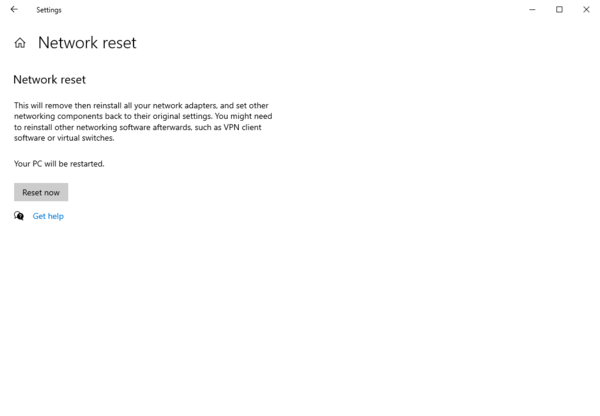
2. Reset Network Settings
Open Settings and click "Network & Internet".
From the left menu, select "Status", then click "Network reset".
Click "Reset now" and confirm the action.
Restart your computer.
3. Show Hidden Drivers
Press Windows + X and select "Device Manager".
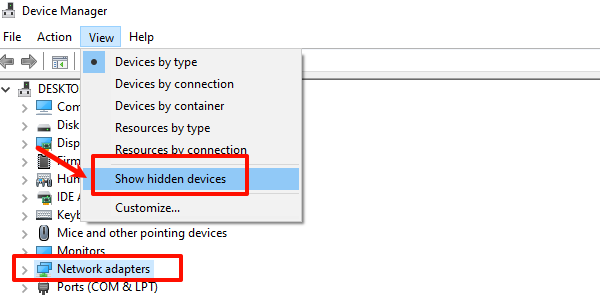
In Device Manager, click "View" and select "Show hidden devices".
Expand "Network adapters" and check if the missing network adapter appears.
If the network adapter is found, right-click it and select "Enable device".
4. Check for Driver Updates
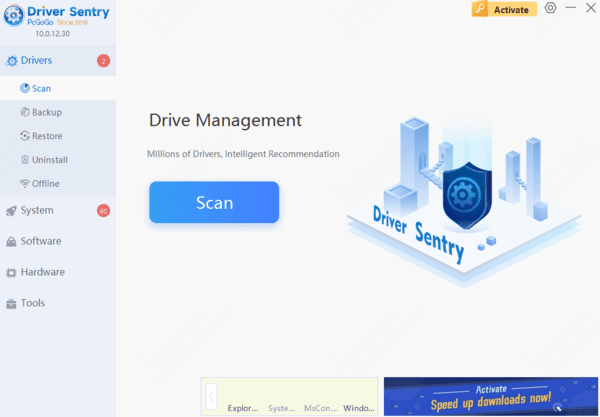
Corrupted or outdated drivers are common causes of the "missing network adapter" issue on Windows computers. Checking and updating your network adapter drivers is an essential step in resolving this problem. It is recommended to use Driver Sentry to automatically detect and update drivers, saving time and avoiding the risk of installing incorrect drivers.
5. Run the Network Troubleshooter
Open Settings and click "Update & Security".
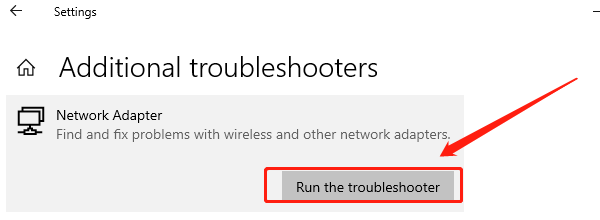
From the left menu, select "Troubleshoot", then click "Additional troubleshooters".
Find "Network Adapter" and click "Run the troubleshooter".
Once completed, restart your computer and check if the network adapter is functional.
6. Check for Windows Updates
Open Settings and click "Update & Security".
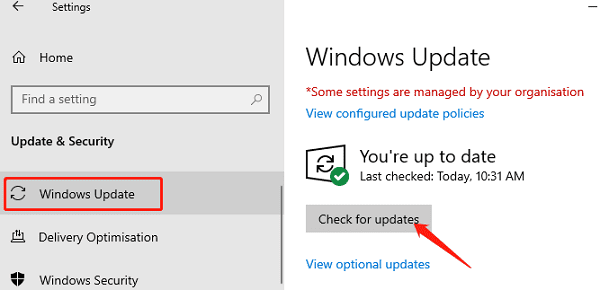
Select "Windows Update" and click "Check for updates".
If updates are available, download and install them.
After installation, restart your computer and check if the network adapter issue has been resolved.
Frequently Asked Questions
Why did my network adapter disappear after a Windows 10 update?
The update may have installed an incompatible driver, disabled the adapter, or damaged its configuration. Check hidden devices and reinstall or roll back the network driver.
How can I reinstall a network driver without internet access?
Download the correct driver on another computer, transfer it using a USB drive, and install it manually. Ensure it matches your PC model, adapter, and Windows architecture.
What if the network adapter does not appear in Device Manager?
Check whether the adapter is disabled in BIOS, scan for hardware changes, and install the chipset driver. If it remains undetected, the adapter may have a hardware fault.