






An Arteck keyboard not working issue can quickly interrupt typing, productivity, and everyday computer tasks. Whether you use an Arteck 2.4G wireless keyboard, Bluetooth model, or popular versions like the HW086 and HW192, the problem is usually related to connection failures, low battery power, pairing errors, wireless interference, or outdated drivers. In most cases, the keyboard itself is not damaged, and a few troubleshooting steps can restore normal operation. This guide explains the common causes of Arteck keyboard problems and provides practical solutions to help you reconnect, repair, and keep your keyboard working smoothly on Windows.
Power and Battery Checks
If it uses replaceable batteries, install fresh ones even if the old batteries still seem partly usable.
Confirm that the keyboard power switch is turned on properly.
Reconnect the Keyboard
A broken pairing or unstable receiver connection can make the keyboard seem completely dead even though the hardware is still fine. Reconnecting the device forces Windows to rebuild the communication path.
After reconnection, test typing in a simple program like Notepad to confirm whether the keyboard is responding normally again.
Restart Windows and the Keyboard
A full restart is worth trying early. Restart Windows completely, then turn the keyboard off and back on after the system finishes loading.
Check Bluetooth or USB Function
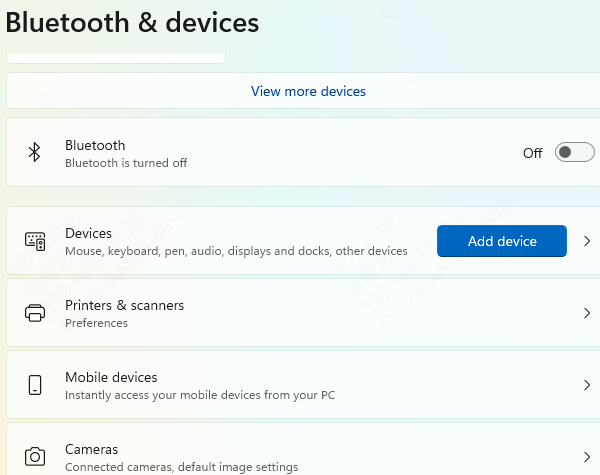
Make sure Bluetooth is enabled and working normally on the computer. If other Bluetooth devices are also failing, the issue is more likely tied to the Bluetooth adapter or its driver rather than the keyboard itself.
If the keyboard uses a receiver, test another USB port. A weak or unstable port can stop the keyboard from being detected. On desktop systems, direct motherboard USB ports are usually more reliable than weak front-panel ports or crowded hubs.
Check Windows Input and Keyboard Layout
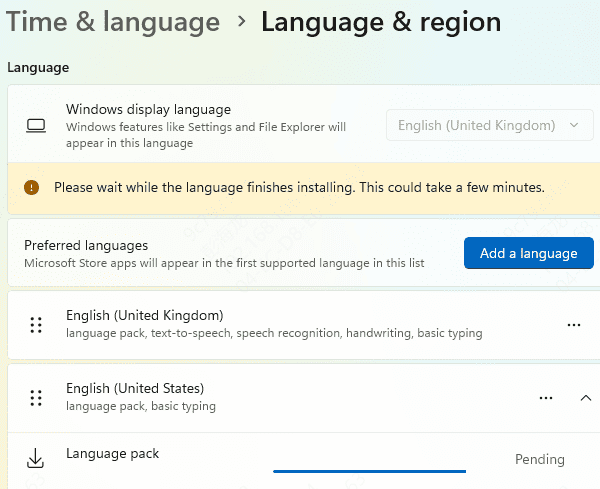
Sometimes the keyboard is connected and working, but the typing appears wrong because Windows is using the wrong input language or layout. This is especially important if only certain keys seem incorrect rather than totally dead.
Open the Windows language and keyboard settings and confirm the expected keyboard layout is selected. A wrong layout can make users think the keyboard is malfunctioning when the issue is actually software-side input mapping.
Reinstall the Keyboard Device
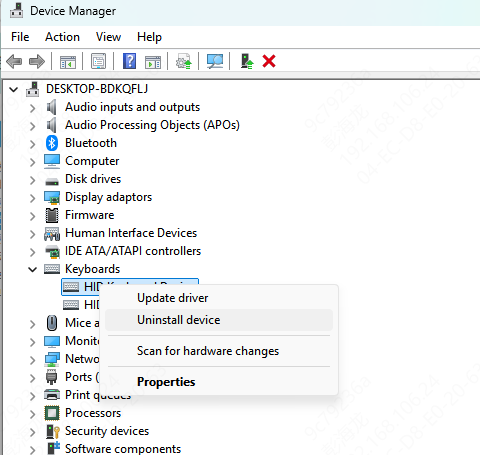
If the keyboard still is not behaving correctly, uninstall it from Device Manager and restart the PC so Windows can reinstall it automatically.
This can fix damaged device registration and restore normal detection. It is especially useful if the keyboard used to work on the same PC but stopped after a Windows update, driver conflict, or repeated disconnect events.
However, keyboard issues are often not limited to the visible keyboard device entry. The related Bluetooth, USB, and chipset drivers may also need attention.
Check Bluetooth, USB, and Chipset Drivers
Arteck keyboard problems often come from more than the keyboard device itself. A Bluetooth keyboard depends on a healthy Bluetooth adapter driver and stable system communication. A receiver-based keyboard depends on the USB layer working correctly. In both cases, chipset drivers can also affect stability and device recognition.
If you want a faster way to repair the drivers most likely to affect the Arteck keyboard, Driver Sentry can help. Driver Sentry is especially useful when the keyboard problem seems connected to wider Bluetooth or USB instability, or when Windows updates changed several system drivers at once.

Disable Power Saving for Bluetooth or USB
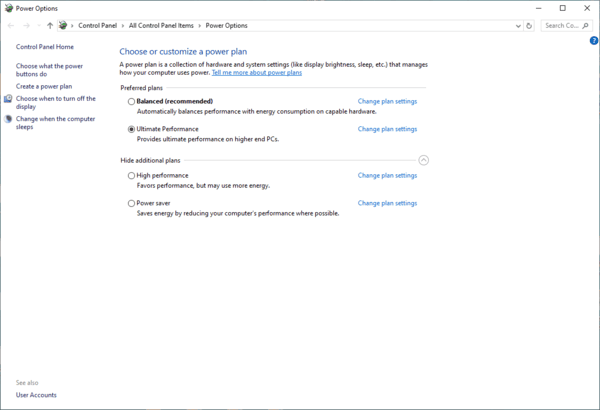
Windows power-saving features can also interrupt wireless keyboard behavior. On laptops especially, Windows may turn off the Bluetooth adapter or USB communication path to save energy, then fail to restore it correctly afterward.
Open Device Manager and check the power management settings for the Bluetooth adapter or USB root hubs. Disable the option that allows Windows to turn off the device to save power. Then restart the system and test again.
Check for Specific Key Failure
If only one or a few keys are not working, the issue may not be the connection at all. Test the keyboard in another app or another device to confirm whether the same keys always fail.
If the same keys remain dead everywhere, dirt, debris, or internal key wear is more likely than a Windows problem. In that case, cleaning or hardware replacement becomes more relevant than driver repair.
Test the Keyboard on Another Device
One of the best ways to isolate the cause is to test the Arteck keyboard on another PC, tablet, or phone if the model supports it. If it works normally there, the original Windows system is more likely to be the problem.
If it fails on multiple devices even after charging and re-pairing, the keyboard itself becomes the stronger suspect. This comparison saves time and helps prevent unnecessary driver troubleshooting when the hardware is already failing.
Frequently Asked Questions
Why is my Arteck keyboard connected but not typing?
Windows may be using the wrong keyboard layout, the connection may be unstable, or another input device could be interfering. Reconnect the keyboard and test it in Notepad.
Why does my Arteck keyboard keep disconnecting?
Common causes include low battery power, wireless interference, Bluetooth driver problems, and Windows power-saving settings. Recharge the keyboard and disable power management for the Bluetooth adapter.
What should I do if only a few keys are not working?
Check the Windows keyboard layout and test the keys in multiple applications or on another device. If the same keys always fail, the keyboard may need cleaning or hardware repair.
Conclusion
An Arteck keyboard may stop working because of low battery power, pairing problems, USB or Bluetooth driver issues, wireless interference, or Windows power-saving settings. Start by charging the keyboard, reconnecting it, and restarting Windows. If the problem continues, reinstall the device and check the Bluetooth, USB, and chipset drivers with Device Manager or Driver Sentry. Testing the keyboard on another device can confirm whether the issue comes from Windows or the keyboard hardware.




