






A black screen while the computer is still running can happen unexpectedly and may prevent you from accessing your system normally. This problem is often related to display connections, graphics drivers, software conflicts, or system errors rather than a complete hardware failure. This guide explains the common causes of a black screen issue and provides practical solutions to restore your display, including checking connections, entering Safe Mode, updating graphics drivers, and performing system recovery.
Solution 1: Check Connections and Power
If you are using a desktop, ensure that the monitor is powered on and that the data cables are securely connected.
For laptop users, try connecting the laptop to an external monitor to determine if the issue lies with the display. Additionally, verify that the power supply is functioning properly; make sure the power adapter and battery are working well.
Solution 2: Force Restart
Sometimes, a black screen can result from a system malfunction. You can try a force restart to resolve this. Press and hold the power button until the computer completely shuts down, then turn it back on. Although this method is simple, it often helps to fix temporary system glitches and restore normal operation.

Solution 3: Boot into Safe Mode
If restarting doesn't work, you might want to boot into Safe Mode to check if recently installed software or drivers are causing conflicts.
1. While the computer is starting up, repeatedly press the F8 key (or F2, Esc, etc., depending on your brand) until you see the boot options menu.
2. Use the arrow keys to select "Safe Mode" and press Enter.
3. After entering Safe Mode, right-click on the "Start" button and select "Device Manager" to uninstall any recently installed software or drivers.
Solution 4: Update Graphics Drivers
Driver issues, particularly with the graphics driver, are common causes of black screens. You can attempt to update your graphics drivers.
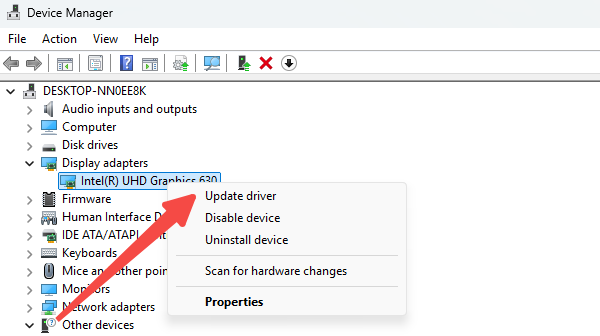
1. Boot into Safe Mode, open "Device Manager", find the Graphics Card option, right-click and select "Update Driver".
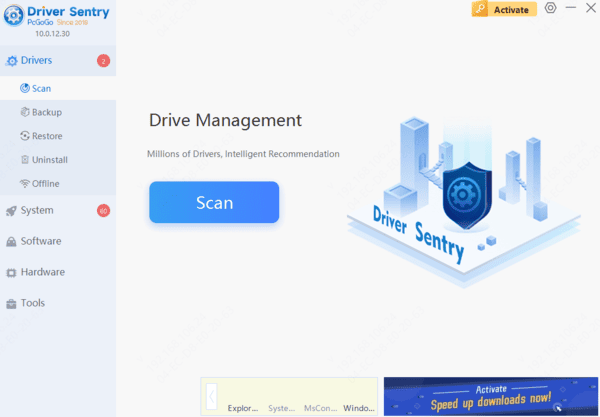
2. If you have the "Driver Sentry" software, you can use it for a one-click update to quickly resolve driver issues and restore proper display functionality.
Solution 5: System Restore
If you recently installed software or updates that may have made your system unstable, consider performing a system restore. However, this requires that you created a restore point before the black screen occurred.
1. Open "Settings" on your computer, scroll down to find and click on "System".
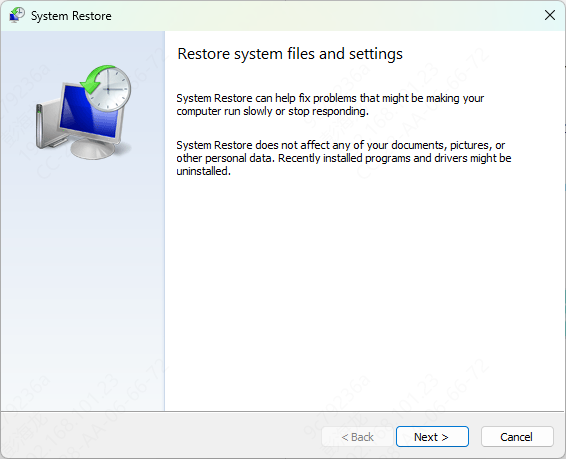
2. In the system options, find "System Protection" and select "System Restore".
3. Follow the prompts to choose a restore point (usually a date before the issues began) and click "Next" to initiate the restoration process.
4. The system will reboot and begin restoring. Once complete, check if normal functionality has been restored.
By following these steps, you should be able to resolve the black screen issue while your computer is still running. If you encounter any problems related to drivers, "Driver Sentry" can assist you in easily detecting and fixing them.




