






A computer that suddenly powers off without warning can point to more than a simple Windows glitch. The PC may shut down while gaming, running demanding programs, or even sitting idle, sometimes restarting normally afterward and sometimes refusing to power back on immediately. Common causes include excessive CPU or GPU temperatures, an unstable power supply, faulty hardware, damaged system files, or problematic device drivers. Because repeated unexpected shutdowns can lead to lost work and possible file corruption, it is important to identify the cause early. The solutions below will help you troubleshoot random computer shutdowns step by step and restore a more stable system.
Why Your Computer Shuts Off Randomly?
Overheating
One of the most common culprits for random PC shutdowns is overheating. Your computer generates heat during operation, especially if you're running resource-intensive tasks like gaming or video editing. If the cooling system can't keep up, the computer's temperature rises. To protect itself from damage, it shuts down. Check if your computer's fans are running. If they're not, or if they seem sluggish, that could be a sign of trouble. The vents might also be clogged with dust, preventing proper air circulation.
Power Supply Problems
A faulty power supply can also lead to your PC randomly turns off. If the Power Supply Unit (PSU) isn't providing a stable power output, it can cause the computer to shut down. This could be due to a worn-out PSU, a loose power cable connection, or even a problem with the electrical outlet. Sometimes, the PSU might not be powerful enough to handle the demands of all the components in your computer, especially if you've recently upgraded your hardware.
Driver Issues
Outdated or corrupted drivers can mess with your computer's stability. Graphics drivers, for example, play a crucial role in how your computer processes visual data. If they're not working correctly, they can cause conflicts that lead to random PC shutdowns. Other drivers like those for your motherboard, network card, or hard drive can also be at fault.
Solutions to Fix Computer Shuts Off Randomly
Check for Overheating
First, inspect your computer's fans. If you have a desktop, open the case (make sure it's unplugged!) and look at the fans on the CPU, power supply, and graphics card. If they're not spinning, or if they're making strange noises, they might need to be replaced. For laptops, you can use a can of compressed air to blow out the dust from the vents. You can also use software like HWMonitor to check your computer's temperature. If the temperature is consistently high, even during normal use, you might need to improve your computer's cooling, perhaps by adding more fans or using a laptop cooling pad.
Examine the Power Supply
Check all the power cable connections. Make sure the power cable is firmly plugged into the computer and the electrical outlet. If it's feasible, attempt to use an alternative power cable or outlet. If you suspect the power supply unit is faulty, and you're comfortable with a bit of DIY, you can test it using a PSU tester. If you're not sure how to do this, it might be best to take your computer to a professional. If you've recently upgraded your hardware, ensure that your PSU has enough wattage to power all the components.
Update Your Drivers
PcGoGo Driver Sentry is a great tool to help with this. First, download it from the PcGoGo website. Once installed, open the software. You'll see a big "Scan" button. Click it, and PcGoGo Driver Sentry will start scanning your system for any outdated or missing drivers. It will check all the important drivers, from your graphics card to your motherboard. After the scan is complete, it will show you a list of drivers that need updating. Simply click "Upgrade" next to the relevant drivers, and the software will automatically download and install the latest versions. This can often fix driver-related problems that are causing your computer to shut down randomly.

Check for Malware
Malicious software can also cause system instability, leading to PC randomly turns off. Employ a trustworthy antivirus program to conduct a scan of your computer. Windows has Windows Defender built-in, but you can also use third-party antivirus software. Run a full system scan, and if any malware is detected, follow the prompts to quarantine and remove it.
Perform a System File Check
Windows has a built-in tool called System File Checker (SFC) that can scan for and repair corrupted system files. To use it, open the Command Prompt as an administrator. You can do this by searching for "Command Prompt" in the Start menu, right-clicking on it, and selecting "Run as administrator." In the Command Prompt window, type "sfc /scannow" and press Enter. The SFC will then scan your system. This process might take some time. Once it's done, restart your computer and see if the PC randomly turns off issue has been resolved.
Try System Restore
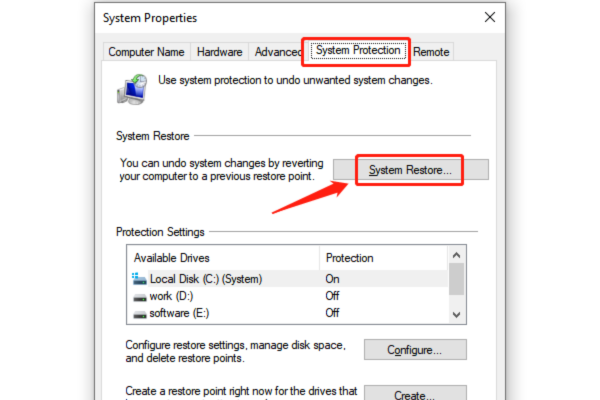
If the random PC shutdowns started happening after a recent change, like installing new software or making system changes, you can try system restore. In the search box, type "Create a restore point" and select it. In the "System Protection" tab, click "System Restore".
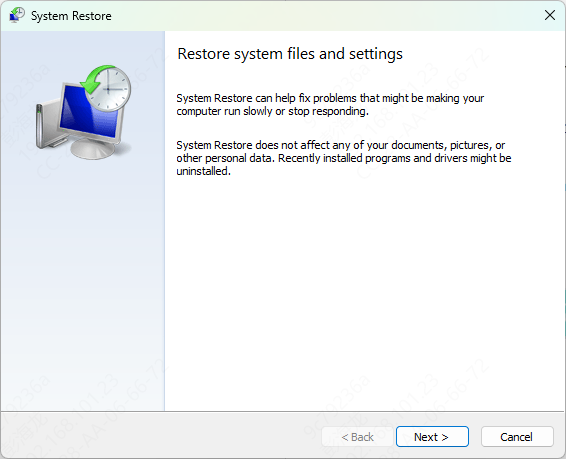
You'll see a list of restore points. Select a point that was created before the computer shuts off randomly. Then, follow the wizard to complete the restore process. After the restore is done, restart your computer. This might bring your system back to a stable state and fix the problem.
Check Your Computer's Hardware
Finally, it's important to check your computer's hardware. Look at the cooling system. Make sure the fans are spinning properly and there's no dust blocking the vents. If possible, try replacing the power supply unit. Sometimes, a faulty PSU can cause power issues that lead to computer shuts off randomly. If you're not sure what's wrong with the hardware or how to fix it, it's a good idea to contact professional technical support.
Conclusion
Dealing with computer shuts off randomly issue can be a real pain, but with these solutions, you should be able to get to the root of the problem. Whether it's overheating, power supply issues, or driver problems, there's a fix for each. And don't forget about PcGoGo Driver Sentry; it can be a valuable asset in keeping your system's drivers up-to-date. If you've tried these solutions and are still having problems, it might be time to consult a professional technician. But in most cases, these steps should help you get your computer back to normal and prevent those annoying random PC shutdowns.




