






Is your Windows computer freezing unexpectedly, crashing during startup, or displaying error messages even when you're performing simple tasks? Corrupted Windows system files may be one of the reasons behind these frustrating problems. Essential system files can become damaged due to interrupted updates, unexpected shutdowns, disk errors, malware infections, or software conflicts, potentially affecting the stability and functionality of Windows 10 and Windows 11. Fortunately, you don't always need to reinstall Windows to restore damaged system components. Several built-in repair utilities can help identify and resolve file corruption while preserving your personal data. This guide introduces five practical methods to repair corrupted Windows system files, including using System File Checker (SFC), running DISM commands, checking disk errors with CHKDSK, performing System Restore, and checking device drivers with Driver Sentry to address related stability issues.
1. Use the System File Checker (SFC)
Press Win + S, type "Command Prompt", and select "Run as Administrator".
In the Command Prompt window, type the following command: sfc /scannow
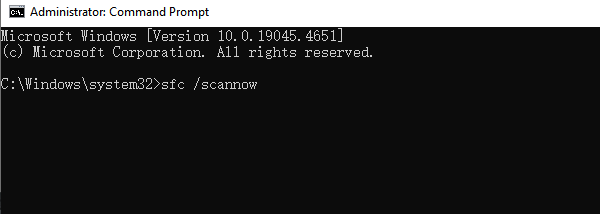
Press Enter to execute the command. This will start the scanning and repair process for system files. The scan may take several minutes, depending on your system's performance and the number of files.
Once the scan is complete, the system will automatically repair any corrupted files. If there are files that cannot be repaired, it will prompt you with further actions.
After the repair is complete, it's recommended to restart your computer to ensure the changes take effect.
2. Run DISM Repair Tool
Press Win + S, type "Command Prompt", and select "Run as Administrator".
Type the following command and press Enter: DISM /Online /Cleanup-Image /RestoreHealth
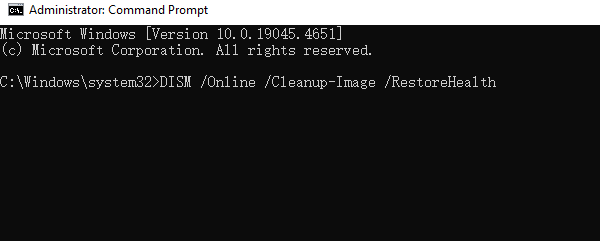
This command will scan and repair the Windows system image. Depending on your system's performance, the repair process may take several minutes to an hour.
Please be patient during the process as DISM automatically fixes corrupted system files. If the repair is successful, you will see a confirmation message.
After running DISM, it's recommended to run "sfc /scannow" again to ensure all system files are fully repaired.
Once complete, restart your computer to apply the changes.
3. Use CHKDSK to Scan
Press Win + S, type "Command Prompt", and select "Run as Administrator".
Type the following command and press Enter: chkdsk /f /r
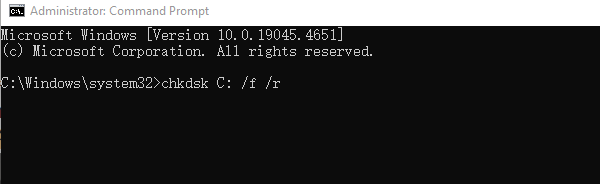
The "/f" parameter will fix errors on the disk, and "/r" will locate bad sectors and recover readable information. "C:" refers to the system drive letter, which should be replaced if your system is on a different drive.
If CHKDSK prompts you to schedule the scan for the next restart, press "Y" to confirm and restart your computer. The system will automatically start scanning and fixing errors on the disk after rebooting.
The CHKDSK scan may take some time, depending on the size of the hard drive and the number of errors. Once complete, the computer will automatically return to the desktop.
4. Check for Driver Updates
Outdated or corrupted drivers are a common cause of system instability in Windows. Checking for and updating device drivers can effectively resolve computer issues. We recommend using Driver Sentry to automatically detect and update drivers, saving time and avoiding the risk of downloading or installing incorrect drivers.
Click the download button to get the latest version of Driver Sentry. After installation, open the software and click "Scan".
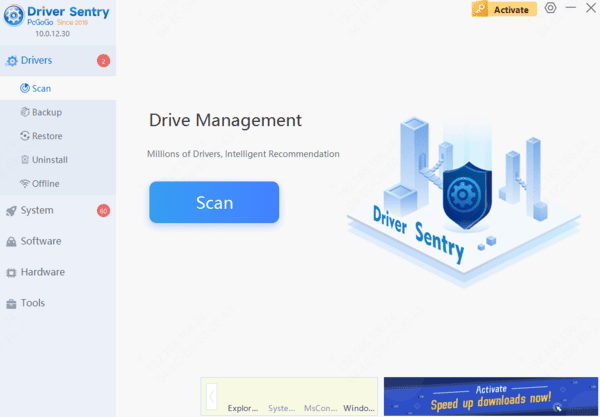
Once the scan is complete, a list of missing or outdated drivers will appear. Find the driver you need to update and click the "Upgrade" button.
After the update is complete, it's recommended to restart your computer to ensure the updated drivers take effect.
5. Perform a System Restore
Press Win + S and search for "Create a restore point", then select it to open.
In the "System Properties" window, click the "System Restore" button.
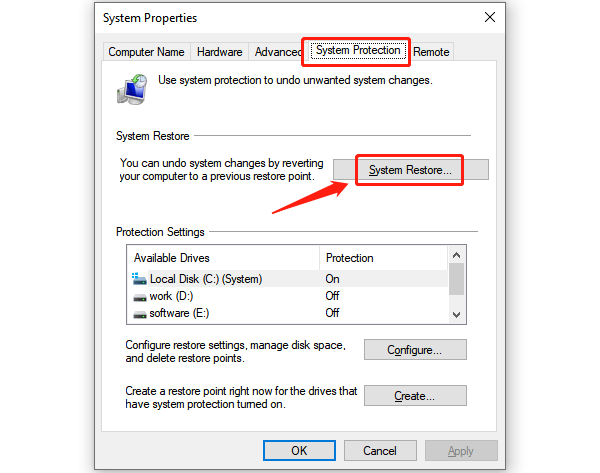
In the System Restore window, select either the "Recommended restore point" or "Choose a different restore point" (if you have multiple restore points).
Choose a suitable restore point and click "Next".
Once you confirm the restore point, click "Finish", and the system will begin the restoration process. This may take a few minutes, and the computer will restart automatically.
After the system restore is complete, the computer will start up, and your system will be restored to the selected restore point.
6. Frequently Asked Questions
Should I run DISM or SFC first?
Run DISM /Online /Cleanup-Image /RestoreHealth first to repair the Windows component store, then run sfc /scannow to check and repair protected system files.
Will repairing Windows system files delete my documents?
SFC and DISM are designed to repair Windows components without removing personal documents. Still, back up important files before troubleshooting, especially if you suspect a failing drive.
Why does system file corruption keep returning?
Recurring corruption may indicate storage problems, faulty RAM, unexpected power loss, or software interference. If repairs succeed but corruption returns, check drive health and memory instead of repeatedly running repair commands.
By following these steps, you can repair corrupted Windows system files. If the issue persists, contact technical support for further assistance.




