




Discord makes it easy to communicate with friends, teammates, and coworkers. However, when audio starts cutting out during a voice call, even a simple conversation can become frustrating.
You might notice that your microphone stops transmitting halfway through a sentence, other people's voices sound robotic, or your headset suddenly goes silent while gaming. Sometimes, Discord audio works perfectly in other applications but becomes unreliable during voice chats.
If you are experiencing Discord audio cutting out on Windows PC, the problem may involve incorrect voice settings, aggressive noise suppression, outdated audio drivers, unstable network connections, or headset compatibility issues.
This guide explains how to identify the cause and fix Discord audio interruptions on Windows 10 and Windows 11.
Fix 1: Restart Discord and Check Your Audio Connections
Right-click the Discord icon in the system tray and select Quit Discord, if available.
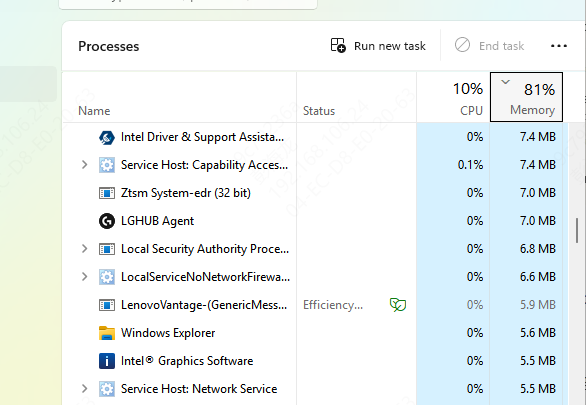
Press Ctrl + Shift + Esc to open Task Manager.
End any remaining Discord processes.
Disconnect your headset or microphone.
Reconnect the device securely.
Restart Windows and open Discord again.
Fix 2: Adjust Discord Input Sensitivity
Open Discord.
Click the User Settings gear icon.
Select Voice & Video.
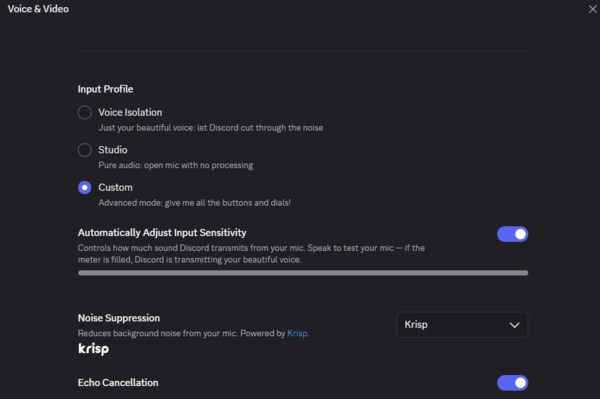
Locate Input Sensitivity.
Turn off Automatically determine input sensitivity, if available.
Adjust the sensitivity threshold.
Fix 3: Disable Aggressive Noise Suppression
Open Discord.
Go to User Settings > Voice & Video.
Find Noise Suppression.
Temporarily disable Krisp noise suppression, if enabled.
Review Echo Cancellation and Automatic Gain Control, if available.
Test your microphone after changing each setting.
Fix 4: Update Audio Drivers
Audio drivers allow Windows to communicate with sound cards, USB headsets, microphones, and other audio devices.
If an audio driver becomes damaged or incompatible, you may experience distorted sound, microphone interruptions, or unexpected device disconnections.
Driver problems are especially worth checking if Discord audio started cutting out after a Windows update or hardware change.
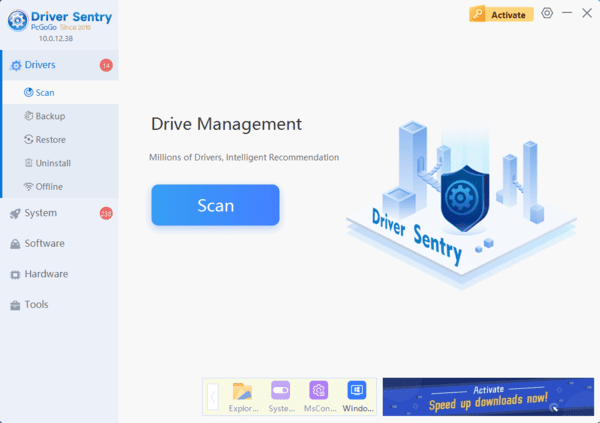
Driver Sentry is a Windows driver management utility that can identify supported missing, outdated, or problematic drivers.
Download Driver Sentry.
Install and launch the application.
Run a system driver scan.
Review any detected audio, USB, or Bluetooth driver issues.
Install appropriate compatible updates if available.
Restart your computer.
Open Discord and test your microphone again.
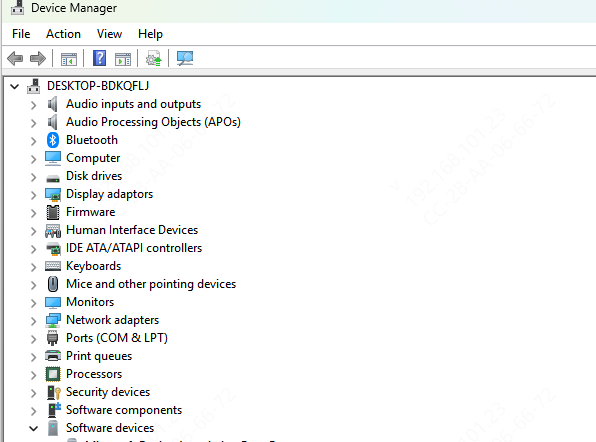
You can also update drivers through Device Manager or download compatible packages from your computer manufacturer's support website.
If audio problems began immediately after a driver update, rolling back to the previous working driver may be more appropriate than installing another update.
Fix 5: Disable Windows Audio Enhancements
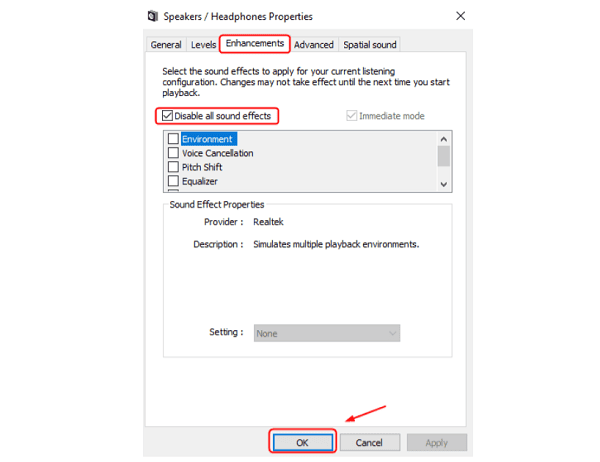
Press Windows + I to open Settings.
Select System > Sound.
Choose your affected microphone or output device.
Locate Audio enhancements, if available.
Set the option to Off.
Restart Discord and test the audio.
Fix 6: Select the Correct Input and Output Devices
Open Discord.
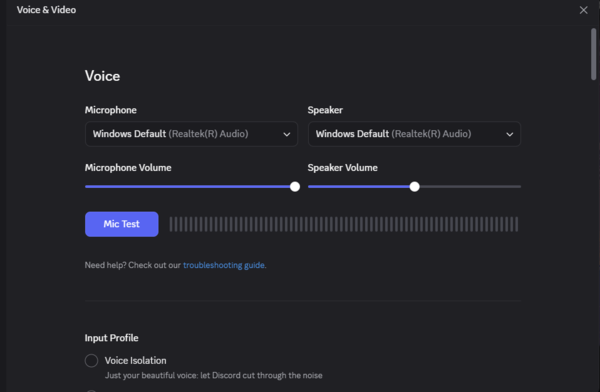
Go to User Settings > Voice & Video.
Find Input Device.
Select the microphone you want to use.
Find Output Device.
Select your preferred headphones or speakers.
Adjust the input and output volume.
Test your audio.
Fix 7: Reset Discord Voice Settings
Open Discord.
Click User Settings.
Select Voice & Video.
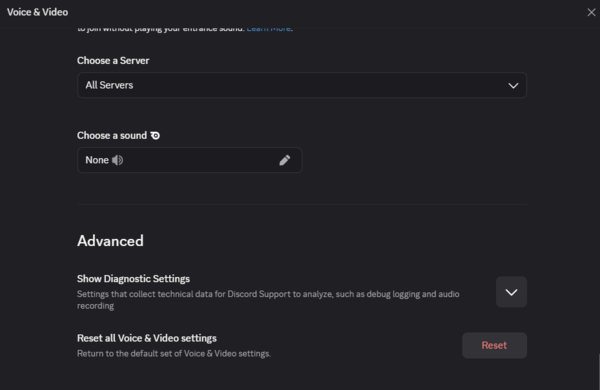
Scroll down to find Reset Voice Settings.
Click the reset option.
Confirm the action.
Select your preferred microphone and speakers again.
Test a voice call.
Conclusion
Discord audio cutting out on Windows PC can result from incorrect voice settings, aggressive noise suppression, unstable network connections, or outdated audio drivers. Start by adjusting input sensitivity, selecting the correct audio devices, and checking your headset connection. If the issue persists, reset Discord voice settings, troubleshoot network problems, or use Driver Sentry to check for problematic audio, USB, and Bluetooth drivers. These solutions can help reduce audio interruptions and restore clear, stable voice communication on Windows 10/11.