






If you've ever tried to launch a game like Modern Warfare and were greeted with the error message "discord_game_sdk.dll was not found", you know how frustrating it can be. This issue usually happens when the Discord Game SDK file is missing, corrupted, or improperly installed on your system. As a result, the game may fail to launch, crash on startup, or lose access to Discord overlay features. Fortunately, this problem can usually be fixed without reinstalling Windows. In this guide, we'll walk you through multiple effective solutions—from simple checks to advanced fixes—to help you restore the missing discord_game_sdk.dll file and get your game running smoothly again.
Common Causes of discord_game_sdk.dll Errors
Missing or corrupted discord_game_sdk.dll
Conflicts with Discord overlay or other third-party software
Outdated or missing Visual C++ Redistributables
Corrupted game files or incomplete installation
Antivirus or firewall blocking DLL files
System file corruption
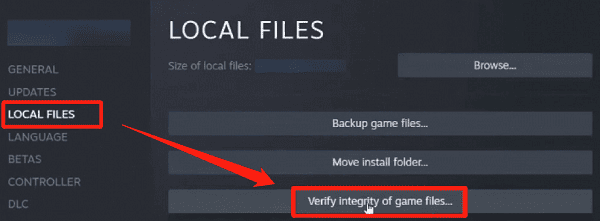
Verify Game Files
If the DLL is part of your game installation, verifying game files can restore missing components.
Steam:
Open Library → Right-click the game → Properties → Local Files → Verify Integrity of Game Files
Battle.net:
Open the game options → Scan and Repair
This ensures all required files, including discord_game_sdk.dll, are present and intact.
Install or Repair Visual C++ Redistributables
Many DLL-related errors occur due to missing or corrupted Microsoft Visual C++ Redistributables, which the Discord SDK relies on.
Visit the Microsoft Visual C++ download page
Install or repair the following packages:
Visual C++ 2015
Visual C++ 2017
Visual C++ 2019
Restart your PC and relaunch the game

Update System Drivers and Windows
Outdated drivers or system files can also prevent DLLs from loading correctly
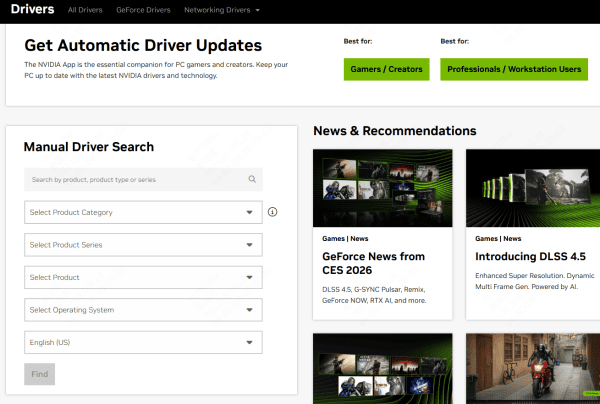
Graphics Drivers: Update GPU drivers from NVIDIA, AMD, or Intel
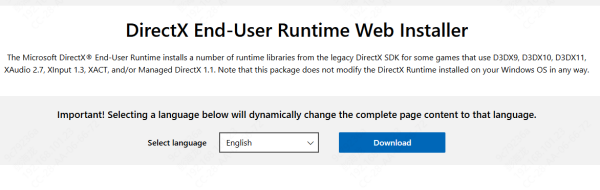
DirectX: Ensure the latest version is installed via the Microsoft DirectX download page
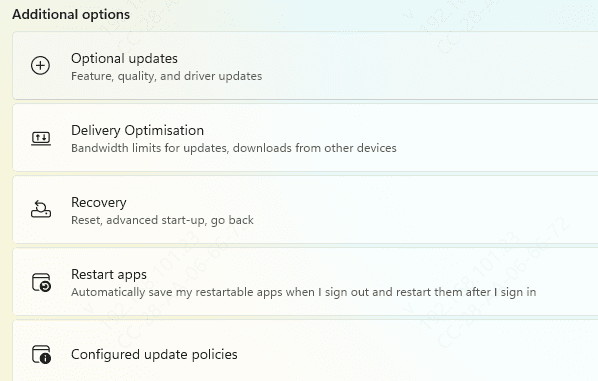
Windows Update: Go to Settings → Update & Security → Windows Update → Check for updates
Keeping your system updated ensures all dependencies for Discord and games are in place
Use PcGoGo DLL Fixer for a One-Click Solution
If you want the fastest and safest way to fix DLL-related errors, using an automated repair tool can save you a lot of time and effort. PcGoGo DLL Fixer is designed to detect and repair missing or corrupted DLL files with just a few clicks.
Step 1: Download and Install the Software
Click the Download button to get the PcGoGo DLL Fixer installation package
Once the download is complete, run the installer and follow the on-screen instructions to finish the setup on your PC
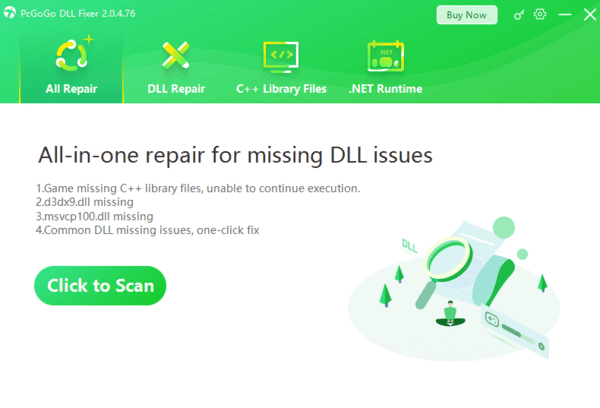
Step 2: Launch the Program and Scan Your System
Open PcGoGo DLL Fixer after installation
Click "Click to Scan", and the program will automatically perform a deep system scan. It will search for all missing, damaged, or incorrectly registered DLL files, including VCRUNTIME140_1.dll and other related dependencies
Step 3: Repair DLL Errors with One Click
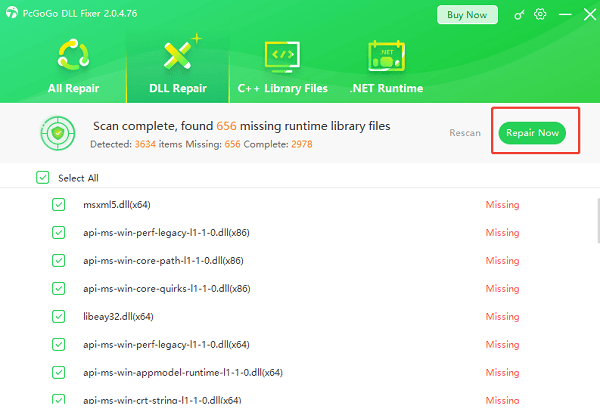
After the scan is complete, you'll see a list of detected DLL issues
Simply click "Repair Now", and the tool will download the correct, verified versions of the required DLL files and place them in the proper system directories automatically
Step 4: Restart Your Computer
Once the repair process finishes, restart your PC
This step ensures that Windows correctly loads the newly repaired DLL files and that the changes take full effect
Repair System Files (SFC & DISM)
System file corruption may be the culprit
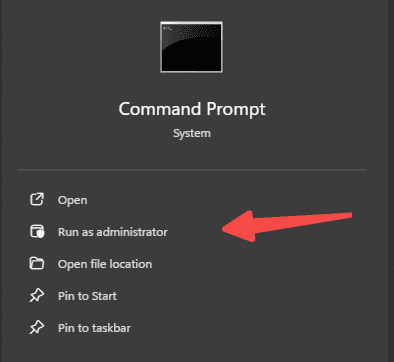
Open Command Prompt as Administrator
Run the System File Checker:
sfc /scannow
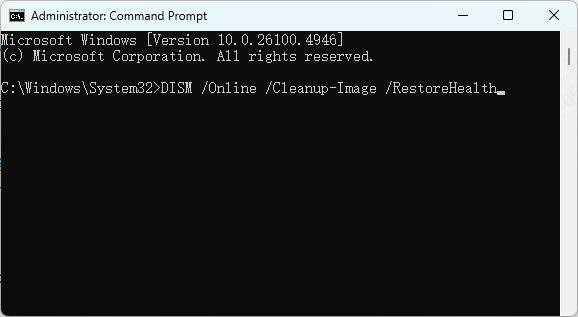
If issues persist, repair deeper system corruption with DISM:
DISM /Online /Cleanup-Image /RestoreHealth
Restart your PC and retry launching the game
Conclusion
The "discord_game_sdk.dll was not found" error can be frustrating, but it's usually fixable without reinstalling Windows. Start with simple checks like restarting your system and verifying game files. If the issue persists, updating Discord, installing Visual C++ Redistributables, and using automated DLL repair tools like PcGoGo DLL Fixer are highly effective. Advanced users can also manually replace and register the DLL or repair system files with SFC and DISM. Following these steps should get your game running smoothly again with full Discord functionality.




