






Getting a steam_api64.dll missing error and can't launch your game? This guide covers 7 proven fixes — verifying game files through Steam, reinstalling the Steam client, repairing Visual C++ Redistributables, checking antivirus quarantine, using PcGoGo DLL Fixer for broader dependency issues, and running SFC and DISM — to restore steam_api64.dll and get your game launching again.
Fix 1: Verify Game File Integrity Through Steam
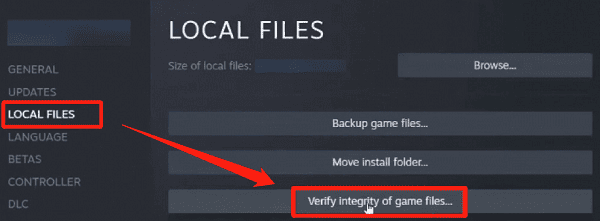
The most direct fix for a missing or corrupted per-game copy of steam_api64.dll is forcing Steam to restore it through file verification. Steam hashes every file in the game's installation against a server manifest and redownloads anything that does not match, including steam_api64.dll
Open Steam and go to your Library. Right-click the game showing the error and select Properties. Go to the Installed Files tab and click Verify integrity of game files. Let the process complete fully. Steam will identify and replace any missing or mismatched files. Launch the game after verification finishes to confirm the error is resolved
Fix 2: Reinstall the Steam Client
If the error appears across multiple games rather than a single title, the problem is likely with the steam_api64.dll file in the Steam root directory rather than any individual game folder
A corrupted Steam installation can affect the shared API components that all games rely on
Fix 3: Reinstall Visual C++ Redistributables
Go to the official Microsoft download page and download the Visual C++ Redistributable for Visual Studio 2015 through 2022. Install both the x64 and x86 version
Also install the 2013 and 2010 packages if you have not already, as older games pull in older runtime versions. If the packages are already installed, use the Repair option in Windows Add or Remove Programs rather than a fresh install
Restart your PC after completing all installations

Fix 4: Check Antivirus Quarantine and Add Exclusions
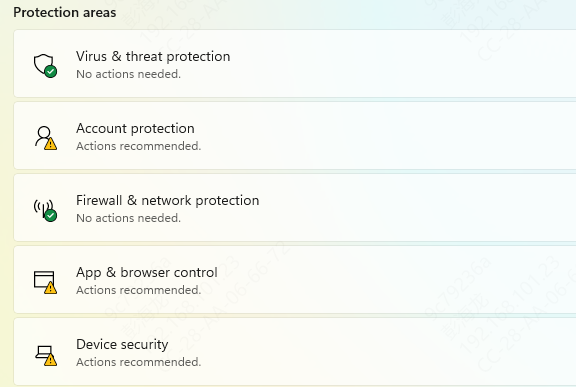
On Windows Security, go to Virus and threat protection, click Manage settings, scroll to Exclusions, and add the relevant folder paths
After adding exclusions, run a Steam file verification again to confirm the restored file remains intact
Fix 5: Use PcGoGo DLL Fixer
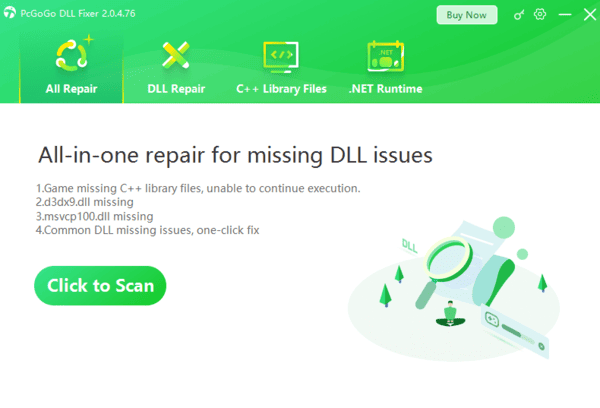
When the error persists after file verification and the issue involves multiple damaged or missing dependencies that are difficult to trace manually, an automated repair tool addresses the problem more efficiently.
PcGoGo DLL Fixer scans the entire system for corrupted DLL files, missing runtime dependencies, and broken registry entries that point to nonexistent components
This is particularly effective when steam_api64.dll errors appear alongside other DLL errors, which indicates the dependency chain has broader damage beyond a single file
Fix 6: Run SFC and DISM to Repair Windows System Files
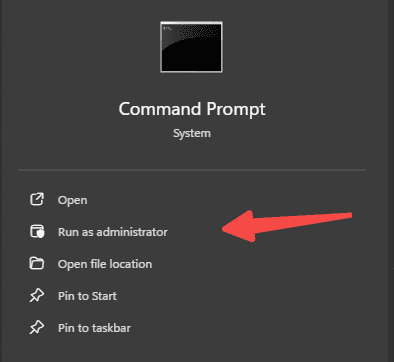
Open Command Prompt as Administrator and run:
sfc /scannow
Let it complete without interruption. If SFC reports that it found and repaired corrupted files, restart and test. If it cannot repair all files, proceed with DISM
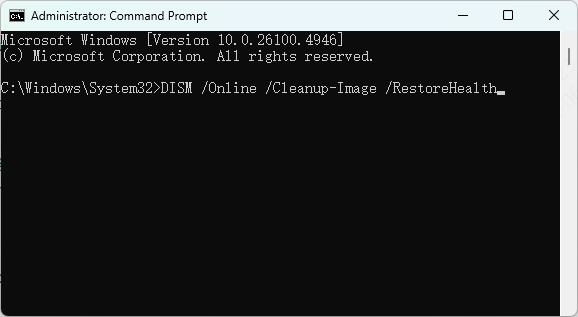
Run these commands one at a time:
DISM /Online /Cleanup-Image /ScanHealth
DISM /Online /Cleanup-Image /RestoreHealth
Fix 7: Reinstall the Game Completely
Right-click the game in your Steam Library, select Manage, and click Uninstall. After uninstalling, delete the remaining game folder manually if Steam does not remove it completely
Reinstall the game through Steam. This eliminates any installation-level corruption that verification alone cannot fully resolve
Conclusion
The steam_api64.dll missing error is almost always recoverable without reinstalling Windows. Start with Steam's file verification for single-game errors or a Steam client reinstall for errors affecting all games. Repair Visual C++ Redistributables and check antivirus quarantine if the file keeps disappearing after verification. Use PcGoGo DLL Fixer when the dependency chain has broader damage, and follow up with SFC and DISM for any underlying system file corruption. Working through these steps in order resolves the problem for the vast majority of users.




