






Getting a "steam_api.dll is missing" error when launching a PC game? This guide covers 6 fixes — verifying game file integrity in Steam, checking antivirus quarantine, using PcGoGo DLL Fixer for automated repair, reinstalling the game, repairing the Steam client, and running SFC and DISM — to resolve steam_api.dll errors safely without losing your saves.
What Is steam_api.dll and Why Games Need It
steam_api.dll is a file that belongs to the Steam client. It acts as the bridge between a PC game and the Steam platform, handling startup verification, achievements, cloud saves, and multiplayer features. Almost every game distributed through Steam depends on it to launch. Without it, the game fails immediately
The file lives inside the game's own installation folder, not in the Windows System32 directory. This means fixing it usually involves Steam and the game directory rather than Windows system tools. There are two versions: steam_api.dll for 32-bit games and steam_api64.dll for 64-bit titles. The fixes for both are the same
Verify Game File Integrity via Steam
Open Steam and go to your Library. Right-click the game showing the error and select Properties
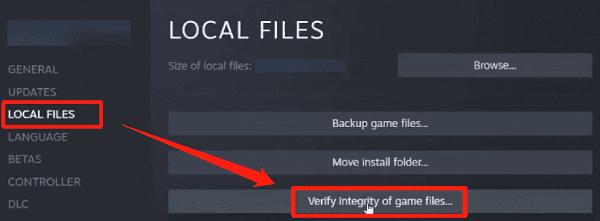
Click the Local Files tab and then Verify integrity of game files. Steam will detect and replace any missing or corrupted files
After verification completes, try launching the game. This resolves the problem in the majority of cases
Check Your Antivirus Quarantine
If verification finds nothing wrong but the error persists, your antivirus has almost certainly removed the file. Open your antivirus application and navigate to the quarantine or virus chest section
Look for steam_api.dll in the list and restore it. Then add the game's installation folder to your exclusions list so the file is not removed again. After adding the exclusion, run Steam file verification once more to restore the file cleanly
Use PcGoGo DLL Fixer
If you prefer an automated solution, PcGoGo DLL Fixer detects and repairs missing DLL files without manual steps.
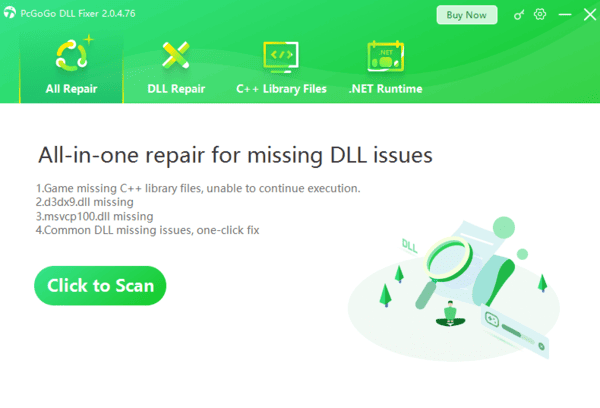
Download and install PcGoGo DLL Fixer from the official website. Open the program and click Scan. When the scan finishes, find steam_api.dll in the results and click Repair Now. Restart your computer after the repair completes and test the game again. This method is especially useful when multiple games are affected at the same time
Reinstall the Affected Game
If the installation is fundamentally broken, a clean reinstall is more reliable than repeated verification. In Steam, right-click the game and select Manage, then Uninstall
Check whether your save files are stored in Steam Cloud or a local folder before proceeding. After the uninstall finishes, restart your computer, then reinstall the game from your library. Let the download complete without interruption before launching
Repair or Reinstall the Steam Client
If Steam itself is damaged, it may fail to restore game files properly. Download the latest Steam installer from the official Steam website. Running it on a system where Steam is already installed performs a repair rather than a full reinstall
If the repair does not help, back up your steamapps folder, do a full uninstall of Steam, reinstall it, then move the steamapps folder back so your games do not need to be downloaded again

Run SFC and DISM
If Windows system files are corrupted, even a clean steam_api.dll may fail to load.
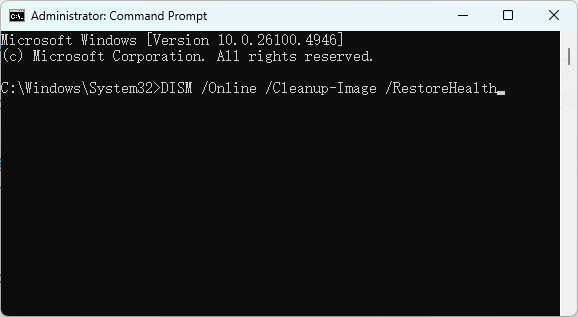
Open Command Prompt as administrator and run sfc /scannow. Wait for the scan to complete and restart your PC. If SFC reports it could not fix all errors, run DISM /Online /Cleanup-Image /RestoreHealth in an elevated Command Prompt
DISM downloads replacement files from Windows Update and can take 20 to 45 minutes. Restart after it finishes and run SFC once more to confirm the repairs
Frequently Asked Questions
Can I download steam_api.dll from a third-party website?
No. Unofficial DLL sites cannot verify file integrity or origin. Files from unknown sources may carry malware or be the wrong version. Use Steam verification or PcGoGo DLL Fixer instead.
Why does the error only affect one game?
Each game ships its own copy of steam_api.dll inside its installation folder. If only one game is affected, the problem is isolated to that folder. Verify files for that specific game rather than reinstalling Steam.
Is steam_api.dll a virus?
No, it is a legitimate Valve file. Some antivirus programs flag it because malware occasionally uses the same filename as a disguise. Confirm the file is located inside the official game folder and not in a system directory.
Conclusion
The steam_api.dll error is almost always a missing or quarantined file rather than a serious system problem. Start with Steam file verification, then check your antivirus quarantine. If those steps do not resolve it, use PcGoGo DLL Fixer for an automated repair or reinstall the game for a clean slate. SFC and DISM are available as a fallback for deeper Windows issues. Avoid downloading the file from unofficial sources, as verified methods above are sufficient to fix the error safely.




