The AMD RX 580 remains a popular graphics card for gaming and high-performance tasks. Keeping its drivers updated is essential for maintaining system stability, improving performance, and ensuring compatibility with the latest games and applications. In this guide, we'll introduce several quick and reliable methods to update AMD RX 580 drivers, helping you optimize graphics performance and keep your PC running smoothly.
Method 1: Use a Driver Management Tool
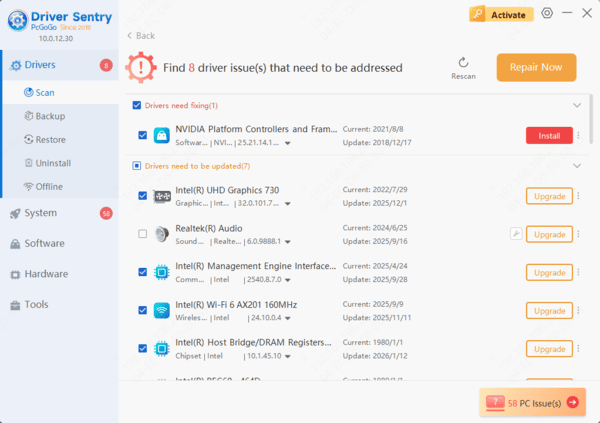
Driver management tools can automatically scan your system for missing or outdated drivers and provide one-click updates. It's recommend to use Driver Sentry to automatically detect and update your drivers, saving time and avoiding the risk of downloading or installing incorrect drivers.
Method 2: Manually Download from the Official Website
Visit the official AMD website and click on "Resources & Support" > "Drivers".
In the search bar, enter "Radeon™ RX 580" and click search.
Select your operating system (e.g., Windows 10, Windows 7) and system architecture (32-bit or 64-bit).
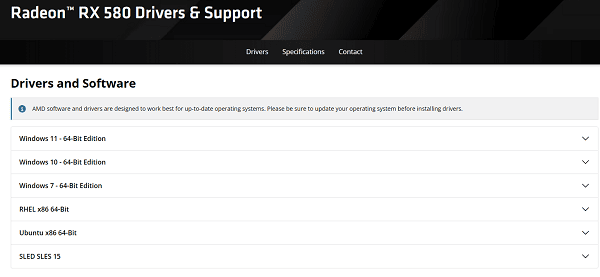
Click the "Download" button to start downloading the driver installation package.
Once downloaded, double-click the installation file and follow the instructions to complete the installation. You may need to restart your computer during the process.
Note: Ensure you select the correct version of your operating system when downloading the driver to avoid compatibility issues.
Method 3: Use Device Manager
Press the Windows key + X simultaneously and choose "Device Manager" to open it.
Locate the "Display Adapters" category, right-click on "AMD Radeon RX 580", and select "Update Driver".
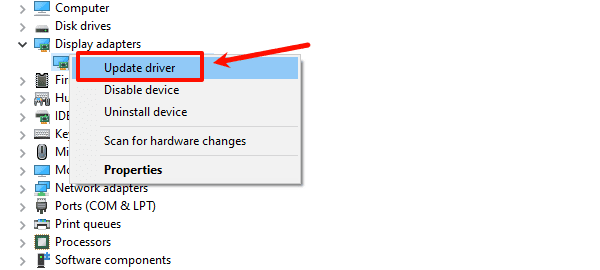
Choose "Search automatically for drivers". The system will search for and install the latest driver (if available).
Method 4: Use Windows Update
Press the Windows key + I to open "Settings".
In the settings window, choose "Update & Security".
Under Windows Update, click "Check for updates".
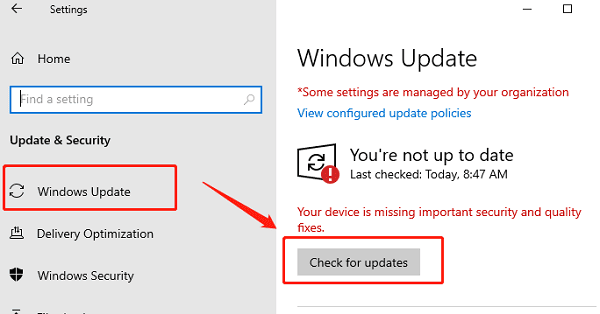
Windows will automatically search for and install any available updates.
If a new graphics driver is available, the system will install it and prompt you to restart the computer.
Important Notes
Backup Important Files: Before updating your drivers, it is recommended to back up important files and data in case of installation issues or system crashes.
Uninstall Old Drivers: It is best to uninstall the old graphics drivers before installing the new ones to prevent conflicts.
Driver Compatibility: Make sure the driver you download is compatible with your operating system version. If problems arise, try installing an older version of the driver to see if it resolves the issue.