






Reinstalling the operating system on a PC can resolve various issues, making the system run more smoothly. This article provides a detailed step-by-step guide to help you successfully reinstall your operating system.
Why Reinstall the Operating System?
Fix Performance Issues: Clear junk files and unnecessary programs to improve your computer's speed.
Repair System Errors: Resolve issues caused by corrupted OS files or misconfigurations.
Reset the System: Restore the system to factory settings, removing all personal data and applications.
Driver Backup
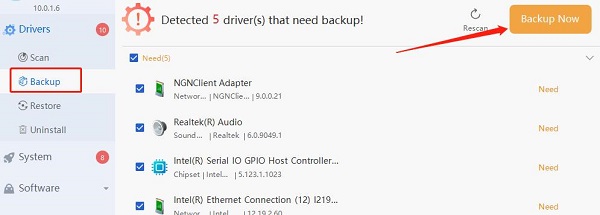
It is recommended to use Driver Sentry for driver management. Its backup and restore feature allows you to easily back up drivers and restore them when needed, ensuring your device maintains optimal performance.
1). Download the latest version of Driver Sentry, install it, and open the software.
2). Click the "Backup" option to select the drivers you want to back up.
3). Click "Backup Now" and wait a few moments for the process to complete. You will see a confirmation message when successful.
Step 1: Back Up Important Data
Before reinstalling the operating system, ensure you back up all important files, documents, and personal data to an external hard drive, cloud storage, or other secure location to prevent data loss.

Step 2: Download the Installation Media
Download the installation image file for the operating system (usually an ISO file) to your computer. You can get this from the official website of the operating system or other trusted sources.
Step 3: Create Installation Media
Use tools like Rufus or the Windows Media Creation Tool to burn the downloaded ISO file to a USB drive or DVD, creating a bootable installation media.
Step 4: Insert Installation Media
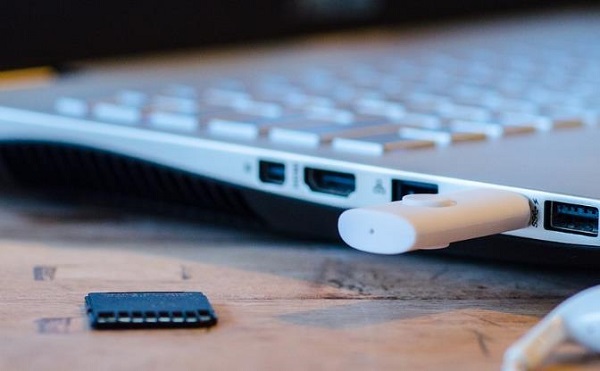
Insert the created USB drive or DVD into your computer to ensure the installation media is properly connected.
Step 5: Set Boot Order
Restart your computer and enter the BIOS/UEFI settings. Set the USB drive or DVD as the first boot device to ensure your computer boots from the installation media.
Step 6: Boot from Installation Media
Restart the computer and enter the BIOS or UEFI settings, usually accessed by pressing a specific key (like F2, F10, or Del) during startup. Once in BIOS/UEFI, adjust the boot order to prioritize the installation media (USB or DVD). Save the changes and exit.
Step 7: Install the Operating System
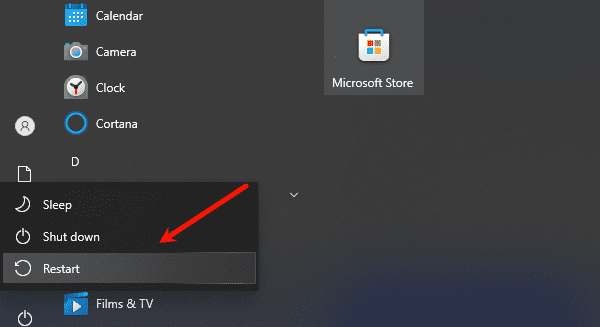
Restart the computer again, and it should now boot from the installation media. Follow the on-screen instructions to start the installation process. You will be prompted to choose language, time zone, keyboard layout, and other preferences. Select the option to install the operating system.
Step 8: Partition the Hard Drive
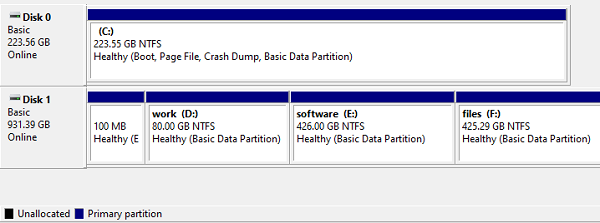
During the installation, you'll be asked to choose the location to install the OS. Create or modify the hard drive partitions as needed. You can choose to install the OS on an existing or new partition.
Step 9: Format the Hard Drive
You will reach a step where you choose the installation destination. Here, you have the option to format the hard drive, which will erase all data on it. Ensure you have backed up all necessary files before continuing. Select the drive to install the OS and proceed with formatting.
Step 10: System Installation
Once the formatting is done, select the OS version you wish to install and click "Next" to begin the installation. Agree to the terms and conditions, then wait for the system to automatically install the OS.
Step 11: Install Drivers and Updates
After the installation is complete, install all necessary drivers and system updates. You can download the latest drivers from the hardware manufacturer's website or use the OS update feature.
Step 12: Restore Data and Reinstall Applications
In this final step, restore the previously backed-up data and files. Reinstall all necessary applications and software, then configure the system to suit your preferences.
Step 13: Complete Setup
After restoring and configuring everything, complete the setup by setting up user accounts, adjusting preference settings, and installing any additional software or applications.
By following these steps, you can successfully reinstall your operating system. Be sure to back up important data beforehand and follow the instructions to prevent data loss or system issues. If you face any difficulties, consult the official OS support or seek professional help.
See also:
Star Wars: Outlaws PC Configuration Guide
How to Fix Monitor Color Distortion




