






If your HP Smart Tank 5101 printer is not working properly or has not yet been set up on Windows, installing the correct driver is an essential first step. A missing, outdated, or incompatible printer driver can cause problems such as failed print jobs, connection errors, or the printer not being detected. This guide explains several reliable ways to download and install the HP Smart Tank 5101 driver, including using the official HP website, Driver Sentry, HP Smart, and Windows Device Manager.
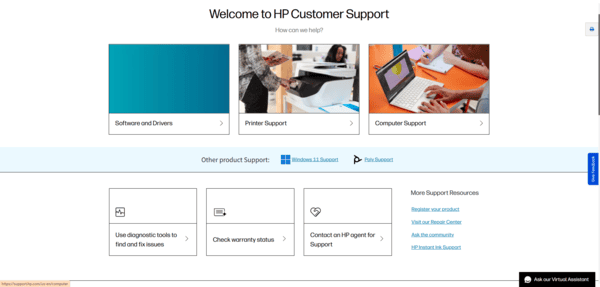
Downloading the Driver from HP's Official Website
Visit the Official HP Support Website: Go to the official HP Support page
Search for Your Printer Model: Enter HP Smart Tank 5101 in the search bar, or select your printer from the series (e.g., HP Smart Tank series)
Select Your Operating System: Choose the appropriate operating system (Windows 10, Windows 11) from the dropdown menu
Download the Driver: Under the Drivers & Downloads section, find the Printer Driver for your selected OS and click Download
Run the Installer: After the download is complete, open the downloaded file
Install the Driver: Follow the on-screen instructions to install the printer driver on your computer
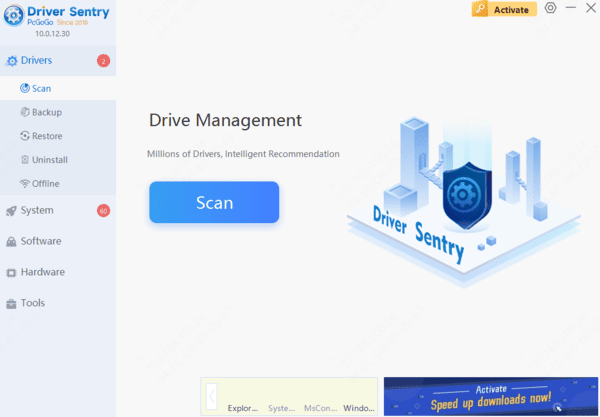
Download the Driver Using Driver Sentry
Driver Sentry automatically scans your system and detects outdated or missing drivers, ensuring that you always have the latest version for optimal printer performance.
Using HP Smart App
Steps to Download and Use the HP Smart App:
Download the HP Smart App
Launch the HP Smart App: Open the HP Smart app on your computer after installation
Add Your Printer: In the HP Smart app, click on the "+" or "Add Printer" button to add your HP Smart Tank 5101 printer
Follow the Setup Prompts: The app will automatically search for printers in setup mode. Ensure your printer is in setup mode (Wi-Fi light blinking). Select your printer from the list of detected devices
Enter Wi-Fi Details: Choose your Wi-Fi network and enter the password to connect the printer to your network

Using Windows Device Manager
If you prefer manual installation or are troubleshooting driver issues, you can use Windows Device Manager to update or install the HP Smart Tank 5101 driver.
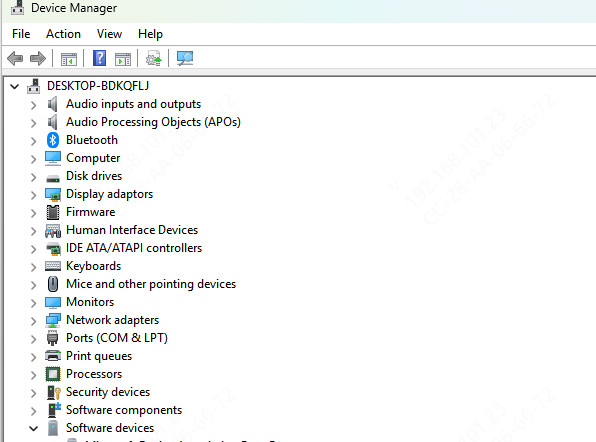
Open Device Manager: Right-click on the Start Menu and select Device Manager
Locate Printer: In the Device Manager window, expand the Printers or Print Queues section. Look for the HP Smart Tank 5101 (or a generic printer name if the driver isn't installed yet)
Update the Driver: Right-click on your printer and select Update Driver. Then, choose Search automatically for updated driver software
Install the Driver: If Windows finds the driver, it will automatically install it. If not, download the driver from the HP website and use Browse my computer for drivers to point to the location of the downloaded driver
Restart Your PC: After the installation, restart your computer and test the printer by printing a document
Frequently Asked Questions
Does the HP Smart Tank 5101 support Windows 11?
Yes. Install the compatible Windows 11 driver through HP Support, HP Smart, or Windows Update. Always select the correct Windows architecture when downloading manually.
Why is HP Smart not finding my Smart Tank 5101?
Make sure the printer is powered on, in Wi-Fi setup mode, and close to the router. Your computer and printer should connect to the same wireless network.
Can I install the HP Smart Tank 5101 without HP Smart?
Yes. Download the full driver package from HP Support or install a basic driver through Windows. However, HP Smart provides convenient setup, scanning, and printer management features.
Conclusion
Downloading and installing the HP Smart Tank 5101 printer driver is an essential step for getting your printer up and running. Whether you choose to download from the HP website, use the HP Smart app, or go through Device Manager, these methods will help ensure a smooth and hassle-free setup.




