






Is your keyboard number pad not working on Windows 10 or Windows 11? Whether the numeric keys stop responding, type unexpected characters, or move the mouse pointer instead of entering numbers, the problem can interrupt everyday typing and data entry. Common causes include disabled Num Lock, incorrect accessibility settings, outdated keyboard drivers, connection problems, or hardware faults. Fortunately, several simple troubleshooting steps can help restore normal keypad functionality. This guide explains how to fix a keyboard number pad not working by checking Num Lock, disabling Mouse Keys, updating drivers with Driver Sentry, adjusting system settings, and testing for hardware issues.
I. Basic Checks
1. Verify Num Lock Status
Symptom: Number keys act as arrow keys or don't respond.
Solution: Press the Num Lock key (labeled NumLk on some keyboards). An indicator light usually turns on when activated (for laptops, try Fn + Num Lock).
2. Inspect External Keyboard Connections
Wired keyboards: Unplug and reconnect the USB cable, or try a different USB port.
Wireless keyboards: Check battery levels or re-pair the device via Bluetooth/USB receiver.
II. System and Driver Fixes
1. Update/Reinstall Keyboard Drivers
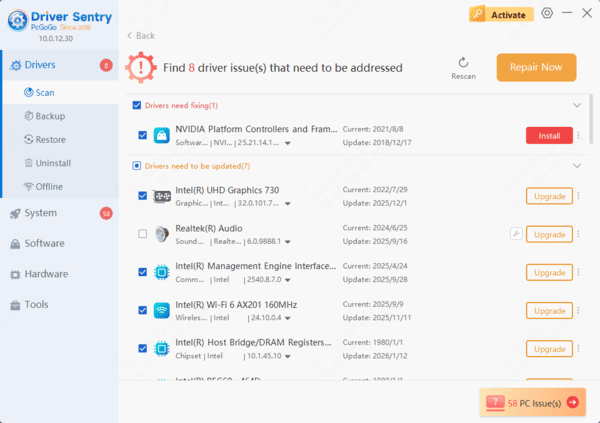
Recommended tool: Use Driver Sentry, a driver management tool that auto-scans and updates outdated/incompatible drivers.
1. Open Driver Sentry and click Scan to detect driver issues.

2. After scanning, click Repair Now to update flagged drivers.
3. If issues persist:
Press Win + X → Device Manager → expand Keyboards.
Right-click your keyboard → Uninstall device → restart and let Driver Sentry reinstall drivers automatically.
2. Disable "Mouse Keys"
Issue: Windows' Mouse Keys feature hijacks the numeric keypad.
Fix:
1. Press Win + S → search for Control Panel → Ease of Access → Change how your keyboard works.
2. Uncheck Turn on Mouse Keys → click Apply.
III. Hardware and System Configuration
1. Test Keyboard Hardware
Connect the keyboard to another computer to rule out hardware failure.
2. Modify Registry (Laptops Only)
Symptom: Built-in numeric keys fail even with Num Lock on.
Steps:
1. Press Win + R → type regedit → navigate to:
“HKEY_USERS\.DEFAULT\Control Panel\Keyboard”
2. Double-click InitialKeyboardIndicators → set value to 2 → restart.
IV. Advanced Solutions
1. Check BIOS/UEFI Settings
Restart your PC and repeatedly press F2/Del/Esc (varies by brand) to enter BIOS.
Navigate to Advanced or Boot → ensure Num Lock is Enabled.
2. System Restore
If the issue followed a recent update:
1. Search for Create a restore point → System Protection.
2. Select a restore point from before the issue began → follow prompts.
V. Hardware Repair
Clean the keyboard: Use compressed air to remove debris under keys. For advanced users: Remove keycaps to clean contact points.
Replace the keyboard: If physical damage (e.g., liquid spills, drops) occurs, replace the keyboard (for laptops, contact manufacturer support).
While a faulty numeric keypad can be frustrating, most issues are resolvable using these steps. Regularly updating drivers via tools like Driver Sentry can also enhance system performance. Follow this guide to restore your productivity and get back to seamless typing!
See also:
8 Methods to Fix Ethernet Issues in Windows 10
Fix Logitech Wireless Mouse Not Working Issue
Resolve Nvidia Graphics Card Not Detected Issue
Fix Bluetooth Not Showing Up in Device Manager for Windows




