






A black screen with only a mouse pointer is a common Windows issue. When you start your laptop or computer, the screen may remain black while the mouse cursor is still visible and movable. This problem can be caused by display driver issues, system errors, or startup problems. This guide provides effective solutions to help you fix the issue and restore normal display.
1. Check Connections and Power
First, ensure that your computer and monitor are properly connected. Sometimes, a loose connection between the monitor and the CPU can cause a black screen. Check that the HDMI, VGA, or DVI cables are securely plugged in. Also, confirm that the monitor has power; try adjusting the brightness settings to see if the screen is black due to low brightness.
2. Force Restart the Computer
If the issue persists after checking the connections, try force restarting the computer. Press and hold the power button until the computer completely shuts down. Wait a few seconds before turning it back on. This simple action often resolves many temporary glitches, especially those caused by system freezes or crashes that lead to a black screen.
3. Enter Safe Mode
If restarting doesn't work, try entering Safe Mode. During startup, repeatedly press the F8 key (or on Windows 10, hold the Shift key and select Restart) to access the "Advanced Startup Options". Select "Safe Mode", and the system will start with minimal configurations.
In Safe Mode, the system only loads essential drivers, which can help identify if a specific program or driver is causing the black screen issue.
4. Update Graphics Driver
Sometimes, the black screen issue arises from incompatible or outdated graphics drivers. You can follow these steps:
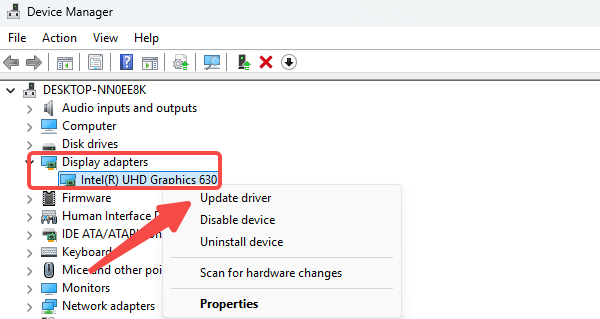
Step 1: In Safe Mode, press the "Win+X" key combination, select "Device Manager", find "Display Adapters", right-click on your graphics card, and choose "Update Driver". You can select "Search automatically for updated driver software", and the system will attempt to find and install the latest driver.
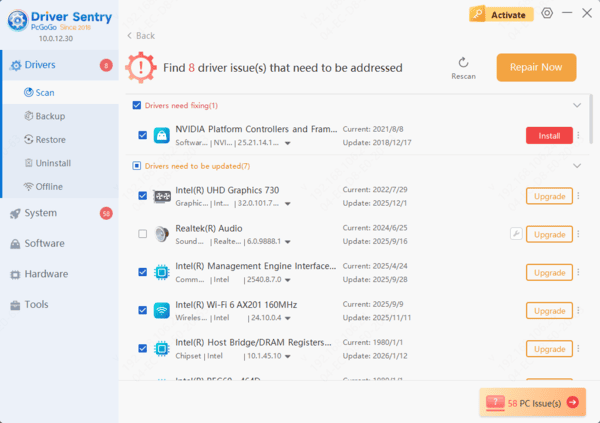
Step 2: To quickly and effectively check the status of your computer's drivers, it's recommended to use "Driver Sentry". If any driver issues are detected, you can click "Upgrade" with just one click.
5. Check System Files
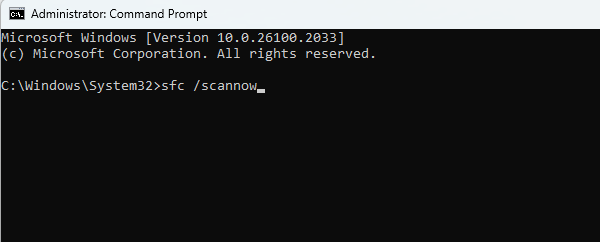
While in Safe Mode, you can also use the System File Checker (SFC) to repair corrupted system files. Open Command Prompt (as administrator), type "sfc /scannow", and press Enter. The system will automatically scan and repair any corrupted files. This process may take some time, so please be patient.
6. System Restore
If the above methods still do not resolve the issue, consider performing a system restore. If you created a restore point before the problem occurred, you can find the "System Restore" option after entering Safe Mode, select a restore point, and revert to the previous system state.
This can help restore your system to its normal functioning state, especially if you recently installed unstable software or updates.
By following these tips, you should know how to resolve the black screen issue with only the mouse pointer. If you encounter any driver-related problems, "Driver Sentry" can help you easily detect and fix them.
See also:
Solution to Computer Black Screen Not Opening
how to get rid of black border on computer screen
6 Ways to Fix a Non-Responsive Computer Keyboard
8 Methods to Fix Black Screen After Windows 10 Upgrade




