






In everyday computer use, we often encounter small issues. Recently, a user reported receiving an error message stating: "The device's driver is not installed (Code 28)". What causes this problem, and how can it be resolved? Here's a detailed guide to help you address this issue.
What Causes the Code 28 Error?
1. Driver Not Installed or Corrupted
The most common reason is that the driver has not been properly installed or has become corrupted, preventing the system from recognizing the device.
2. Incompatible Driver Version
A mismatch between the driver version and the operating system can result in failed driver installation.
3. Windows System Updates
Certain Windows updates, especially major version upgrades, can disrupt older drivers, rendering them incompatible.
4. Hardware Issues
Although less common, hardware malfunctions can also cause driver installation problems.

Steps to Fix the Code 28 Driver Error
Step 1: Check the Device Manager
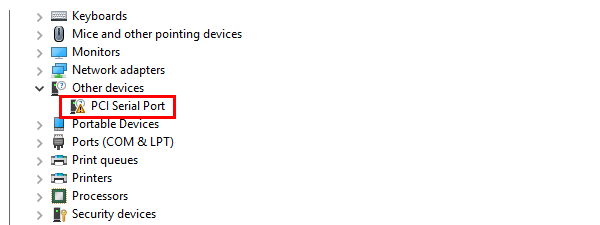
Start by checking the Device Manager to identify which device is experiencing driver issues. Devices with driver problems typically show a yellow exclamation mark next to their icons.
Right-click the Start button on the bottom-left corner of your desktop and select Device Manager.
Locate the problematic device in the list. If you see a yellow exclamation mark, the driver is missing or not properly installed.
Step 2: Update the Driver
If you're unsure which driver needs attention or where to find the correct driver, try using software like Driver Sentry to automatically detect and fix missing or outdated drivers.
Download and install Driver Sentry.
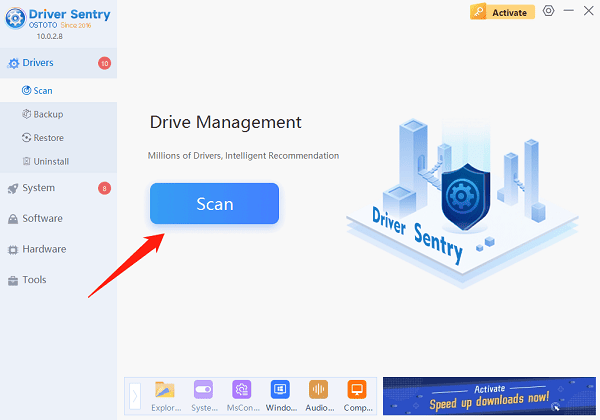
Open the program and click Scan to identify outdated or missing drivers.
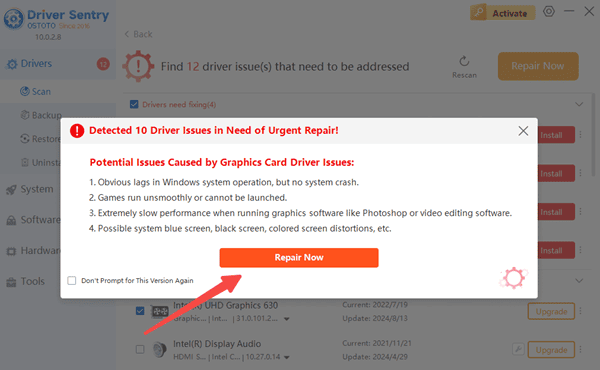
The software will recommend suitable drivers. Click Repair Now to download and install the latest versions.
Once the installation is complete, restart your computer.
Step 3: Uninstall and Reinstall the Driver
If updating the driver doesn't work, try uninstalling and reinstalling it to clear potential conflicts or corruption.
Open Device Manager and locate the problematic device.
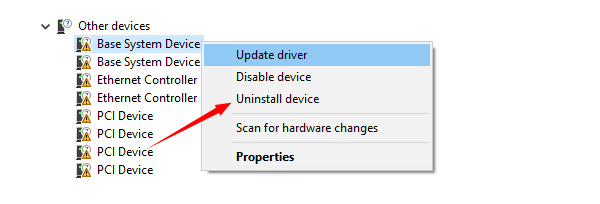
Right-click the device and select Uninstall Device.
Afterward, use Driver Sentry to detect and reinstall the necessary driver automatically.
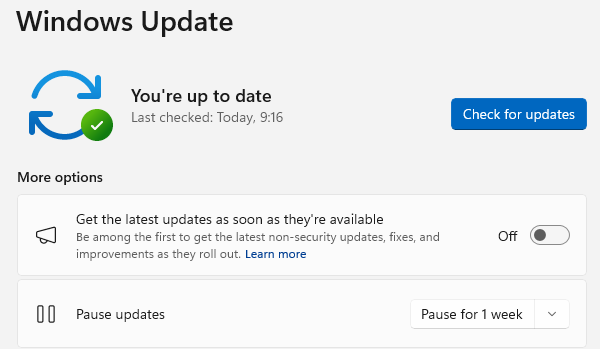
Step 4: Check for Windows Updates
If the above steps fail, ensure your operating system is up to date. Some Windows updates address compatibility or driver-related issues.
Open Settings and navigate to Windows Update.
Click Check for Updates and install any available updates.
Restart your computer and see if the issue is resolved.
How to Prevent Driver Issues
To avoid similar problems in the future, it's recommended to regularly update your drivers using Driver Sentry. This tool helps maintain compatibility between your system and hardware by ensuring your drivers are always up to date.
By following these steps, you should be able to resolve the Code 28 error and restore your device to normal functionality.
See also:
Fix dxgkrnl.sys BSOD Error in Windows 10
8 Effective Solutions for Laptop Not Turning On
How to Fix Blue Screen After Windows 10 Update
Brother Printer Driver Download Step-by-Step Guide




