






Fix colored lines on your monitor with practical solutions like updating graphics drivers, checking cable connections, adjusting refresh rate, and troubleshooting GPU or display hardware issues.
Check Monitor Connections
Sometimes, colorful stripes on the monitor can result from a loose or faulty connection. Start by checking if the cable connecting your monitor to the computer is securely plugged in and undamaged. Whether you're using a VGA, HDMI, or DP interface, a loose or damaged connection can disrupt the signal and lead to color display issues.
Adjust Refresh Rate
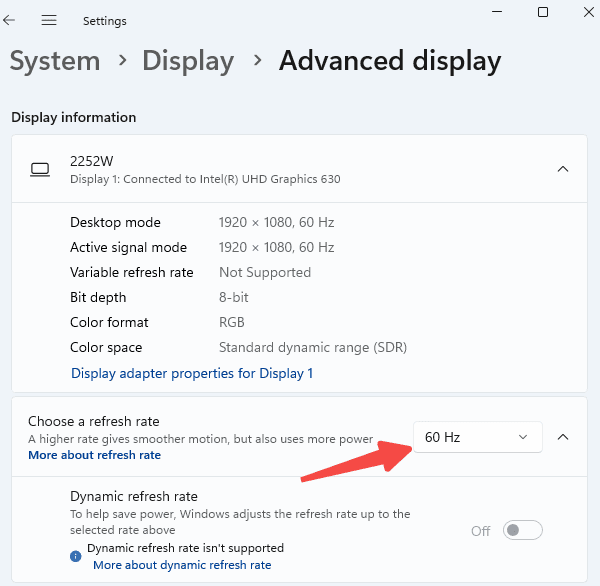
In some cases, the display issues may stem from incorrect settings. Adjusting the monitor's refresh rate to ensure compatibility with the graphics card can help prevent display anomalies.
Steps:
1. Right-click on an empty area of the desktop and select "Display Settings".
2. Scroll down to "Advanced Display" and click to enter.
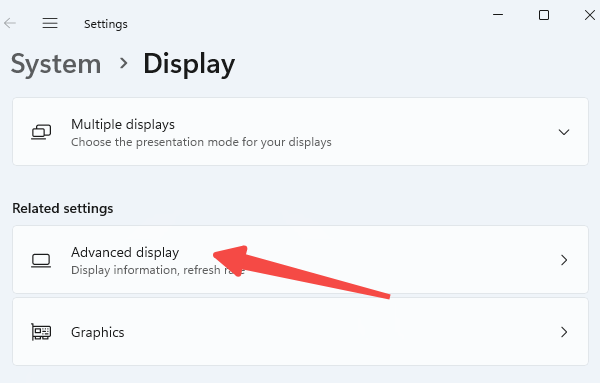
3. Under "Choose a refresh rate", select the recommended rate.
Update Graphics Driver
The graphics driver acts as a bridge between your operating system and the graphics hardware. If the driver is outdated or corrupted, it may cause display issues like screen flickering or colored stripes. This is especially common after installing system updates or new software, which may make your old driver incompatible.
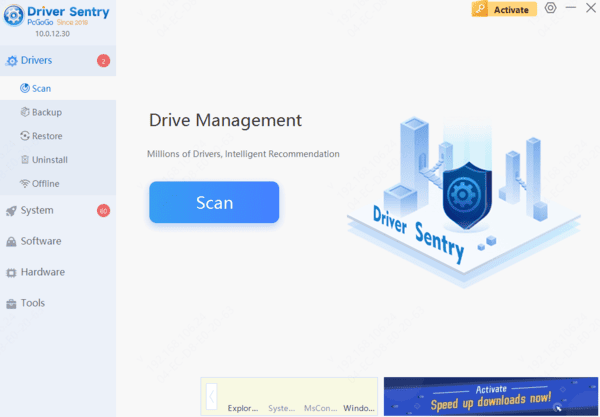
To simplify this, consider using "Driver Sentry". This tool automatically detects your computer's hardware and provides matching driver updates. It streamlines the process, improving accuracy and quickly resolving screen issues caused by driver problems.
Inspect the Monitor
If none of the above methods work, the problem could be with the monitor itself. Internal circuitry issues, aging of the LCD panel, or other hardware problems can cause display abnormalities like color stripes.
If you're using a desktop computer, try connecting the monitor to a different computer to check if the problem persists. If the other computer displays correctly, then the issue likely lies with your original monitor, and you may need to contact customer support for repair or replacement.
By following these methods, you should be able to resolve the colored stripe issue and restore your computer's normal display. For any driver-related issues, Driver Sentry can be a reliable tool to help you detect and fix them with ease.
See also:
6 Ways to Fix No Signal on Monitor
7 Ways to Fix Windows 11 Monitor Not Full Screen
How to get rid of black border on computer screen
How to Fix No Sound on an External Monitor Connected via HDMI




