When connecting an external monitor, you may encounter sound issues that prevent audio from playing through the display. This problem can be caused by incorrect audio settings, driver issues, or connection problems. This guide provides effective steps to fix external monitor sound problems and restore audio, allowing you to fully enjoy your monitor's multimedia features.
Method 1: Update Audio Drivers
Outdated audio drivers can cause issues with sound transmission over HDMI. To fix this, update your drivers promptly. We recommend using Driver Sentry to automatically detect and update drivers, saving time and avoiding the risk of downloading or installing incorrect drivers.
Click the download button to get the latest version of Driver Sentry. After installation, open the software and click "Scan".
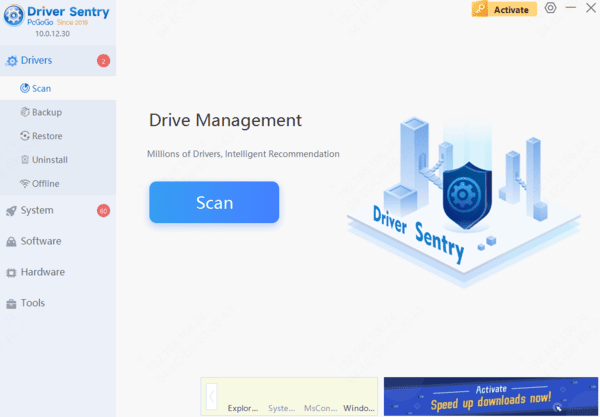
After scanning, it will show which drivers are missing or need updates. Find the audio driver in the list and click "Update".
After the update is complete, restart your computer to ensure the updated drivers take effect.
Method 2: Check Audio Settings
Right-click the volume icon in the bottom-right corner of the taskbar and select "Open Sound Settings".
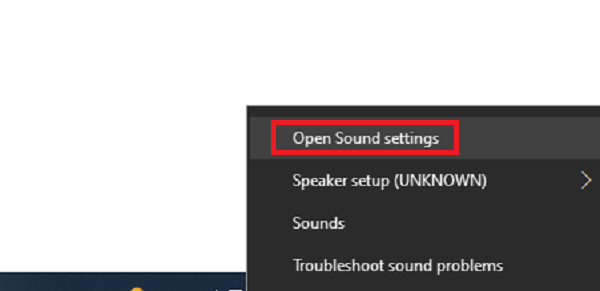
In the "Sound" settings window, ensure that the "Output Device" is set to your external monitor. Select the correct monitor to ensure sound is transmitted over HDMI.
In the "Advanced Sound Options" of the "Sound" settings window, check the volume settings for each application to make sure they are not muted and the volume is appropriate.
Sometimes, restarting the computer can resolve temporary audio settings issues.
Method 3: Configure Monitor Audio Settings
Use the buttons or remote control on the monitor to access the menu settings.
Find the "Audio Settings" or a similar option in the menu.
Ensure that the monitor's volume is not muted and is set to the correct audio input source.
If the monitor supports audio output, ensure it is set to receive audio signals through HDMI.
Method 4: Check HDMI Connection
Ensure that the HDMI cable is properly connected to both the computer and the monitor's HDMI ports. Try unplugging and re-plugging the cable to ensure a secure connection.
If possible, try using another HDMI port or replace the HDMI cable to rule out port or cable issues.
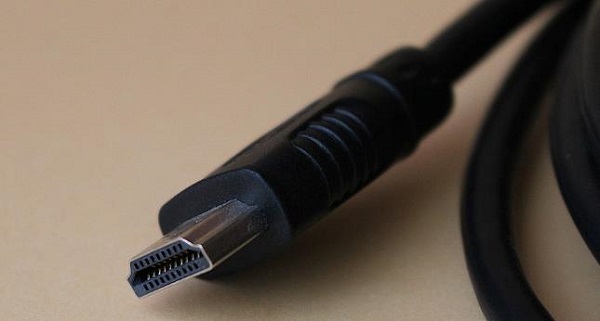
Ensure the HDMI cable and ports support audio transmission; some older HDMI versions may not support audio.
Method 5: Check System Settings
Make sure your operating system is updated to the latest version, as system updates may fix audio-related issues.
Go to "Device Manager", find "Sound, video and game controllers", and ensure there are no warning signs on the audio drivers.
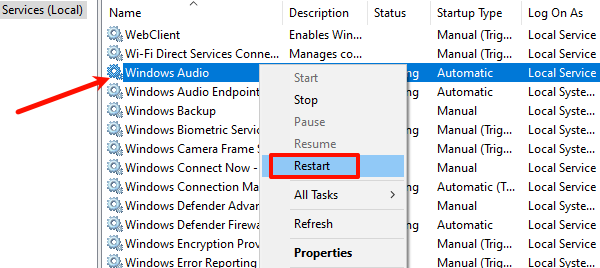
Press Windows + R, type "services.msc", find "Windows Audio", right-click and select "Restart".
Method 6: Reinstall Monitor Drivers
Press Windows + X, select and open "Device Manager".
Under "Display Adapters" or "Monitors", find your external monitor.
Right-click the monitor, select "Uninstall device" or "Uninstall driver".
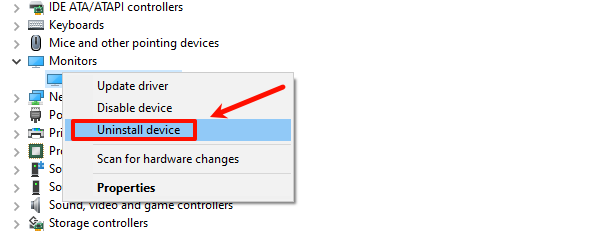
Restart your computer, and Windows will automatically reinstall the monitor drivers.
Method 7: Try Different Audio Output Devices
Set the audio output to other audio devices, such as external speakers or headphones, to confirm if the issue is with the monitor.
If your computer has multiple audio output ports, try switching to a different port to test if audio output is working properly.
By following these steps, you can likely fix the no sound issue with your HDMI-connected monitor. If the problem continues, contact the manufacturer or tech support. Keeping your system and drivers updated helps prevent most audio problems.
See also:
How to Easily Upgrade Your PC to Windows 11
7 Ways to Fix High Latency and Slow Speed on Your Computer