No sound on your computer can significantly affect your overall experience, whether you're working, gaming, or watching media. This article provides effective troubleshooting methods to help you identify and fix audio issues, restoring normal sound functionality on your computer.
1. Check Volume and Audio Devices
Make sure your computer isn't muted and the volume is set correctly by clicking the volume icon on the taskbar.
If using external speakers or headphones, check their connections and volume settings.
2. Update Audio Drivers
Drivers are crucial for hardware functionality. Outdated or corrupt audio drivers can cause sound issues. It's recommended to use Driver Sentry to automatically detect and update drivers, saving time and reducing the risk of installing incorrect drivers.
Download the latest version of Driver Sentry and install it. After installation, open the software and click "Scan".
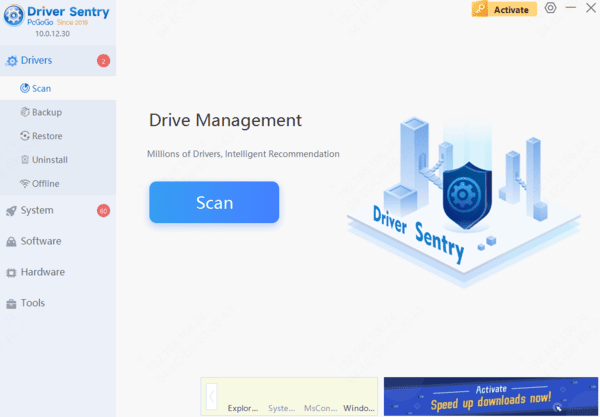
Once the scan is complete, it will show which drivers are missing or need updating. Find the audio driver in the list and click the "Update" button.
After updating, restart your computer to ensure the changes take effect.
3. Disable Audio Enhancements
Right-click the volume icon on the taskbar and select "Sounds".
In the "Playback" tab, select your audio device and click "Properties".
In the "Enhancements" tab, check the "Disable all sound effects" option and click "OK". Then try playing audio from your device.
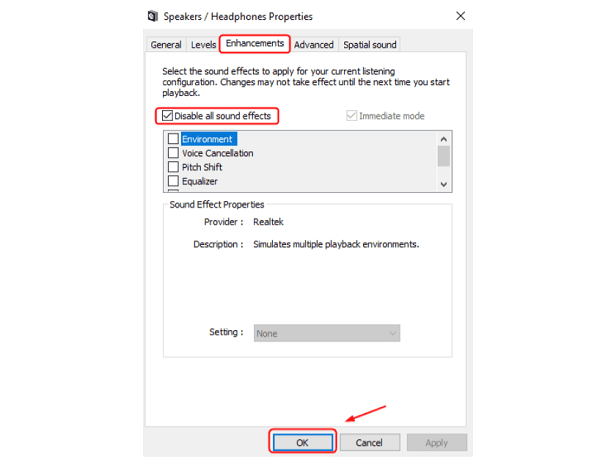
If this doesn't work, right-click another default device in the "Playback" tab (if available) and repeat the steps.
4. Check Windows Audio Service
Press "Win + R", type "services.msc", and press "Enter".
In the list of services, find "Windows Audio".
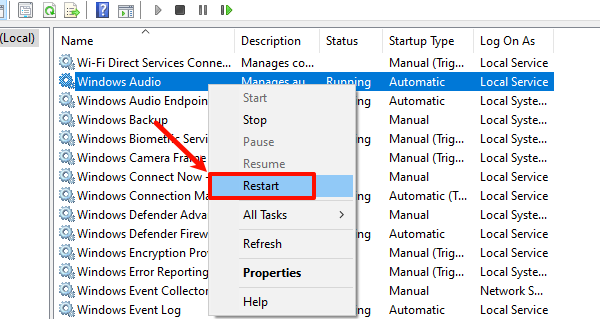
Right-click "Windows Audio" and select "Restart". Ensure the service's startup type is set to "Automatic".
5. Run Audio Troubleshooter
Press "Win + I" to open Settings, then select "Update & Security".
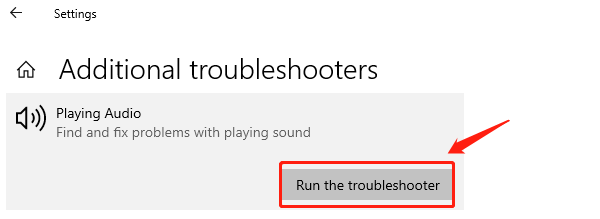
Click "Troubleshoot" on the left menu and choose "Additional troubleshooters".
Under "Playing Audio", click "Run the troubleshooter" and follow the on-screen instructions.
6. Check External Audio Devices
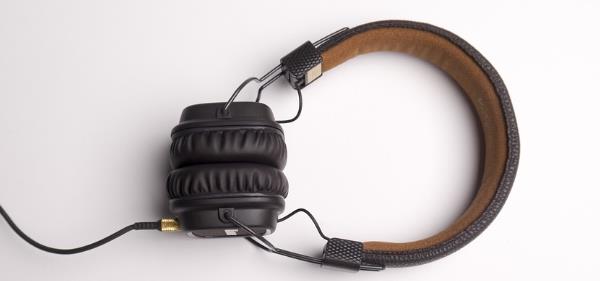
If using external speakers or headphones, make sure the devices themselves are functioning properly.
Test the speakers or headphones on another device (e.g., a phone or another computer) to confirm they work. If there is an issue with the external devices, consider replacing them.
7. Set Audio Device as Default
In the search box on the taskbar, type "Control Panel" and open it.
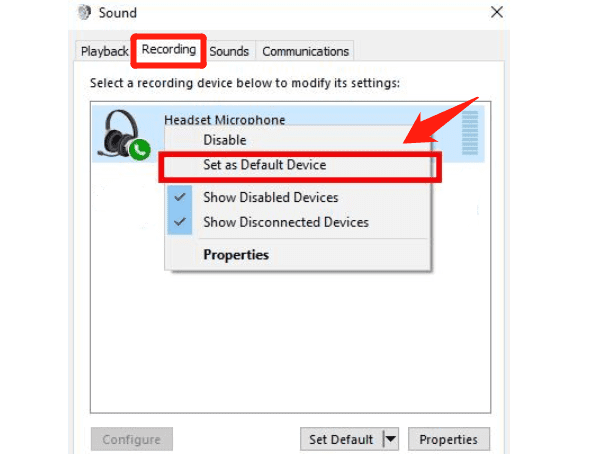
Select "Hardware and Sound" > "Sound".
In the "Playback" tab, right-click the audio device in the list and select "Set as Default Device", then click "OK".
8. Check Windows Updates
Press "Win + I" to open the Settings window, click "Update & Security".
In the left menu, click "Windows Update" and then "Check for updates".
If updates are available, click "Download and install" to begin the update process.
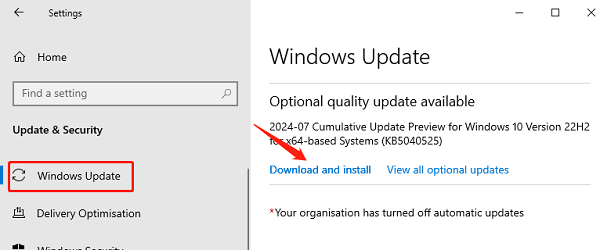
Click the restart button or follow the prompts to complete the installation. After updating, restart your computer and check if the audio issue is resolved.
By following these steps, you should be able to resolve the no sound issue on your computer. Keeping your audio drivers and system updated helps ensure your computer's audio functions correctly.