When your PC repeatedly shuts down and starts again on its own, normal troubleshooting can be difficult because you may have little time to identify what went wrong. Random restart loops can develop after installing new hardware, updating Windows, changing drivers, or running demanding applications, but they can also indicate power or cooling problems. Fortunately, you can usually narrow down the cause by checking the system step by step. This article explains how to troubleshoot a computer that keeps restarting, covering hardware checks, driver problems, overheating, system errors, malware, and Windows repair options.
1. Check For Hardware Problems
Hardware failure is one of the common causes of frequent computer reboots. In particular, hardware problems such as memory sticks, power supply or graphics cards can cause system instability.
Loose or faulty memory sticks may cause the computer to reboot. First, power off the computer and open the case to make sure the memory sticks are securely installed. If there are multiple memory sticks, try using one alone to rule out that it is a memory stick problem.
Insufficient or damaged power supply output voltage can also cause your computer to reboot. If the power supply is faulty, the best solution is to replace it with a new one.
If using a discrete graphics card, check that the card is securely mounted or try unplugging and re-plugging it. If the graphics card is damaged, it may need to be replaced.
2. Check For System Updates
Sometimes, problems with the operating system or drivers may cause the computer to restart constantly. For example, some drivers are incompatible with the operating system version, or system files are missing.
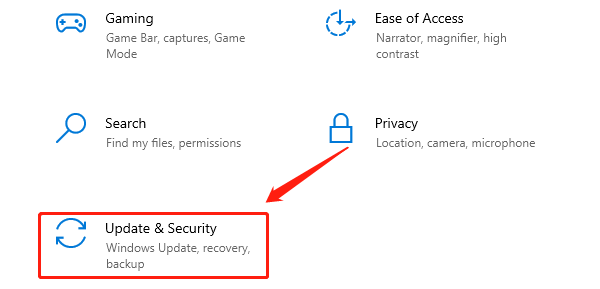
Open "Settings" > "Update and Security" to check if there is any available operating system update. Sometimes, operating system updates can fix reboot problems caused by system vulnerabilities.
3. Check For Blue Screen Errors
In some cases, the computer may reboot due to a blue screen error. The blue screen usually shows an error code or a message that can help us locate the problem.
If the computer reboots with a blue screen, you can write down the error code on the blue screen and then use a search engine to find out what the error code means. Common blue screen errors such as "IRQL_NOT_LESS_OR_EQUAL" may be related to driver conflicts.
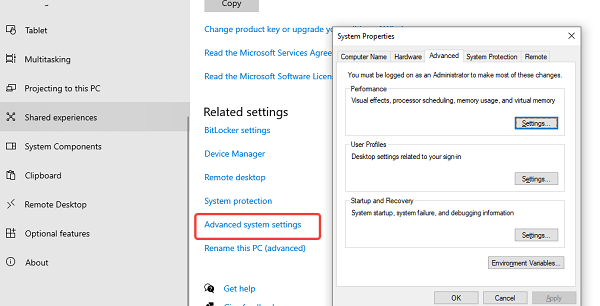
You can disable the automatic reboot feature to view the error details. Go to "Control Panel" > "System" > "Advanced System Settings" > "Startup and Recovery". Uncheck the "Automatic restart" option.
4. Virus And Malware
Some viruses and malware may cause your computer to restart frequently. They can tamper with system files or conflict with the operating system, causing system instability.
Run a full scan with antivirus software to remove any potential viruses or malware.
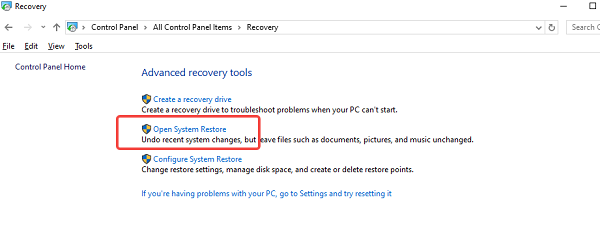
If the computer reboot problem occurs suddenly and there is no sign of virus or hardware failure, you can try to restore the system to its previous normal state. Choose a normal restore point through "Control Panel" > "Recovery" > "Open System Restore".
5. Update Drivers
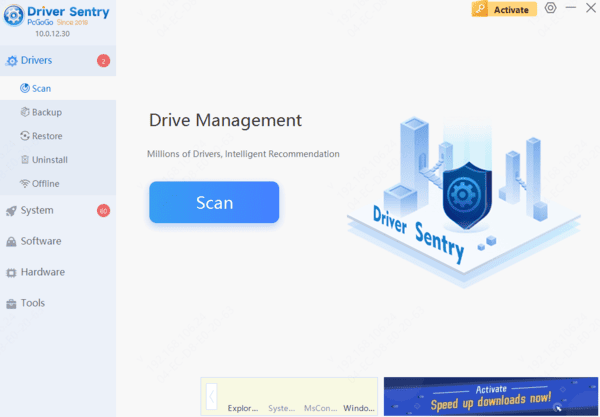
Make sure all drivers are up to date. Especially the graphics card driver and motherboard driver. We recommend using Driver Sentry for automatic driver updates, saving time and avoiding the risk of downloading or installing incorrect drivers.
6. Reset or Reinstall The Operating System
If none of the above methods can solve the problem, the operating system files may be corrupted or have problems that cannot be repaired. In this case, resetting or reinstalling the operating system may be the last solution.
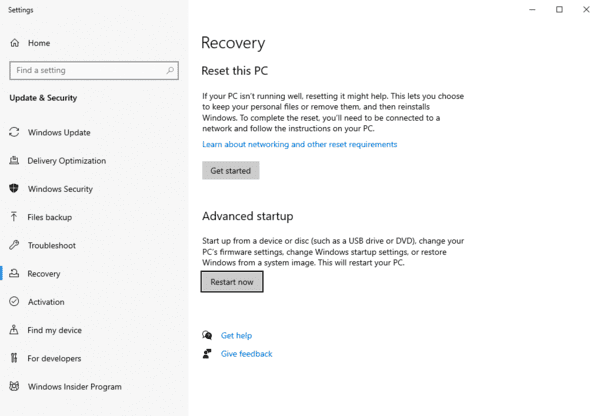
Windows provides "Reset this computer" function, you can reset the operating system through "Settings" > "Update and Security" > "Recovery" to reset the operating system, leaving your personal files intact.
If the reset does not work, you can try a complete reinstallation of the operating system. Make sure you back up your important file data before installing it.