






The "Data error (cyclic redundancy check)" message usually appears when Windows has trouble reading data from a hard drive, SSD, USB drive, SD card, or other storage device. The problem may be caused by file system corruption, bad sectors, damaged cables, connection problems, or failing storage hardware, while driver and Windows system issues can also contribute in some cases. This guide explains several practical ways to fix CRC errors, including checking device drivers with Driver Sentry, running CHKDSK, repairing Windows files with SFC and DISM, checking disk connections, and formatting the drive only as a last resort after important data has been backed up or recovered.
1. Run the CHKDSK Command
Press Win + S, type "cmd" in the search bar, right-click Command Prompt, and select "Run as administrator".
In the command prompt window, enter the following command and press Enter: chkdsk C: /f /r
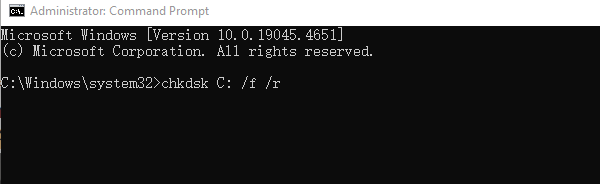
Replace C: with the affected drive letter (such as D: or E:).
/f fixes disk errors.
/r identifies and repairs bad sectors and attempts to recover readable data.
If prompted, type "Y" and restart your computer to allow CHKDSK to run at startup.
After CHKDSK completes, check if you can access your files or perform previous failed operations.
2. Run SFC and DISM Tools
Run the SFC Command:
Open Command Prompt as an administrator (refer to CHKDSK steps).
Enter the following command and press Enter: sfc /scannow

Wait for the scan to complete. Windows will automatically detect and repair corrupted system files.
If SFC fixes any files, restart your computer and check if the issue is resolved.
If SFC fails to repair all files, proceed with the DISM command.
Run the DISM Command:
Open Command Prompt as an administrator.
Enter the following commands one by one: DISM /Online /Cleanup-Image /CheckHealth
This checks if the Windows image is corrupted but does not repair it.
If corruption is detected, run: DISM /Online /Cleanup-Image /ScanHealth
This scans the Windows image for issues.
If damage is found, repair it by running: DISM /Online /Cleanup-Image /RestoreHealth
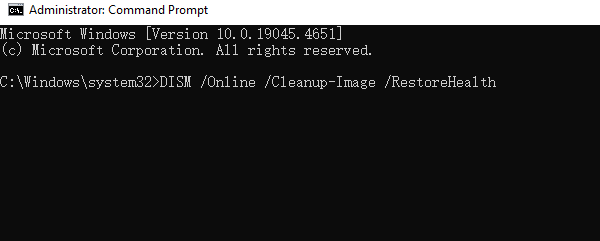
This command downloads and replaces corrupted system files (requires a stable internet connection).
Once completed, restart your computer and check if the issue is resolved.
3. Check Disk Connections
Shut down the computer and disconnect the power.
If using an external hard drive, try switching USB ports or replacing the data cable.
If using an internal hard drive, open the computer case and check if the SATA/PCIe cables are loose or damaged.
If using an SD card or USB drive, test it on another device or with a different card reader.
Reconnect the disk, power on your computer, and check if the issue is resolved.
If the problem persists, check if the disk is recognized correctly in the BIOS settings.
4. Check Device Drivers
Outdated or corrupted drivers may cause system instability, leading to the "Data error (cyclic redundancy check)" issue. Checking and updating your device drivers in a timely manner is an effective way to resolve this problem. Using Driver Sentry to automatically detect and update drivers can save time and prevent downloading or installing incorrect drivers.

5. Format the Disk
Open File Explorer (press Win + E).
Right-click the affected drive and select "Format".
In the format window, configure the following settings:
File System: Choose NTFS (for Windows) or exFAT (for cross-platform compatibility).
Allocation Unit Size: Leave it as the default value.
Format Type: Check Quick Format (for minor issues) or uncheck it for a deep format (if errors persist).
Click Start and wait for the format process to complete.
Frequently Asked Questions
Does a cyclic redundancy check error mean the drive is failing?
Not always, but it is a serious warning. CRC errors may result from file-system corruption or a damaged cable, while repeated errors, bad sectors, or unusual drive noises strongly suggest hardware failure.
Should I run CHKDSK before recovering important files?
If the data is valuable and the drive appears unstable, recover or clone it first. CHKDSK modifies the file system and can make some damaged files harder to recover.
What should I do if Windows cannot complete the format?
Try another cable, USB port, card reader, or computer. If the device still cannot be formatted or shows incorrect capacity, it may be write-protected, severely corrupted, or physically damaged.
Conclusion
A cyclic redundancy check error can indicate file-system damage, a connection problem, or a failing storage device. If the drive contains important files, stop writing new data to it and back up or recover the files before running CHKDSK or formatting. Next, check the cable, port, and drive on another computer, then repair applicable system or driver problems with Windows tools or Driver Sentry. If CRC errors continue or disk-health warnings appear, replace the drive rather than relying on repeated repairs.




