






Some users may face issues with Device Manager not opening, showing errors, or displaying a blank interface. This guide offers solutions to fix the problem quickly.
1. Check for Driver Updates
Outdated or corrupted drivers may cause system instability, leading to problems with Device Manager. Updating your drivers is an essential step in resolving this issue.
Download the latest version of Driver Sentry and install it. Open the software and click "Scan".
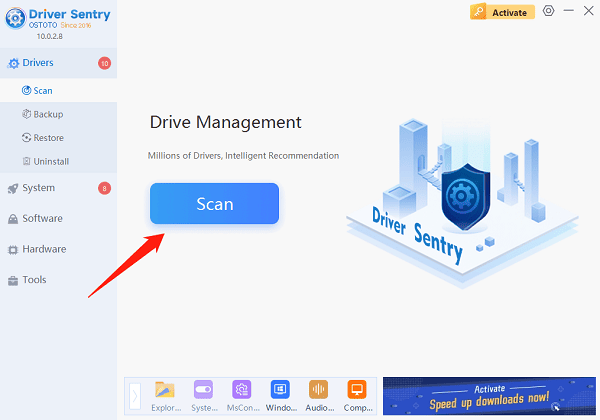
After the scan, identify the drivers that need updates in the results list and click "Upgrade".
Restart your computer after the updates to ensure the drivers work properly.
2. Run Device Manager as Administrator
Press Win + S and type "Device Manager".
In the search results, right-click Device Manager and select "Run as Administrator".
If prompted by the User Account Control (UAC), click "Yes" to grant administrative access.
3. Open Device Manager via Command Prompt
Press Win + S to search for "cmd". Right-click and choose "Run as Administrator".
In the Command Prompt, type the following command and press Enter: devmgmt.msc
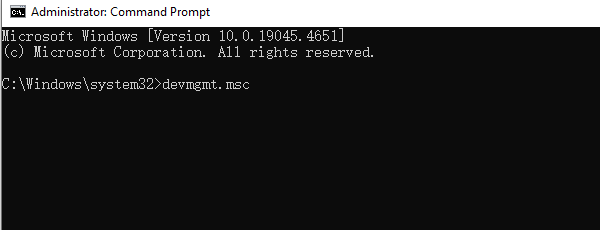
If successful, Device Manager will open, allowing you to manage your devices.
4. Check and Repair System Files
Corrupt system files can prevent Device Manager from functioning properly.
Press Win + S and search for "cmd". Right-click Command Prompt and choose "Run as Administrator".
Run the System File Checker (SFC) tool by entering: sfc /scannow
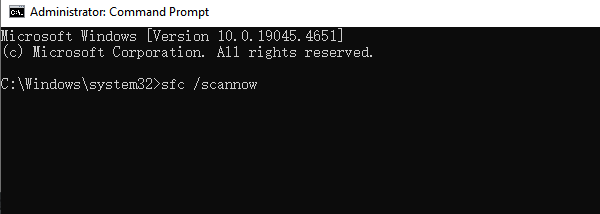
This tool will scan and repair system files automatically.
If SFC cannot repair all files, use the DISM (Deployment Image Servicing and Management) tool:
DISM /Online /Cleanup-Image /RestoreHealth
Restart your computer after the process and try opening Device Manager again.
5. Check System Services
Press Win + R, type "services.msc", and press Enter.
Locate the following services:
Plug and Play
Device Install Service
Windows Management Instrumentation
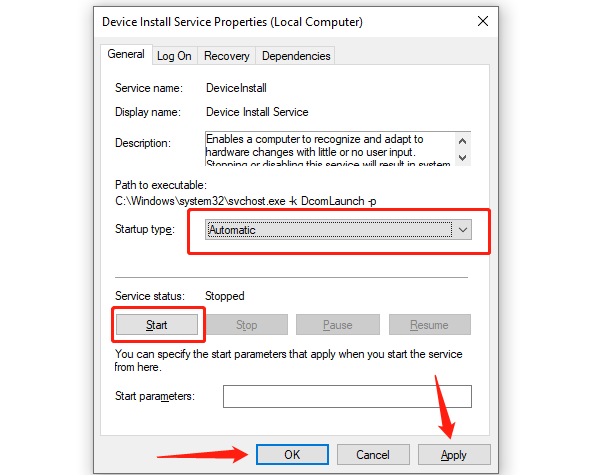
Double-click each service to open its properties:
Set "Startup type" to "Automatic".
Click "Start" (or "Restart" if the service is already running).
Click "Apply" and then "OK".
6. Repair Microsoft Visual C++ Redistributables
Press Win + I and go to "Apps".
Search for Microsoft Visual C++ in the list of installed programs.
Select each version (e.g., 2015, 2017, 2019), click "Modify", and then choose "Repair".
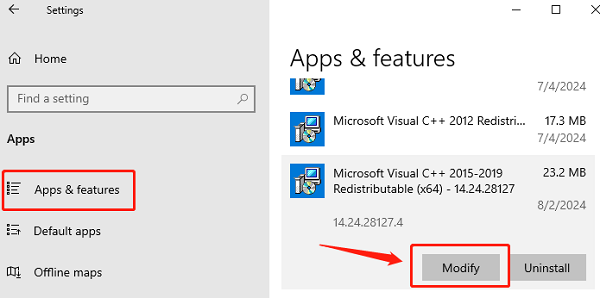
Visit the official Microsoft website to download and install the latest versions if needed.
Restart your computer after the installation.
7. Use Windows Troubleshooter
Press Win + S, search for "cmd", and right-click Command Prompt to run it as administrator.
Enter the following command and press Enter: msdt.exe -id DeviceDiagnostic
The Hardware and Devices Troubleshooter will open.
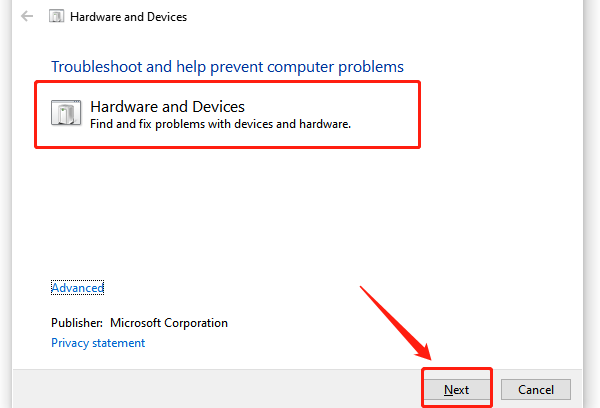
Click "Next" to begin the scan. Follow the on-screen instructions to resolve any detected issues.
If prompted, select "Apply this fix" to implement the solution.
8. Reset Your PC
Press Win + I to open Settings.
Navigate to "Update & Security" > "Recovery" > "Reset this PC".
"Keep my files": Retains personal data but removes installed applications.
"Remove everything": Completely wipes the system and restores factory settings.
Click "Get started" and follow the prompts to complete the reset.
These steps should resolve most Device Manager issues. If the problem persists, contact technical support or consider hardware replacement.
See also:
Guide to Fix Low Volume in Windows 10




