






If Windows shows the "DirectX encountered an unrecoverable error" message, the affected game or graphics-intensive application may fail to launch, crash unexpectedly, or display rendering problems. This issue can be caused by outdated graphics drivers, damaged DirectX components, incompatible rendering settings, corrupted system files, or missing Windows updates. This guide explains several practical ways to fix the error, including updating graphics drivers with Driver Sentry, repairing or reinstalling DirectX components, switching between DirectX 11 and DirectX 12 when supported, repairing Windows system files with SFC and DISM, and installing the latest system updates.
1. Update DirectX
For Windows 7/8 Users:
Visit the Microsoft official website and download the DirectX Runtime Installer.
Run the installer and follow the instructions to complete the DirectX update.
Reinstall DirectX (if it is corrupted):
Press Win + R, type "dxdiag", and press Enter to check the DirectX version.
If DirectX has issues, download the DirectX End-User Runtime Web Installer and reinstall it.
2. Change DirectX Version (For Games)
Modify Game Launch Options:
Open Steam or Epic Games Launcher.
Find the problematic game in your library, right-click it, and select "Properties".
In the Launch Options section, enter one of the following commands:
Use DirectX 11: -dx11
Use DirectX 12: -dx12
Use Vulkan (if supported): -vulkan
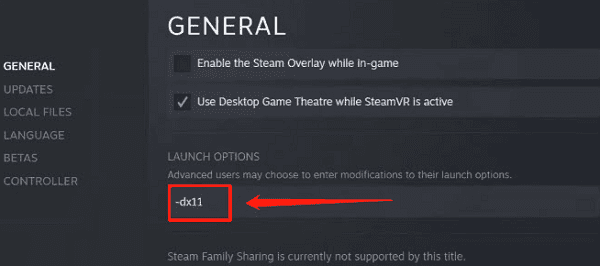
Close the settings and restart the game.
Modify Game Configuration File:
Some games allow you to manually change the DirectX version by editing the config.ini or settings.xml file in the game installation directory. You can manually set the DirectX version (e.g., changing DirectX 12 to DirectX 11).
3. Enable Windows Features
Press Win + I to open Settings, then select "System".
In the "Display" tab, find and enable "Hardware-accelerated GPU scheduling".
This feature helps optimize GPU processing, improving DirectX 12 performance.
4. Check Graphics Driver Updates
Graphics drivers are closely related to DirectX compatibility. Outdated or corrupted drivers can cause DirectX malfunctions. It is recommended to use a professional tool like Driver Sentry to automatically detect and update your graphics drivers, ensuring system stability.
Click the download button to get the latest version of Driver Sentry. After installation, open the software and click "Scan".
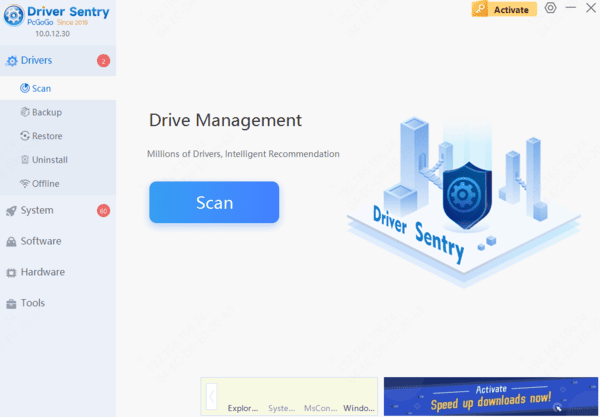
Once the scan is complete, the software will display any missing or outdated drivers. Find the graphics driver in the list and click the "Upgrade" button.
After updating, restart your computer to ensure the new driver takes effect.
5. Repair System Files
Run SFC Command:
Press Win + S, search for "Command Prompt", and select "Run as administrator".
In the command window, type the following and press Enter: sfc /scannow
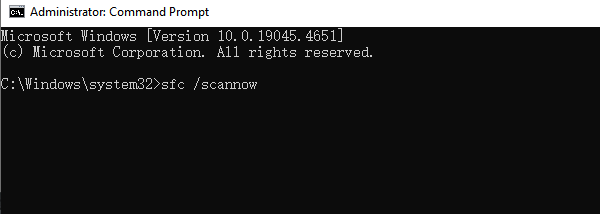
This will scan and repair corrupted system files.
Run DISM Command (If SFC Fails):
If SFC does not resolve the issue, try repairing the Windows image using the DISM command.
Open Command Prompt as Administrator and run: DISM /Online /Cleanup-Image /RestoreHealth
Once the process is complete, restart your PC and check if the issue is resolved.
6. Check Windows Updates
Press Win + I to open Settings, then go to "Update & Security".
Under the Windows Update tab, click "Check for updates".
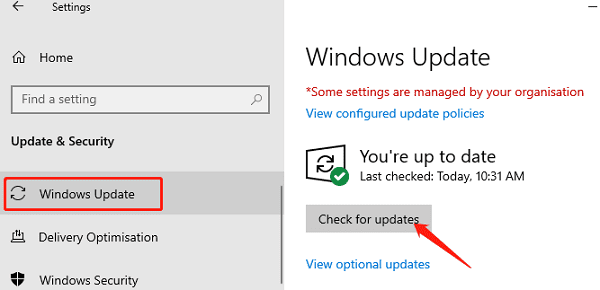
If updates are available, download and install them.
Restart your PC after the update to ensure all changes take effect.
By following these solutions, you can quickly troubleshoot and fix the "DirectX encountered an unrecoverable error", restoring the normal operation of your games or applications. If the issue persists, consider contacting Microsoft technical support for further assistance.




