






You may encounter the dxgmms2.sys blue screen error on Windows. This article provides effective solutions to quickly resolve the issue and restore system stability.
1. Update Graphics Drivers
Outdated or corrupted graphics drivers are one of the main causes of the dxgmms2.sys blue screen error. Updating your graphics driver can effectively address this problem. Using Driver Sentry is recommended for automatic driver detection and updates, saving time while avoiding errors in downloading or installing drivers.
Click the download button to get the latest version of Driver Sentry. After installation, open the software and click "Scan".
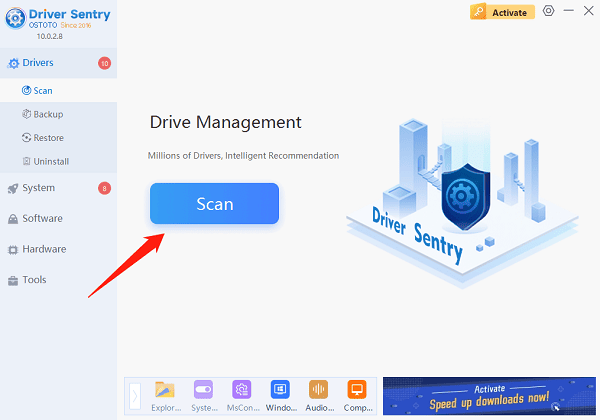
Once the scan is complete, a list of missing or outdated drivers will be displayed. Locate the graphics driver in the results list and click "Upgrade".
After updating, it's recommended to restart your computer to ensure the updated driver functions properly.
2. Run SFC and DISM Scans
Run the SFC Tool:
Press Win + S, type "Command Prompt", and right-click to select "Run as Administrator".
In the Command Prompt, type the following command and press Enter: sfc /scannow
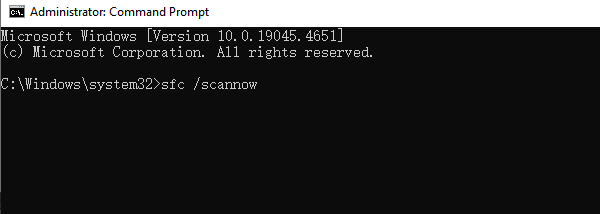
The SFC tool will scan and automatically fix any issues with system files. Once the scan is complete, restart your computer and check if the dxgmms2.sys error is resolved.
Run the DISM Tool:
If the SFC scan does not resolve the issue, use the DISM tool to repair the Windows image.
In the Command Prompt, type the following command and press Enter: DISM /Online /Cleanup-Image /RestoreHealth
This command will scan and fix issues within the system image. Once the process is complete, restart your computer and check again for the blue screen issue.
3. Run the DirectX Diagnostic Tool
Press Win + R to open the Run dialog box, type "dxdiag", and press Enter.
In the DirectX Diagnostic Tool, go to the "Display" tab and review the graphics card information to ensure the driver is functioning correctly.
If there are any errors, consider updating the graphics driver or repairing DirectX issues.
4. Run the Memory Diagnostic Tool
Press Win + R, type "mdsched.exe", and press Enter to launch the Memory Diagnostic Tool.
Select "Restart now and check for problems". The system will automatically restart and scan your memory.
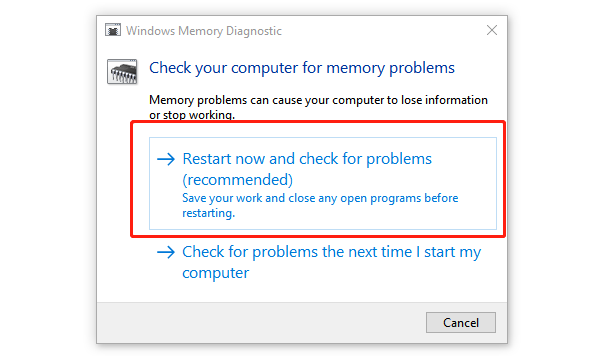
If issues are found, replace faulty memory modules or reseat them in their slots.
5. Disable Hardware Acceleration
Disable Chrome Hardware Acceleration:
Open Chrome, click the menu (three dots) in the top-right corner, and select "Settings".
Scroll down and click "System", then turn off "Use hardware acceleration when available".
Restart Chrome and check if the issue is resolved.
Disable Windows Hardware Acceleration:
Press Win + R, type "regedit", and click "OK".
Navigate to: HKEY_CURRENT_USER > Software > Microsoft > Avalon.Graphics
In the right pane, locate "DisableHWAcceleration".
If it doesn't exist, create it by right-clicking the blank area in the right pane and selecting "New" > "DWORD (32-bit) Value", then name it "DisableHWAcceleration".
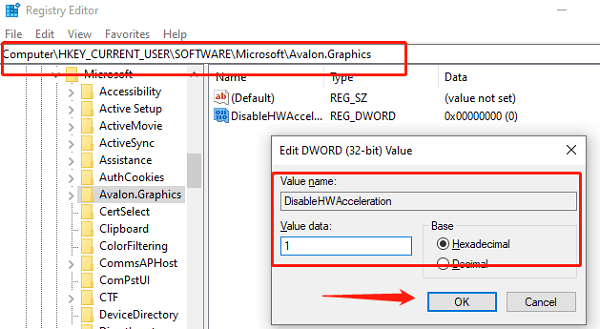
Double-click "DisableHWAcceleration", set its value to "1" to disable hardware acceleration, and click "OK".
Restart Windows 10 and check if the blue screen reoccurs.
6. Check Windows Updates
Press Win + I to open Settings and go to "Update & Security".
Click "Windows Update" > "Check for updates" to see if any updates are available.
If updates are found, click "Download and install", then restart your computer.
Follow these steps to resolve the dxgmms2.sys blue screen error in Windows. If the issue persists, consider seeking professional technical support for further assistance.
See also:
Fix Ethernet Connected but No Internet Access
Fix Windows 10 Keeps Disconnecting from Network




