


Steam games opening on the wrong monitor can quickly turn an enjoyable gaming session into a frustrating experience, especially when you're using two or more displays. You might find your game launching on a secondary screen instead of your main gaming monitor, opening in the wrong resolution, or refusing to move to your preferred display. This problem can occur due to incorrect Windows display settings, outdated graphics drivers, saved game configurations, or fullscreen display conflicts. Fortunately, there are several ways to control where your games appear without constantly disconnecting monitors. In this guide, we'll explain how to fix Steam games launching on the wrong monitor in Windows 10 and Windows 11, including updating graphics drivers with Driver Sentry, changing your primary display, using windowed mode, moving game windows between screens, adjusting Steam launch options, and installing Windows updates.
1. Check for Graphics Driver Updates
Outdated or corrupted drivers can cause display issues. Keeping your graphics driver up to date can effectively resolve display problems caused by driver issues. It is recommended to use Driver Sentry to automatically detect and update drivers, saving time while avoiding incorrect driver installations.
Click the download button to get the latest version of Driver Sentry. Install and launch the software. Click "Scan" to detect outdated or missing drivers.
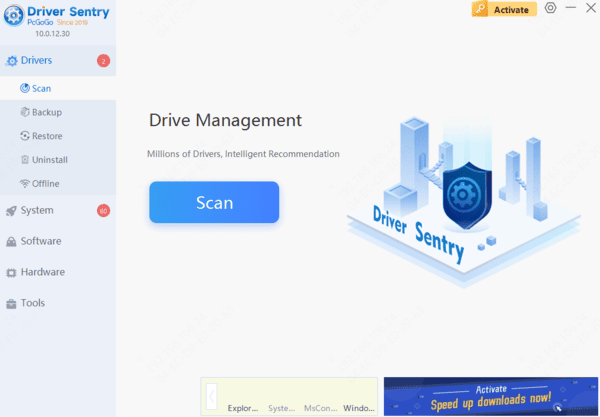
Locate the graphics driver in the results and click "Upgrade".
Restart your computer to apply the updates and ensure proper functionality.
2. Set the Primary Display
Right-click on an empty space on the desktop and select "Display settings".
Under the "Multiple displays" section, locate and click on the monitor you want as the primary display.
Scroll down and check "Make this my main display".

Restart your computer to see if the game launches on the correct monitor.
3. Run the Game in Windowed Mode
Open the Steam client and go to the "Library" tab.
Right-click the game you want to configure and select "Properties".
Navigate to the "General" tab and click "Set Launch Options".

In the pop-up window, enter "-windowed" and click "OK" to save the changes.
4. Move the Game to the Correct Monitor
Launch the game and wait for it to load.
Hover over the game's preview on the taskbar.
Right-click the preview window and select "Restore".
Hover over the game preview again, right-click, and select "Move".
Use Shift + Windows + Arrow (Left/Right) to move the game to the desired monitor.
Click the "Restore" button to put the game in windowed mode, then close and restart it.
5. Force the Game to Launch on a Specific Monitor
Open the Steam client and go to the "Library".
Find your game, right-click it, and select "Properties".
Under the General tab, locate the "Launch Options" input box.
Enter the following command based on your monitor setup: -monitor 2
Explanation:
-monitor 1 refers to the primary display.
-monitor 2 refers to the second display, and so on.
Adjust the number accordingly to match your preferred monitor.
Click "Close", restart the game, and check if the issue is resolved.
6. Check for System Updates
Press Win + I to open Settings.
Navigate to "Update & Security" > "Windows Update".

Click "Check for updates" and install any available updates.
Restart your computer after installing updates, then try launching the game again.
By following these steps, you should be able to fix the issue of Steam games launching on the wrong monitor. If the problem persists, try disconnecting other monitors before starting the game, then reconnecting them once the game has launched properly.