






gdi32.dll is a core Windows system library that handles graphics rendering through the Windows Graphics Device Interface (GDI), including text, shapes, bitmaps, and printer output. Because it is essential to the Windows desktop, a true missing-file situation is rare—Windows would usually fail to load properly if it were gone. When errors involving gdi32.dll appear, they are typically caused by file corruption, version mismatches, 32-bit/64-bit incompatibility, or related system dependency issues rather than the file being completely absent. The fix usually involves repairing system files or resolving application compatibility rather than replacing the DLL manually.
Fix 1: Run SFC and DISM to Repair the Damaged File
Open Command Prompt as Administrator by searching for cmd in the Start menu, right-clicking, and selecting Run as administrator. Run:
sfc /scannow
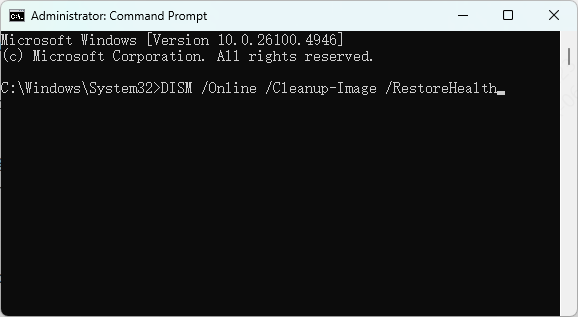
Use DISM to repair it by running these commands in sequence:
DISM /Online /Cleanup-Image /ScanHealth
DISM /Online /Cleanup-Image /RestoreHealth
Fix 2: Check for 32-bit vs 64-bit Conflicts
Navigate to the installation folder of the application showing the error and look for a local copy of gdi32.dll. If one exists there, delete it and allow the application to use the system copy from System32 or SysWOW64 instead
After deleting the local copy, run SFC to verify that the system copies are intact
Fix 3: Install Pending Windows Updates
Some error conditions in specific versions of gdi32.dll are known bugs that Microsoft has already patched. If your system is behind on updates, you may be running a version of the file with a known defect
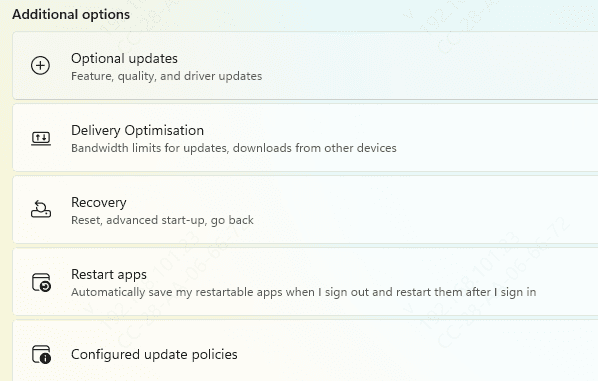
Go to Settings, Windows Update, and install all available updates including optional quality updates. Restart after installation and test the application
Fix 4: Use an Automated DLL Repair Tool
When the error involves a broader pattern of damaged system components or when SFC repeatedly reports issues it cannot resolve, manual repair has limited effectiveness. PcGoGo DLL Fixer scans the full system for corrupted DLL files, damaged registry entries pointing to system components, and missing runtime dependencies.
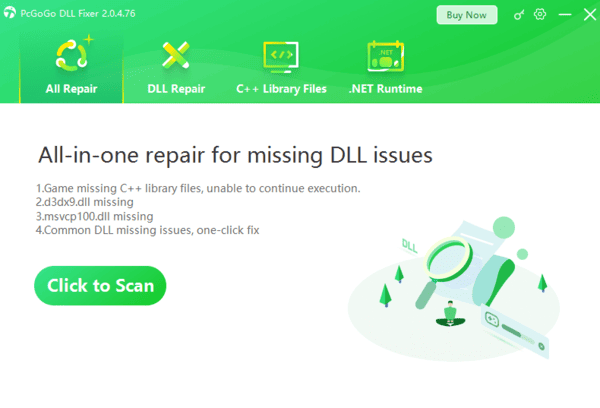
This is particularly useful when the gdi32.dll error appears alongside other DLL errors or when the system has accumulated multiple component failures that individual repair tools cannot fully address on their own.
Fix 5: Check Antivirus Quarantine
Open your antivirus program and check the quarantine or threat history section. If gdi32.dll appears there, restore it and mark it as trusted
Add C:\Windows\System32 and C:\Windows\SysWOW64 to the antivirus exclusion list for scan interference rather than disabling protection entirely. After adding exclusions, run SFC to confirm the file is intact and properly registered
Fix 6: Reinstall the Affected Application
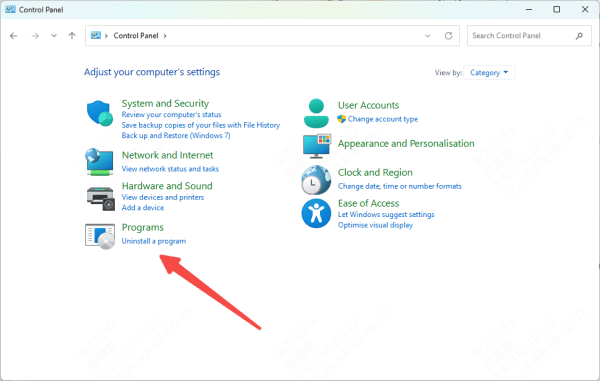
Uninstall the application through Windows Settings under Apps. After uninstalling, navigate to the application's former installation folder and delete it manually if any files remain. Reinstall from the official source
This removes any local DLL conflicts the installation introduced
Fix 7: Repair or Reinstall Visual C++ Redistributables
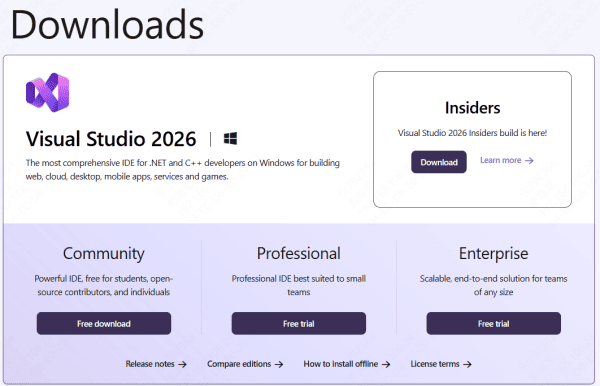
Download the Visual C++ Redistributable for Visual Studio 2015 through 2022 from the official Microsoft download page
Install both x64 and x86 versions. Use the Repair option if the packages are already present. Restart after installation
Fix 8: Perform a System Restore
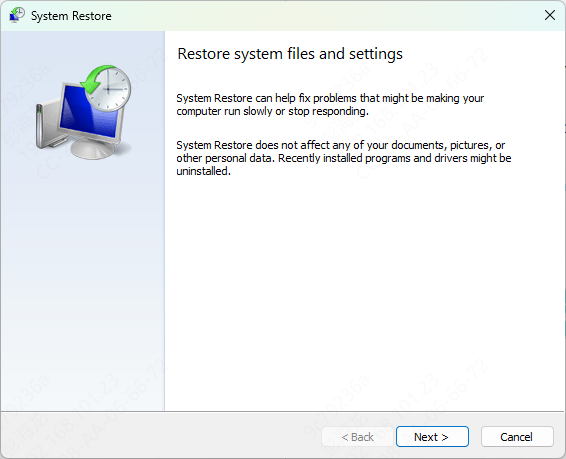
If the error appeared after a specific update, software installation, or system change and you have a restore point from before that event, System Restore can revert the system to a state where gdi32.dll was functioning correctly. Search for Create a restore point in the Start menu, click System Restore, and select a restore point predating the error
System Restore does not affect personal files but removes applications and updates applied after the selected point. After restoring, confirm the error is gone before reinstalling any updates or software
Conclusion
gdi32.dll errors on a running Windows system almost always indicate file corruption or a version conflict rather than a truly missing file. Start with SFC and DISM since these directly repair the system copy of the file. Check for local copies in the application folder that may be causing conflicts, install pending Windows updates, and repair Visual C++ Redistributables for dependency chain issues. Use PcGoGo DLL Fixer when the damage is broader than a single file, and check antivirus quarantine if the file keeps disappearing after repair. Most cases resolve at the SFC stage without requiring a system restore or reinstallation.




