Some players may face login issues when accessing GTA 5 on their PCs, causing frustration and interrupting gameplay. This article offers several methods to quickly resolve the problem so you can get back to enjoying the game.
1. Update Your Drivers
Updating drivers, especially your graphics card drivers, is essential for smooth gameplay. Outdated drivers can cause login and performance issues in GTA 5. It is recommended to use a tool like Driver Sentry to automatically detect and update drivers, saving time and reducing the risk of installing incorrect drivers.
Download the latest version of Driver Sentry, install and open the software, then click "Scan".
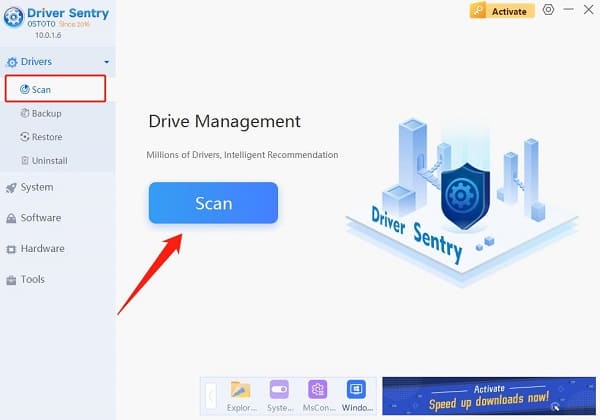
After scanning, the software will show drivers that need to be updated. Find the graphics card driver and click "Update".
Restart your computer after the update to ensure the new driver is properly installed.
2. Check Network Connection
Unplug your router and modem, wait about 30 seconds, and then reconnect to restart your network.
Check if other devices like your phone or tablet can connect to the internet. If they also can't connect, the issue may be with your internet service provider.
If using Wi-Fi, try switching to a wired connection for more stability by directly connecting your PC to the router.
Use a speed test website (e.g., Speedtest) to ensure your download and upload speeds are sufficient for online gaming.
3. Verify Game File Integrity
Open the Steam client and go to your game library.
Right-click on GTA 5 and select "Properties".
Under the "Installed Files" tab, click "Verify Integrity of Game Files".
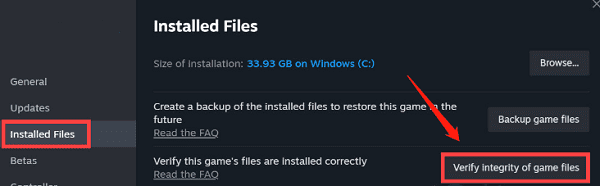
Steam will check for any corrupted files and repair them.
4. Reset Network Settings
Resetting Network via Windows Settings:
Open Settings and select "Network & Internet".
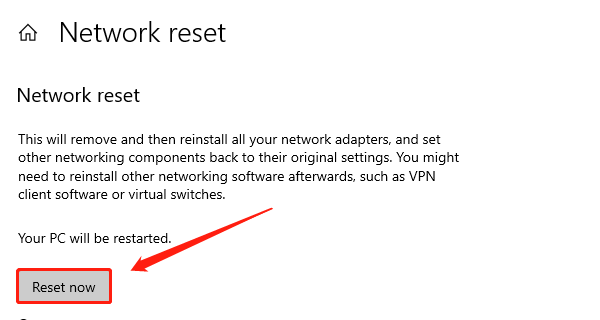
Click "Status" on the left menu, then scroll down to find the "Network Reset" option at the bottom. Click "Reset now" and restart your computer.
Resetting Network via Command Prompt:
Press Win + S, search for "cmd", right-click Command Prompt, and select Run as administrator.
In the Command Prompt, type the following commands one by one, pressing Enter after each:
ipconfig /release
ipconfig /renew
ipconfig /flushdns
netsh winsock reset
Restart your computer to apply the network changes.
5. Check Firewall and Security Software Settings
Allow the game through the firewall:
Press Win + S, search for "Firewall", and open "Windows Firewall".
Click on "Allow an app or feature through Windows Defender Firewall", find GTA 5 or Rockstar Games Launcher.
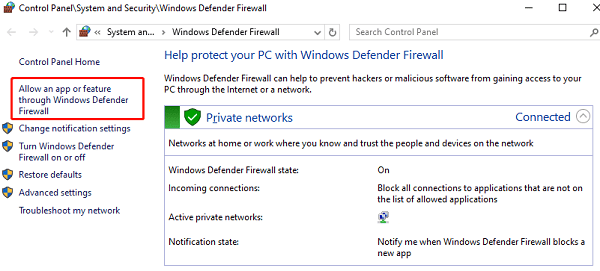
Make sure both "Private" and "Public" networks are checked.
Temporarily disable antivirus software:
If your antivirus is blocking GTA 5's network access, try disabling it temporarily, then attempt to log into the game.
If disabling it resolves the issue, add GTA 5 or the game launcher to your antivirus's trusted list.
6. Update the Game and Client
Update the Steam client:
Open Steam and click on the "Steam" button in the top left corner, then select "Check for Client Updates".
If an update is available, Steam will automatically download and install it.
Update Rockstar Games Launcher:
Open Rockstar Games Launcher, and it will automatically check for updates.
If no updates are prompted, reinstall the latest version of the launcher manually.
Update GTA 5:
Open your game client and go to GTA 5's game page.
If an update is available, click "Update" and wait for the download and installation to complete.
By following these steps, you can resolve common GTA 5 not launching issues. If problems persist, it is advisable to contact Rockstar Games' support team for further assistance.
See also:
How to Fix Printer Driver Issues to Improve Office Efficiency
8 Methods to Fix Missing Sound Icon in Windows 10