






If your HP laptop is not turning on and the power light is blinking, it can be a frustrating issue, especially when you rely on your device for work or study. This problem can be caused by a variety of factors, including power supply issues, battery faults, overheating, BIOS errors, or internal hardware malfunctions. In this guide, we'll walk you through a series of practical troubleshooting steps to help you identify the cause and fix your HP laptop when it fails to power on while the power light is blinking.
Check the Power Source
Before diving into more complex fixes, it's important to rule out basic power-related issues
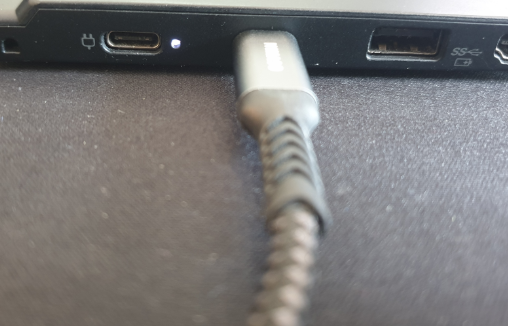
Ensure the Laptop Is Plugged In: Confirm that your laptop is properly connected to the AC adapter and the power outlet. If the laptop isn't receiving power, it won't turn on
Check that the charging cable is securely plugged into both the laptop and the wall outlet
Check the Power Adapter: Inspect the charger for any visible signs of damage. If the charger is broken or the power cord is frayed, it could be causing the issue
Perform a Hard Reset
A hard reset can often resolve issues caused by residual power. To perform a hard reset:
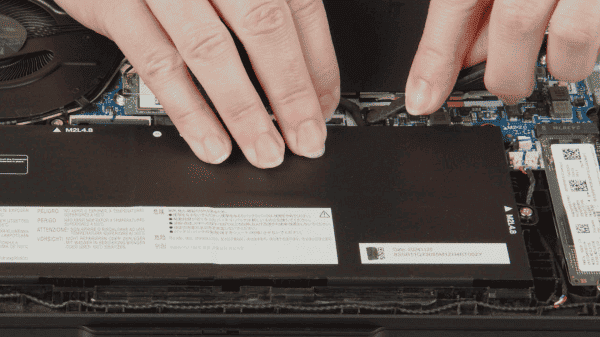
Disconnect the AC Adapter: Unplug the charger and remove any external devices (USB devices, external monitors, etc.)
Press and Hold the Power Button: Hold the power button for 15-20 seconds to discharge any remaining power in the laptop's system
Reconnect the AC Adapter: After the reset, plug the charger back in and try turning the laptop on again
This simple process can clear out any minor power issues that may be causing the blinking power light
Test with an External Monitor
It's possible that the laptop is powering on but the screen is malfunctioning
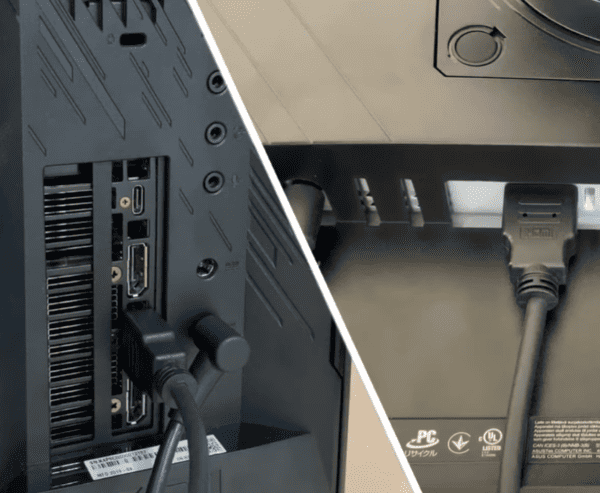
Connect an External Monitor: Use a VGA, HDMI, or DisplayPort cable to connect your laptop to an external monitor
If the external monitor displays the laptop's screen, the issue is likely with your laptop's internal display
Driver Checks
If your HP laptop intermittently powers on but fails to start consistently, it might be due to outdated or corrupted drivers affecting the system's performance. Here's how to update key drivers to improve reliability:
Download and Install Driver Sentry
Click the Download button to get the Driver Sentry installer
Open the installer and follow the on-screen instructions to install Driver Sentry on your HP laptop
Perform a Full System Scan
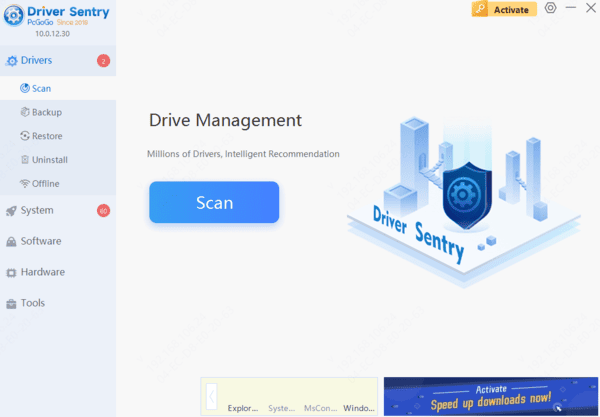
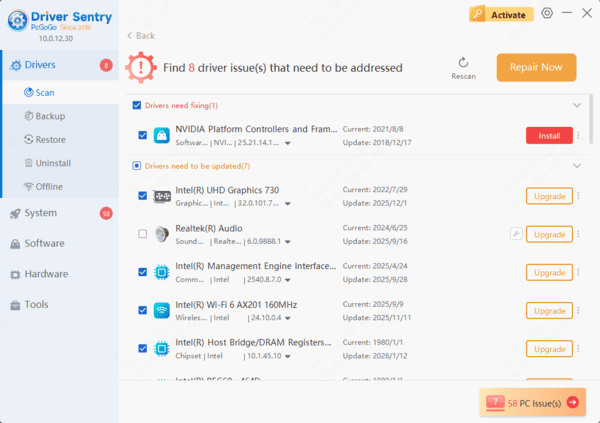
Once installed, launch Driver Sentry and navigate to the Drivers section
Click on Scan to begin a system-wide check for outdated, missing, or corrupted drivers
Updating the Drivers
After the scan is complete, Driver Sentry will provide a list of problematic drivers
Select the drivers that need updating, then click Upgrade or Repair Now to download and install the latest compatible versions automatically
Restart Your Laptop
Once the drivers are updated, restart your laptop to ensure the new drivers are fully integrated into the system
This restart helps resolve any startup or power-related issues caused by outdated or incompatible drivers
Update BIOS (If Accessible)
If your laptop can turn on long enough to access BIOS, updating it may resolve power issues, especially if the laptop is having trouble detecting hardware
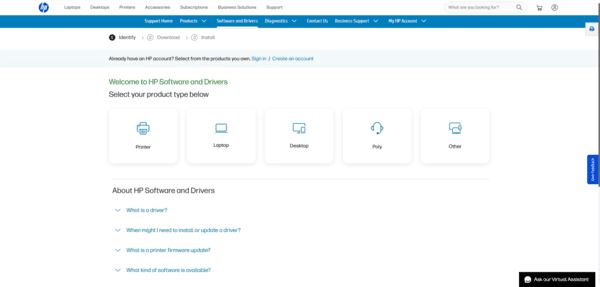
Download the latest BIOS version for your specific HP laptop model from HP's official website
Follow the instructions on the website to update the BIOS safely
Conclusion
In conclusion, if your HP laptop not turning on and the power light is blinking, don't panic. Start by checking the power source and performing a hard reset. If that doesn't work, diagnose the blinking power light pattern and look for hardware issues such as faulty RAM. Use external monitors to check if the problem is with the display, and update the BIOS if necessary




