






Fix HP laptop won't turn on with seven proven methods, including power checks, hardware reset, driver updates, BIOS restoration, and component diagnostics for quick troubleshooting.
Method 1: Check the Power Connection
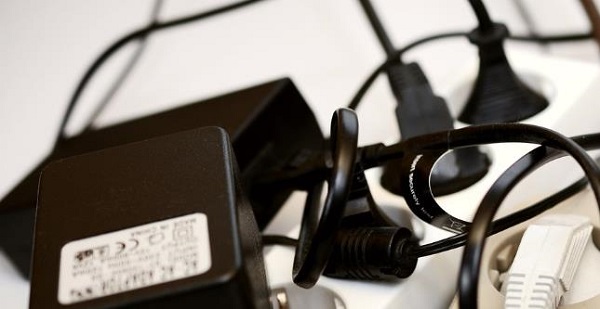
Ensure that the power adapter plug is securely inserted into the laptop's charging port.
Check if the plug connected to the power outlet is properly inserted.
If your laptop has a removable battery, try removing the battery and reinserting it to ensure proper installation.
Method 2: Reset the Hardware
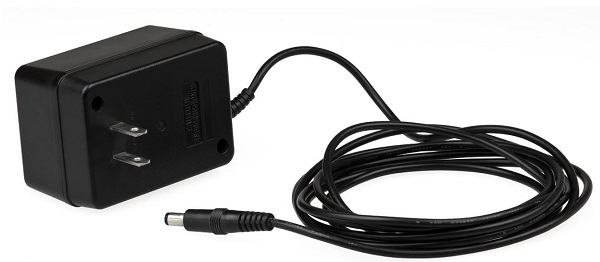
Turn off the laptop and disconnect all power connections.
Remove the battery (if possible).
Press and hold the power button for 15-20 seconds to release any residual charge.
Reconnect the power adapter and try turning on the laptop.
Reinsert the battery into the laptop.
Method 3: External Device Interference
Press and hold the power button for several seconds to force the computer to shut down.
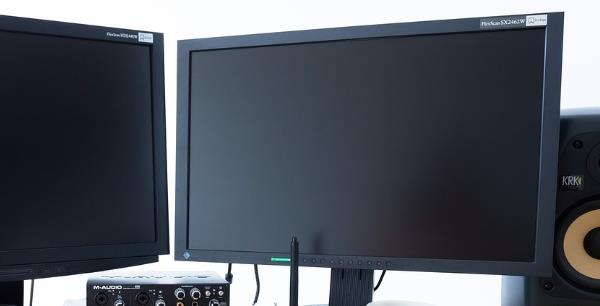
Unplug all external devices from the computer, including USB devices (e.g., flash drives, external hard drives), printers, external monitors, docking stations, etc.
Press the power button to try turning on the computer.
Reconnect the external devices to the computer one by one, and restart the computer each time to test.
Method 4: Driver Updates
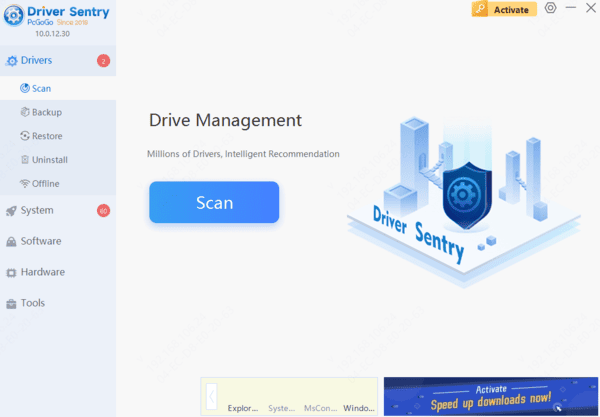
Outdated or incompatible graphics or hard drive controller drivers can cause system startup issues. Ensure all drivers are up to date. It is recommended to use Driver Sentry for automatic driver detection and updates, saving time and avoiding the risk of downloading or installing incorrect drivers.
1). Click the download button to get the latest version of Driver Sentry, install it, and open the software, then click "Scan".
2). After the scan is complete, it will show which drivers are not installed or need updates. Find the drivers that need updating in the results list and click the "Update" button.
3). After the update is complete, it is recommended to restart the computer to ensure the updated drivers take effect properly.
Method 5: Perform Component Tests
First, try starting your laptop.
Immediately after pressing the power button, hold down the "Esc" key until a menu appears.
From the menu, press the "F2" key to enter the component test menu.
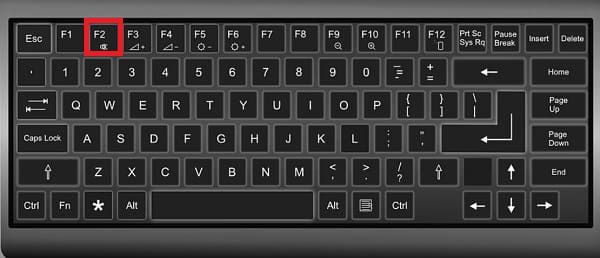
In the component test menu, you can choose to test hardware components such as the processor, hard drive, keyboard, memory, and network.
After selecting a component, the system will prompt you to run a test. If any issues are detected, the system will provide repair guidance.
Method 6: Restore BIOS Settings to Default
Ensure your laptop is turned off, then press and hold the power button for about 15 seconds.
While holding down the power button, press the "Esc" or "F10" key to enter the BIOS setup menu.
In the BIOS setup menu, locate and select the "Restore Defaults" option, usually labeled as "Restore Defaults" or "Load Setup Defaults".
After selecting restore defaults, press the "Enter" key to confirm the changes, then save and exit the BIOS setup.
Once these steps are completed, the computer will automatically restart and apply the default BIOS settings.
Method 7: Restore the Operating System
To ensure the safety of important data, it is recommended to back up critical files to an external hard drive, cloud storage, or another secure storage medium before restoring the operating system.
Restart the computer and hold down the "F11" key, or press and hold the "Shift" key while selecting "Restart" during boot-up.
Select "Troubleshoot" > "Reset this PC".
Choose the "Keep my files" or "Remove everything" option, depending on your needs.
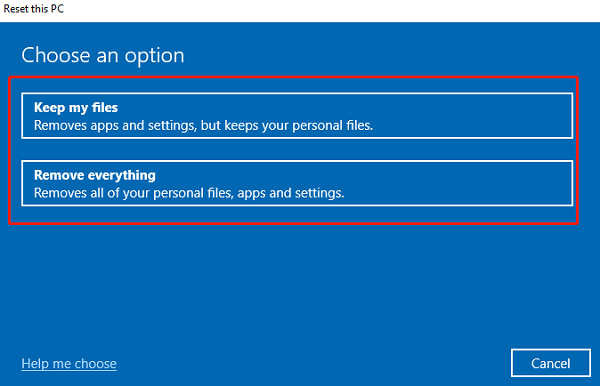
Follow the on-screen instructions to complete the operating system recovery or reinstallation process.
By trying these methods, you should be able to fix your HP laptop not turning on. If the issue persists, contact HP support or a repair service for help. Hope this guide helps you get your laptop working again quickly.
See also:
8 Ways to Fix WiFi Adapter Not Working on Windows 10
Top 5 Methods to Open Task Manager on a Computer




