





The Diver error in Modern Warfare 3 or Warzone can interrupt online play, prevent the game from connecting properly, or appear during startup and matchmaking. The issue may be related to outdated graphics drivers, corrupted game files, damaged Windows components, firewall restrictions, unstable network connections, or missing system updates. This guide explains several practical ways to fix the MW3 and Warzone Diver error, including updating drivers with Driver Sentry, verifying game files, repairing Windows system files, checking firewall permissions, troubleshooting the network connection, and installing the latest Windows updates.
1. Verify Game File Integrity
For Steam Users:
Open the Steam client and go to your "Library".
Right-click on MW3 or Warzone and select "Properties".
Under the "Local Files" tab, click "Verify Integrity of Game Files".
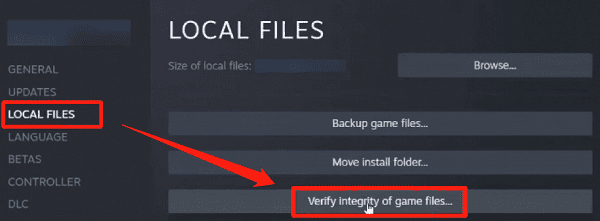
Wait for Steam to check and fix any corrupted files.
For Battle.net Users:
Open the Battle.net client and select MW3 or Warzone.
Click the "Options" menu and select "Scan and Repair".
Click "Start Scan", and Battle.net will automatically detect and repair game files.
2. Repair Files
In the search box, type "Command Prompt" and select "Run as Administrator".
In the Command Prompt window, type the following command: sfc /scannow
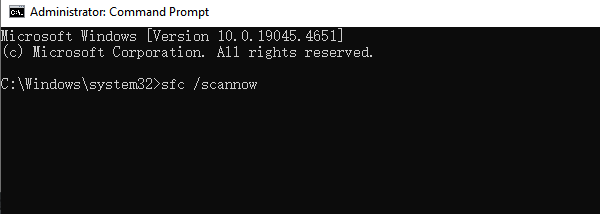
Press Enter, and Windows will automatically scan and repair any corrupted system files. This process may take a few minutes, so please be patient.
Once the scan is complete, restart your computer and relaunch MW3 or Warzone to check if the issue has been resolved.
3. Check Device Driver Updates
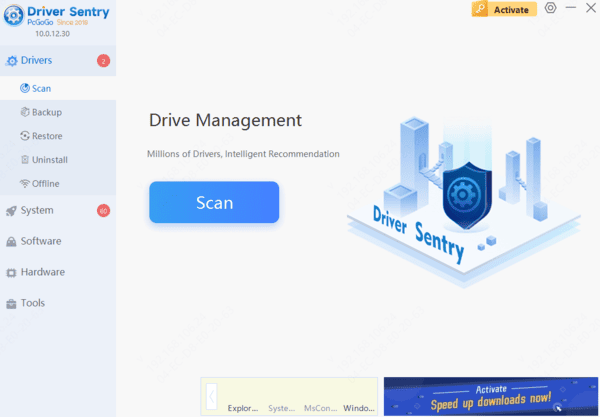
Outdated or corrupted drivers are one of the common causes of the Diver error. If your graphics driver is not updated in time, it may become incompatible with the game, leading to crashes or error messages. Therefore, it's recommended to regularly check and update your device drivers. It's recommend to use Driver Sentry to automatically detect and update drivers, saving time and avoiding the risks of downloading or installing incorrect drivers.
Click the download button to get the latest version of Driver Sentry. After installation, open the software and click "Scan".
4. Check Windows Firewall Settings
Open the Control Panel, click "System and Security", then select "Windows Defender Firewall".
In the left menu, click "Allow an app or feature through Windows Defender Firewall".
Find the relevant MW3 and Warzone programs and ensure they are checked to allow through the firewall.
If the programs are not listed, click "Change settings", then click "Allow another app..." to manually add the game's executable files (e.g., MW3.exe or Warzone.exe).
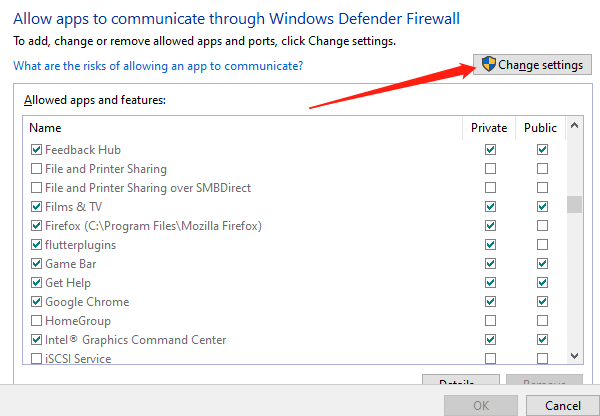
Afterward, click "OK" to save the settings, and restart the game.
5. Check Network Connection
Check if other devices are consuming bandwidth, especially those performing high-traffic tasks (such as streaming video or large file downloads).
Use the ping command to check for network latency:
Open Command Prompt and type the following command: ping www.google.com
Check if there are any high latency times or packet loss in the results.
If the network connection is unstable, try restarting the router or use a wired connection to ensure a more stable network environment.
Additionally, make sure there are no active VPNs or proxies, as they can interfere with the game's connection.
6. Update the Operating System
Click the Start menu and select "Settings".
In the Settings window, click "Update & Security", then select "Windows Update".
Click "Check for updates", and if updates are available, the system will automatically download and install them.
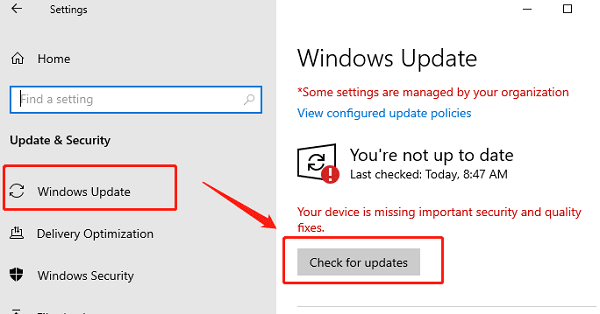
After the updates are complete, restart your computer to apply them.
After updating, launch the game again and check if the problem has been resolved.
Frequently Asked Questions
What does the Diver error mean in MW3 or Warzone?
The Diver error generally means the game cannot download required data or communicate properly with online services. Server outages, unstable connections, blocked traffic, damaged game files, or incomplete updates may cause it.
How can I tell whether the problem is on the game's servers?
Check the official Activision Online Services status page and your platform's service status. If many players report the same error simultaneously, wait for service restoration before changing drivers, firewall rules, or Windows settings.
Can changing DNS settings fix the Diver error?
It may help when the current DNS server cannot resolve game-service addresses reliably. Try a reputable public DNS service, restart the router and PC, and then clear the Windows DNS cache with ipconfig /flushdns.
By following these steps, you can thoroughly check and fix the Diver error in MW3 and Warzone, restoring a smooth gaming experience. If these methods do not solve the issue, it's recommended to contact game support or check solutions in the gaming community.




