






Monitor color distortion is a common issue that many users face. This article provides methods to fix color distortion and improve your visual experience.
1. Check Monitor Connections
Turn off the computer and monitor, check the cable connections, and replace the cable if needed.
Try connecting the monitor to a different port and restart the computer to see if the issue is resolved.
2. Update Graphics Card Drivers
Outdated or corrupted graphics card drivers can cause monitor color distortion. Ensuring your graphics card drivers are up-to-date can solve many graphics-related issues. It is recommended to use Driver Sentry for automatic driver detection and updates, saving time and avoiding the risk of downloading or installing incorrect drivers.
Click the download button to get the latest version of Driver Sentry, install it, then open the software and click "Scan".
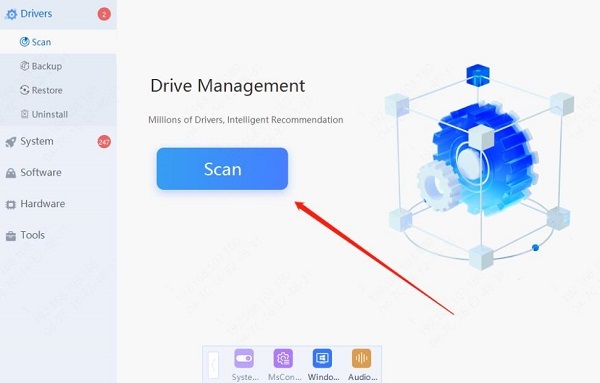
After the scan, it will show which drivers are not installed or need updating. Find the graphics card driver in the results list and click "Update".
After updating, it is recommended to restart the computer to ensure the updated drivers take effect.
3. Calibrate Monitor Colors
In the Windows search bar, type "Settings" and then select "System".
Navigate to "Display", scroll down on the right side of the screen, and click "Advanced display settings".
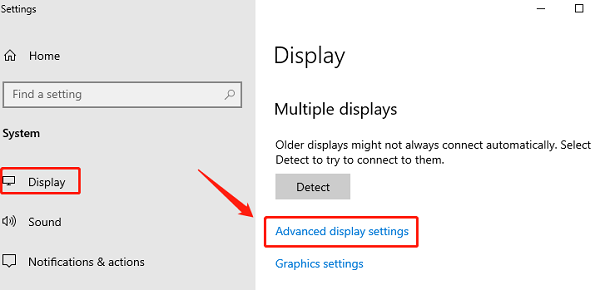
Select "Color calibration" and follow the on-screen instructions to complete the calibration process.
4. Adjust Monitor Settings
Use the buttons on the monitor or the remote control to access the monitor's settings menu.
Most monitors offer multiple color modes, such as "Standard Mode", "Movie Mode", "Game Mode", etc. Select "Standard Mode" or another suitable mode and adjust the color settings to achieve the best visual effect.
Color temperature affects the overall tone of the monitor. Try adjusting the color temperature options (like "Cool", "Neutral", "Warm") to improve color display. Typically, a neutral or default color temperature will provide more accurate color representation.
5. Check Operating System Settings
In Windows, right-click on the desktop and select "Display settings".
Check the resolution and color profile to ensure they are set to the monitor's recommended configuration.

Older versions of the operating system may have display issues or compatibility problems with the monitor.
Open "Settings" > "Update & Security" > "Windows Update" to check for any available system updates and follow the prompts to update the system.
6. Check Graphics Card Settings
For NVIDIA graphics card users, right-click on the desktop and select "NVIDIA Control Panel"; for AMD graphics card users, select "AMD Radeon Settings".
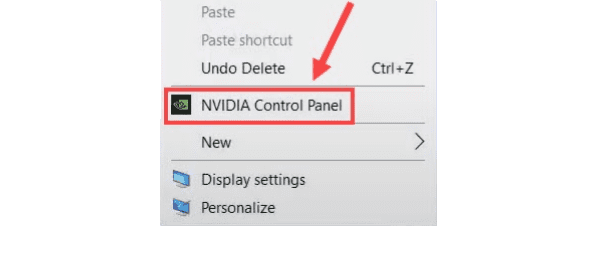
In the graphics card control panel, find the color settings option and choose to restore the default settings. This can eliminate any custom settings that might be causing color distortion.
7. Run Windows Troubleshooter
Press the Windows key + I on your keyboard to open "Settings".
Select "Update & Security" > "Troubleshoot" > "Additional troubleshooters".
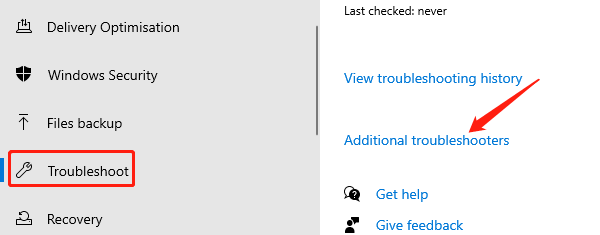
Under "Display", click "Run the troubleshooter" to let the system automatically detect and fix the problem.
8. Check for Hardware Issues
If none of the above methods work, there may be a hardware issue with the monitor itself.
Connect the monitor to another computer to check if the color issue persists.
If it is confirmed to be a hardware issue with the monitor, consider contacting the manufacturer or professional repair service, or consider replacing the monitor.
Although monitor color distortion is a common issue, following the above methods can effectively resolve most problems. Regularly maintaining your monitor and computer, updating drivers, and calibrating colors will help you maintain the best visual experience.
See also:
8 Common Solutions for No Internet Connection
How to Download and Install Wireless Network Card Drivers




