






A Windows update is supposed to improve security and stability, but occasionally a PC may refuse to boot after the installation finishes. You might encounter a black screen, an endless loading animation, repeated restarts, Automatic Repair loops, or a system that never reaches the Windows desktop. These symptoms can result from an incompatible driver, an interrupted update, damaged startup files, or conflicts introduced by the latest Windows patch. Fortunately, a failed boot does not automatically mean Windows needs to be reinstalled. This guide covers several recovery options.
1. Enter Safe Mode
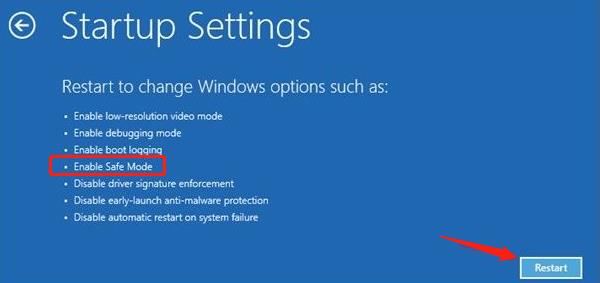
Safe Mode is a diagnostic mode in which Windows loads only basic drivers and services. If your computer won't boot up after an update, try entering Safe Mode:
Press and hold the Power button for about 10 seconds to force a shutdown, then start the computer again.
During the startup process, when the Windows logo appears, hold down the 'Shift' key and press the 'F8' key several times until the advanced startup options appear. Select 'Enable Safe Mode' and press the Enter key.
2. System Restore
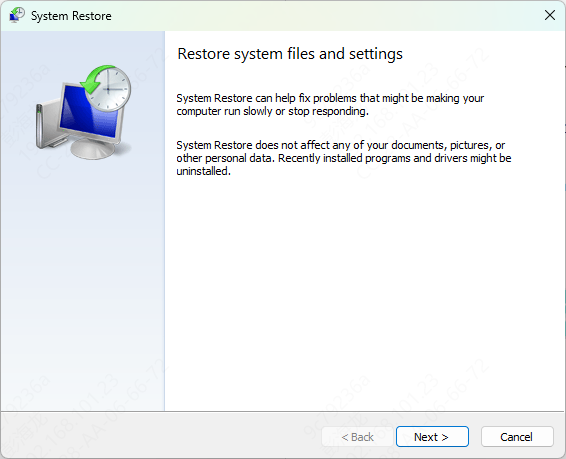
System Restore can restore your computer to a previous state, usually before an update. Here are the steps to use System Restore:
Repeat the steps to enter Safe Mode, but select "Repair your computer".
In the Troubleshooting menu, select Advanced Options and then System Restore.
Select a restore point before the update and follow the prompts to complete the restore process.
3. Uninstall Recent Updates
Sometimes, the latest Windows update may cause compatibility issues and prevent your system from booting. You can try uninstalling recent updates:
Enter Safe Mode as described earlier.
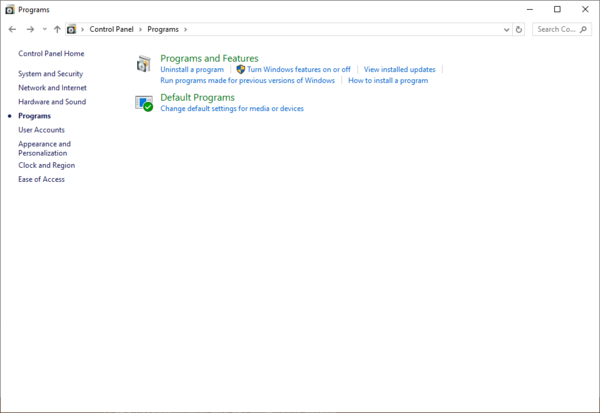
Type "Control Panel" in the search box and click Open.
Select "Programs and Features" and click "View Installed Updates".
Find the most recent update, right-click on it and select "Uninstall".
4. Fix Startup Issues
Go to the Advanced Boot Options menu as described before.
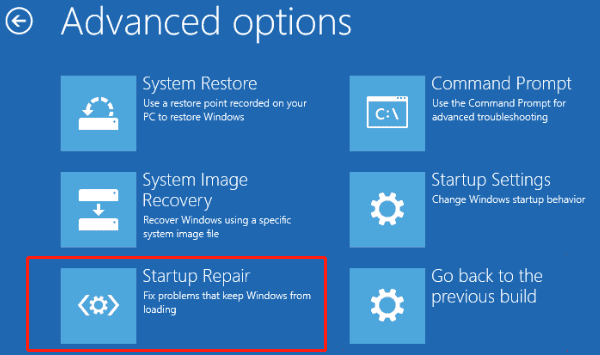
In the Troubleshooting menu, select Advanced Options and then select Startup Repair.
The system will automatically detect and attempt to fix the startup problem. When finished, restart your computer to see if the problem is solved.
5. Update the Driver
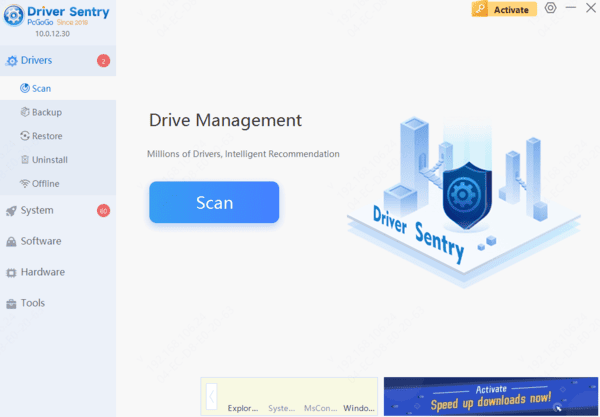
Sometimes, driver problems can cause your computer to fail to boot. Driver Sentry is recommended for automatic driver detection and updates, saving time and avoiding errors during installation.
6. Using the Command Prompt
Sometimes, using the command prompt can solve startup problems. You can try the following commands:
As mentioned earlier, go to the Advanced Boot Options menu and select Command Prompt.
At the command prompt, type the following command and press Enter:
bootrec /fixmbr
bootrec /fixboot
bootrec /scanos
bootrec /rebuildbcd
7. Check for Hardware Problems
If none of the above methods solves the problem, the failure to boot may be caused by a hardware failure. You can try the following methods:
Ensure that all hardware is connected properly, especially the hard disk and memory sticks. Disconnect and reconnect all hardware to make sure there is no looseness.
Many brands of computers come with hardware diagnostic tools, so you can press a specific key to enter the diagnostic mode when you turn on the computer to check if the hardware is working properly.




