






If Windows displays an "OpenCL.dll is missing" or "OpenCL.dll not found" error, the affected application or game may fail to start because required graphics or system components are damaged, missing, or incompatible. The problem is often related to corrupted graphics drivers, damaged Windows files, incomplete system updates, or software installation issues. This guide explains several practical ways to fix OpenCL.dll errors, including updating graphics drivers with Driver Sentry, repairing system files with SFC and DISM, using PcGoGo DLL Fixer, restoring Windows components from installation media, and installing the latest Windows updates. Restoring OpenCL components through official drivers or Windows repair tools is generally safer than copying standalone DLL files from unknown sources.
Method 1: Run System File Checker
Run the SFC Scan:
Press Win + S, search for "Command Prompt", right-click it, and select "Run as administrator".
Type the following command and press Enter: sfc /scannow
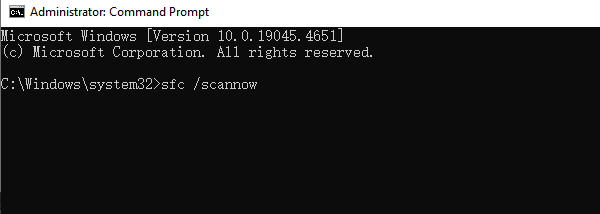
Wait for the system to scan and automatically repair any corrupted files.
Run a DISM Repair (if SFC does not resolve the issue):
Open Command Prompt as Administrator and enter the following commands one by one, pressing Enter after each:
DISM /Online /Cleanup-Image /CheckHealth
DISM /Online /Cleanup-Image /ScanHealth
DISM /Online /Cleanup-Image /RestoreHealth
Once the repair is complete, restart your computer and check if the issue is resolved.
Method 2: Use Windows ISO Files
Open Command Prompt as Administrator.
Create a temporary directory to mount the Windows image file by entering: mkdir C:\WIM
Press Enter to execute.
Mount the Windows image file by entering: DISM /Mount-Wim /WimFile:D:\sources\install.wim /index:1 /MountDir:C:\WIM /ReadOnly
Press Enter to execute.
Run the DISM command to repair the system: DISM /Online /Cleanup-Image /RestoreHealth /Source:C:\WIM\Windows /LimitAccess
Press Enter to execute.
Unmount the Windows image file by entering: DISM /unmount-wim /MountDir:C:\WIM /Discard
Delete the temporary directory by entering: rmdir C:\WIM
Press Enter to execute both commands.
Method 3: Update Windows
Press Win + I to open Settings.
Navigate to "Update & Security" > "Windows Update".
Click "Check for updates". If updates are available, click "Download and install".
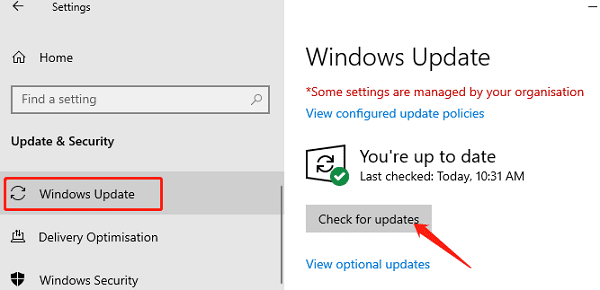
After installation, restart your computer and check if the issue is resolved.
Method 4: Copy OpenCL.dll from Another PC
Determine Your System Version:
For 32-bit Windows: Copy OpenCL.dll to C:\Windows\System32
For 64-bit Windows: Copy OpenCL.dll to C:\Windows\SysWOW64
Register the OpenCL.dll File:
Right-click the Start button and select Windows PowerShell (Admin).
In the PowerShell window, enter the following command and press Enter: regsvr32 opencl.dll
Restart the affected application and check if the "OpenCL.dll not found" issue is resolved.
Method 5: Use a DLL Repair Tool
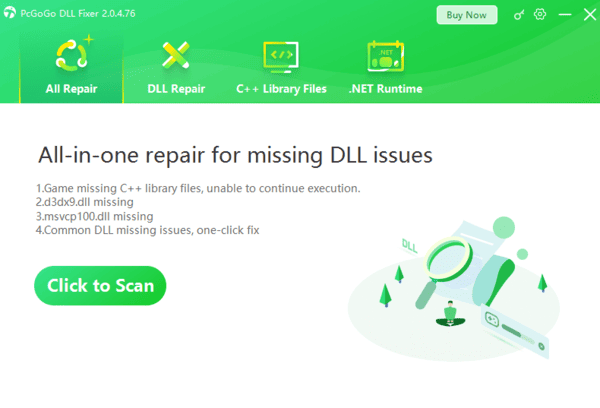
DLL files are crucial for the proper functioning of Windows. If these files are missing or corrupted, programs may fail to start or even cause severe system issues. PcGoGo DLL Fixer is a simple and efficient tool that can help you quickly fix DLL-related errors, saving time and improving efficiency.
By following the above methods, you can effectively fix OpenCL.dll-related errors and restore the normal operation of your computer and software. If the issue persists, consider seeking assistance from a professional technician.




