

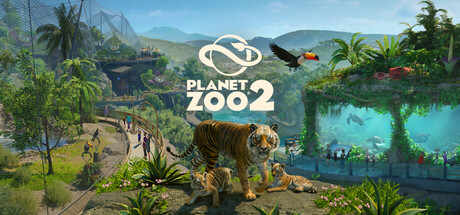
Planet Zoo 2 brings players into a detailed world of wildlife management, habitat construction, and animal conservation. With customizable aquariums, aviaries, and wildlife reserves, the game offers plenty of opportunities to create and manage unique environments.
However, unexpected crashes can interrupt the experience. Some players may encounter freezing during loading, sudden desktop exits, or stability problems while managing large zoos. These interruptions can be particularly frustrating when working on detailed habitats or important saved games.
This guide explains how to troubleshoot Planet Zoo 2 crashes on Windows 10 and Windows 11, with practical solutions for startup failures, freezing, and gameplay interruptions.
Method 1: Repair Damaged or Missing Game Files
Incomplete downloads, interrupted updates, or storage errors can damage game installation files. When important files are missing or corrupted, Planet Zoo 2 may fail to launch or crash while loading certain resources.
If you installed the game through Steam, use its built-in verification feature.
Open Steam.
Navigate to Library.
Right-click Planet Zoo 2.
Select Properties.
Open Installed Files.
Click Verify integrity of game files.
Wait for the verification process to finish.
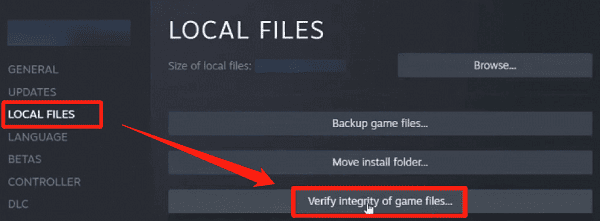
Steam will check the installation and replace files when necessary.
If you use another supported launcher, look for its equivalent repair or verification feature.
Once the process finishes, restart the launcher and test the game again.
Method 2: Adjust Graphics Options for Better Stability
Lower shadow quality.
Reduce demanding visual effects.
Adjust texture quality when video memory is limited.
Lower the display resolution if necessary.
Use a reasonable frame rate limit.
Disable unnecessary visual enhancements.
Method 3: Refresh Your Graphics Driver Installation
Graphics drivers are essential for rendering game environments, lighting, textures, and visual effects.
An outdated or incompatible graphics driver may cause rendering failures, freezing, or unexpected crashes.
If Planet Zoo 2 keeps crashing, checking the graphics driver is a useful starting point.
Update Drivers Automatically with Driver Sentry
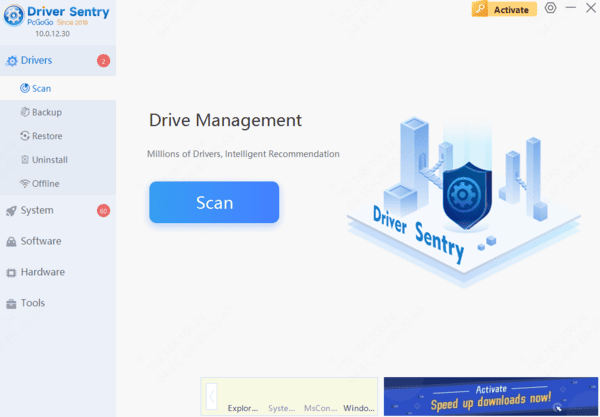
Driver Sentry is a Windows driver management utility that can check supported hardware for missing, outdated, or problematic drivers.
Download Driver Sentry.
Install and launch the application.
Click Scan to examine your computer.
Review the available graphics driver updates.
Install an appropriate compatible driver if available.
Get Graphics Drivers from the Manufacturer
You can also update graphics drivers manually.
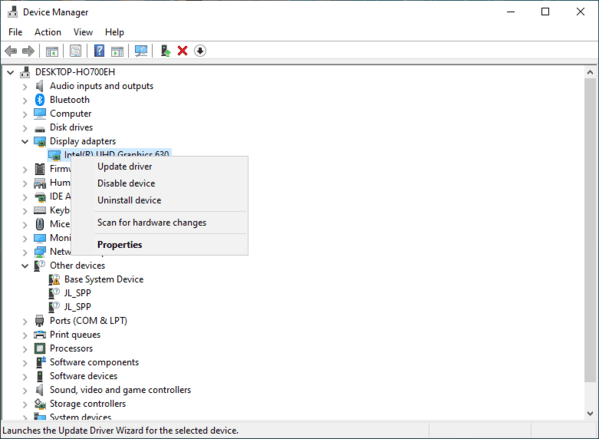
Right-click the Start button.
Select Device Manager.
Expand Display adapters.
Identify your graphics card.
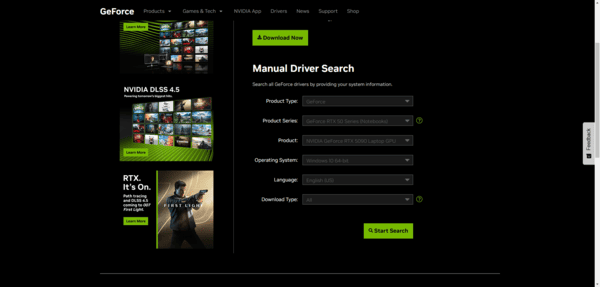
Visit the official NVIDIA, AMD, or Intel website.
Download the appropriate driver for your hardware.
Install it and restart your computer.
Method 4: Eliminate Conflicting Background Software
Some background applications can interfere with game rendering or consume resources needed for smooth gameplay.
Common examples include screen recording tools, overlays, hardware monitoring utilities, and unnecessary startup programs.
To reduce possible conflicts, temporarily close applications that are not needed while gaming.
If you use Steam, you can disable its overlay:
Open Steam.
Go to Library.
Right-click Planet Zoo 2.
Select Properties.
Open General.
Disable Enable the Steam Overlay while in-game.
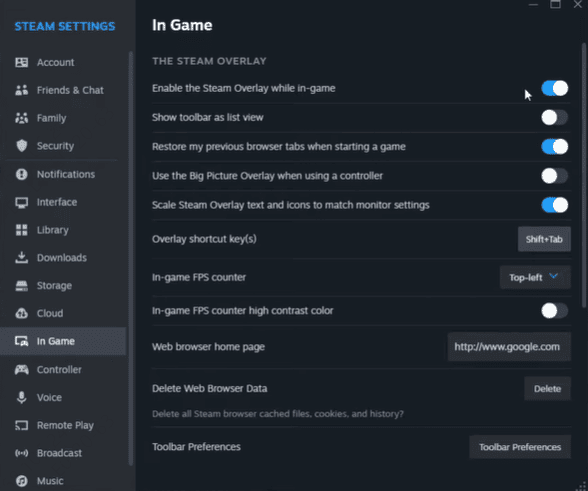
You can also temporarily disable Discord Overlay and other optional gaming overlays.
Method 5: Examine Windows and Hardware Health
If Planet Zoo 2 continues crashing after driver and game file checks, investigate Windows and hardware stability.
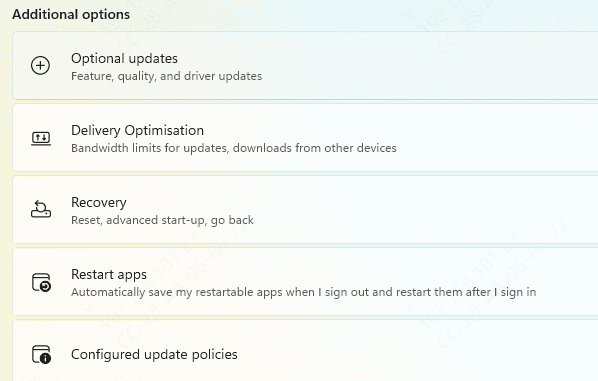
Install Windows Updates
Press Windows + I.
Open Windows Update.
Click Check for updates.
Install applicable updates.
Restart your computer.
Repair Windows System Files
If other applications also crash or Windows behaves unexpectedly, check for damaged system components.
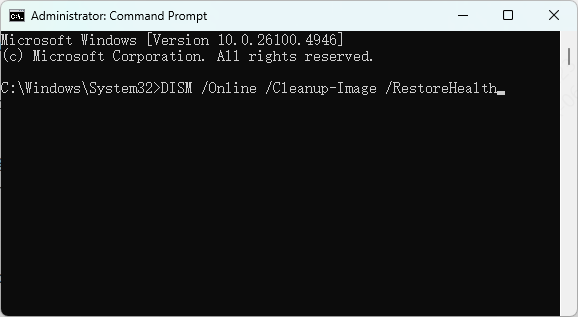
Open Command Prompt as an administrator and run:
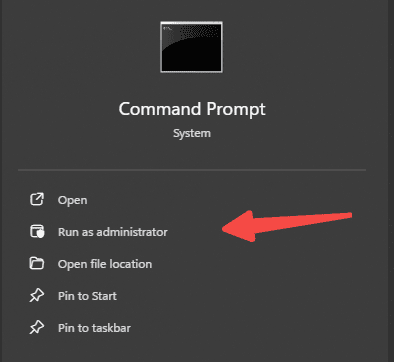
DISM /Online /Cleanup-Image /RestoreHealth
Wait for the command to finish.
Then run:
sfc /scannow
Restart Windows after the scan completes.
Monitor Hardware Performance
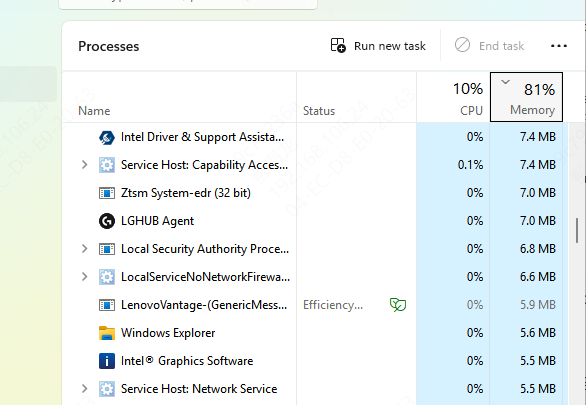
Use Task Manager or a trusted hardware monitoring utility to check CPU, GPU, and memory usage.
Pay attention to unusually high temperatures or repeated resource limitations.
If you use custom CPU or GPU overclocking settings, temporarily restore supported default values.
Unstable hardware configurations may cause crashes during demanding gameplay.
Method 6: Rebuild the Game Installation
If none of the previous methods resolves the problem, reinstalling Planet Zoo 2 may help eliminate persistent installation errors. Before proceeding, protect your saved games and important settings.
Tips to Keep Planet Zoo 2 Running Smoothly
Maintaining a stable gaming environment can reduce the risk of future crashes.
Keep Planet Zoo 2 updated and use compatible graphics drivers.
Maintain sufficient free storage space and avoid running unnecessary background applications during gameplay.
Monitor hardware temperatures, particularly when managing demanding environments.
Avoid unstable overclocking and make regular backups of important saved zoos.
After major game updates, review official announcements for compatibility information and known issues.
Conclusion
Planet Zoo 2 crashing on Windows can be caused by outdated graphics drivers, corrupted game files, demanding settings, or software conflicts. Start by updating the game, verifying installation files, and adjusting graphics settings. If crashes persist, check system stability and background applications. Driver Sentry can also help identify and update problematic drivers. Following these steps can improve game stability and provide a smoother gaming experience.