
Is your Qualcomm Atheros QCA61x4A wireless network adapter not working, frequently disconnecting, or disappearing from Device Manager? Driver-related problems with this Wi-Fi adapter can prevent Windows 10 or Windows 11 from connecting to wireless networks, cause unstable internet speeds, or display errors such as Code 10 and Code 43. These issues may result from outdated or corrupted drivers, incorrect power management settings, Windows updates, or network configuration conflicts. Fortunately, several troubleshooting methods can help restore your wireless connection. This guide explains how to fix Qualcomm Atheros QCA61x4A driver errors by updating drivers with Driver Sentry, adjusting adapter settings, resetting network configurations, and reinstalling the wireless driver.
1. Adjust Power Management Settings
Open Device Manager and locate the QCA61x4A adapter.
Right-click it and select "Properties".
Go to the "Power Management" tab and uncheck "Allow the computer to turn off this device to save power".
Click "OK" and restart your computer.
2. Reset Network Settings
Open Settings (Press Win + I).
Go to "Network & Internet" > "Status".
Scroll down and select "Network Reset", then click "Reset Now".
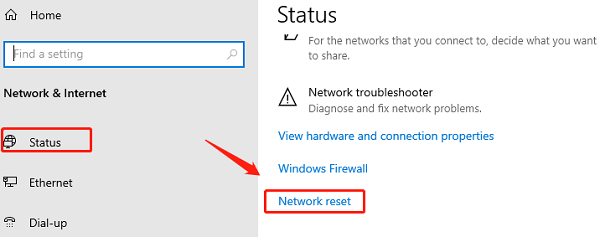
Restart your computer and reconnect to Wi-Fi.
3. Check for Driver Updates
Outdated or corrupted drivers are a common cause of Qualcomm Atheros QCA61x4A driver errors. Ensuring your driver is up to date can effectively resolve this issue. It's recommend to use Driver Sentry to automatically detect and update drivers, saving time and reducing the risk of downloading or installing the wrong driver.
Click the download button to get the latest version of Driver Sentry. Install and open the software, then click "Scan".
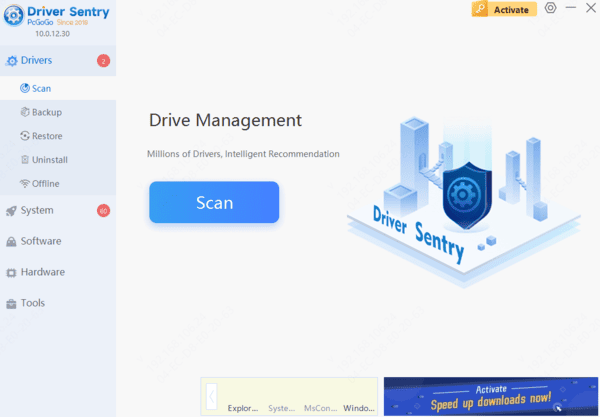
After scanning, locate the Qualcomm adapter driver in the results list and click "Upgrade".
Once the update is complete, restart your computer to apply the changes.
4. Re-enable Qualcomm Adapter Driver
Press Win + X and select "Device Manager".
Expand "Network Adapters" and find Qualcomm Atheros QCA61x4A Wireless Network Adapter.
Right-click it and select "Disable device".
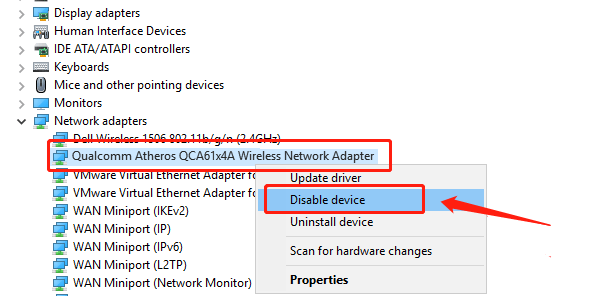
Right-click again and select "Enable device".
Restart your computer and check if the network is working.
5. Check for Windows Updates
Press Win + I to open Settings.
Go to "Update & Security" > "Windows Update".
Click "Check for updates" and install any available updates.
Restart your computer and check if the issue is resolved.
6. Reinstall Qualcomm Adapter Driver
Open Device Manager, right-click Qualcomm Atheros QCA61x4A Wireless Network Adapter, and select "Uninstall device".
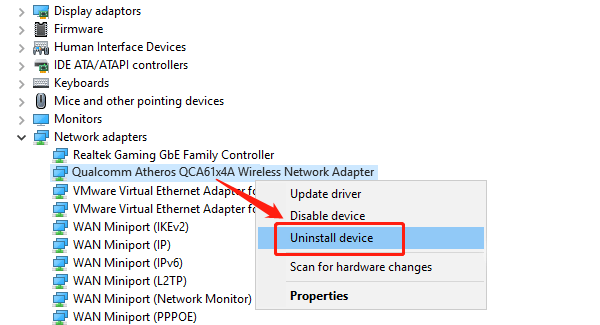
In the confirmation window, check "Delete the driver software for this device" and click "Uninstall".
After uninstalling, visit your computer manufacturer's website or Qualcomm's official site to download the latest driver compatible with your device and OS.
Install the downloaded driver following on-screen instructions.
Restart your computer and test your network connection.
By following these steps, you can usually fix Qualcomm Atheros QCA61x4A driver errors. If the issue persists, consider contacting your device manufacturer or a professional technician for further assistance.