






Some keyboard letters may stop working during daily use, disrupting your tasks. This article offers solutions to resolve the issue quickly.
1. Update Drivers
Outdated or corrupted drivers can cause certain keyboard letters to stop functioning. Updating the keyboard driver promptly can effectively resolve the issue. Using Driver Sentry is recommended for automatically detecting and updating drivers, saving time and avoiding the risk of downloading or installing incorrect drivers.
Download the latest version of Driver Sentry, install it, and open the software. Click "Scan".

Once the scan is complete, the results will display uninstalled or outdated drivers. Locate the keyboard driver in the list and click the "Upgrade" button.
After the update, restart your computer to ensure the updated driver functions correctly.
2. Test Keyboard Connection
For wired keyboards:
Ensure the keyboard is properly plugged into the computer's USB port.
If the port is loose or dusty, try switching to another USB port.
For wireless keyboards:
Confirm the keyboard's batteries have sufficient power. Replace them if necessary and reconnect the keyboard.
Press the pairing button on the keyboard and re-pair it with the computer.
Disconnect the keyboard, wait a few seconds, reconnect it, and check if it functions normally.

3. Disable Power-Saving Features
Right-click the Start menu and select "Device Manager".
Expand the "Keyboards" section and locate your keyboard device (e.g., "Standard PS/2 Keyboard").
Right-click the device and select "Properties".
Navigate to the "Power Management" tab and uncheck "Allow the computer to turn off this device to save power".
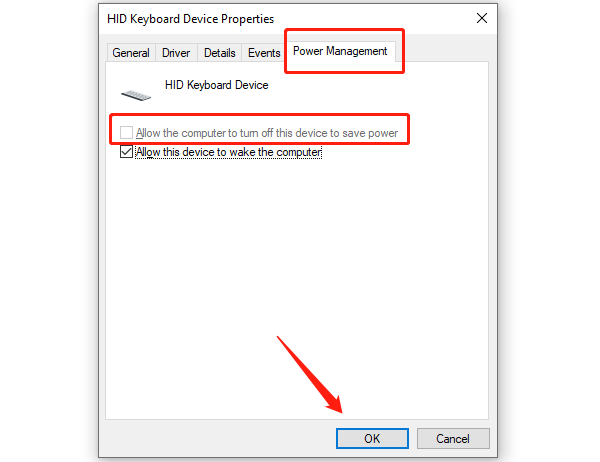
Click "OK" and restart your computer to test the results.
4. Try Other Devices
If using a laptop's built-in keyboard, connect an external keyboard and test its functionality.
Connect the keyboard to another computer or device to see if the keys work. If they don't, the keyboard may be faulty.
Press "Win + Ctrl + O" to open the on-screen keyboard and test whether it can input characters normally.
5. Run Windows Troubleshooter
Press Win + I to open Settings, then select "Update & Security" > "Troubleshoot".
Click "Additional troubleshooters" on the right.
Locate "Keyboard", click it, and select "Run the troubleshooter".
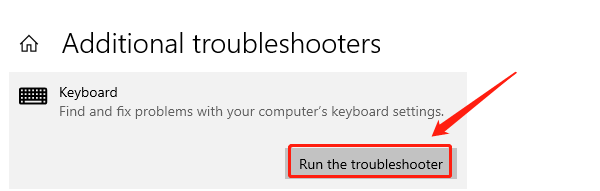
Windows will automatically detect and attempt to fix keyboard issues.
Follow the system's recommendations to complete the repair or get further guidance.
6. Check Keyboard Hardware
Clean the keyboard:
Use a soft brush to remove dust around the keys to prevent them from sticking.
For mechanical keyboards, remove the keycaps of the problematic keys and clean underneath.
Inspect the cable:
Ensure the keyboard cable is not damaged or broken. Replace the cable or keyboard if necessary.
Eliminate hardware damage:
If the physical structure of a key is damaged (e.g., a broken spring), you may need to replace the keyboard or contact repair services.
Follow these steps to fix unresponsive letter keys on your keyboard. If the issue persists, seek professional technical support.
See also:
How to Fix WiFi Not Connecting to the Internet
6 Methods to Fix Wireless Network Adapter Disabled




