






Many Windows 10 users may encounter situations where desktop icons suddenly disappear, making it difficult to access commonly used files, folders, and applications. This issue can be caused by incorrect settings, system glitches, disabled icon display options, or corrupted system files. In this guide, we'll provide detailed solutions to help you restore missing desktop icons, troubleshoot the underlying causes, and get your Windows 10 desktop back to normal.
1. Update Graphics Drivers
Graphics driver issues can sometimes cause desktop icons to disappear. Updating the graphics driver promptly can help prevent such problems. Using Driver Sentry is recommended to automatically detect and update drivers, saving time and reducing the risk of downloading or installing incorrect drivers.

2. Check Desktop Icon Settings
Right-click an empty area on the desktop and select "View" from the context menu.
Ensure the "Show desktop icons" option is checked.
In the "View" menu, make sure "Auto arrange icons" and "Align icons to grid" are not enabled to avoid layout issues.
Adjust Personalization Settings:
Right-click an empty area on the desktop and select "Personalize".
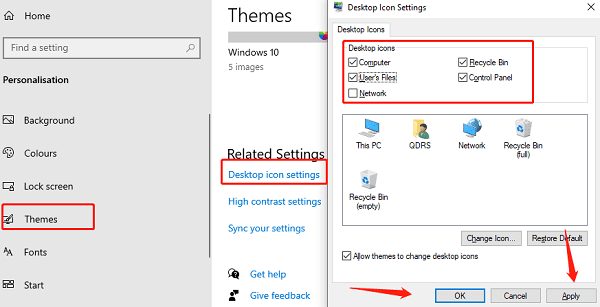
In the left-hand menu, click "Themes" and then "Desktop icon settings".
Select the icons you want to display (e.g., "Computer", "User's Files") and click "OK".
3. Restore Desktop Icons
Create a Shortcut:
Right-click an empty area on the desktop and choose "New" > "Shortcut".
Enter the path of the target file or folder (e.g., C:\Users\YourUsername\Documents) and click "Next".
Name the shortcut and finish.
Restore Default Desktop Icons:
Open "Desktop icon settings" (see step 2).
Check all default icons and click "Restore Default". Confirm by clicking "OK".
4. Rebuild the Icon Cache
Press Ctrl + Shift + Esc to open the Task Manager. Go to the "Processes" tab.
Locate "Windows Explorer", right-click it, and select "End Task".
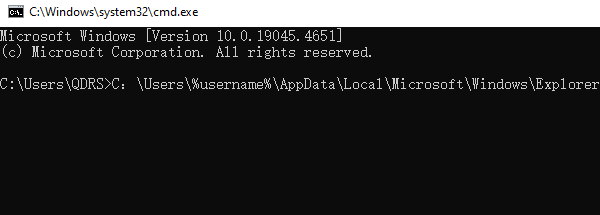
Press Win + R, type "cmd", and press Enter to open the Command Prompt.
Enter the following path and execute: C:\Users\%username%\AppData\Local\Microsoft\Windows\Explorer
In File Explorer, press Ctrl + F to activate the search bar.
Search for "iconcache" to find all files starting with iconcache, such as iconcache_16.db or iconcache_32.db.
Select all these cache files, right-click, and choose "Delete".
Restart your computer to check if the desktop icons reappear.
5. Run System File Checker (SFC)
Press Win + S to search for "cmd", right-click it, and select "Run as Administrator".
Type the following command and press Enter: sfc /scannow

The system will automatically scan and repair corrupted files.
Restart your computer after the process and verify if the issue is resolved.
6. Reset This PC
Press Win + I to open Settings, and navigate to "Update & Security" > "Recovery".
Click "Get Started" under Reset this PC.
Choose either "Keep my files" to retain personal files or "Remove everything" for a full system reset.
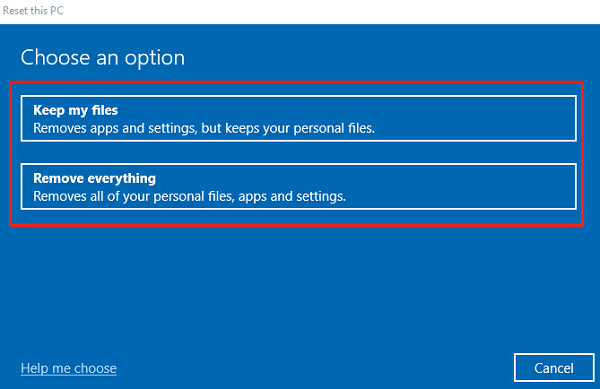
Follow the on-screen instructions to complete the reset. Check the desktop icons after the reset.
7. Perform a System Restore
Press Win + S and search for "Create a restore point". Open the System Properties window.
Under the "System Protection" tab, click "System Restore".
Select "Next" to view available restore points.
Choose a restore point created before the issue occurred, click "Next", and confirm.
The system will restart and apply the restore. Check if the desktop icons are restored after the process.




